


An invoice arrives showing 38.5 hours of virtual assistant work and two small purchases. The total might be correct, but can you tell which tasks used those hours, whether both purchases were approved, and what is still waiting for your sign-off?
A virtual assistant timesheet template makes that review easier when it records more than a list of hours. You need to see the work performed, the time being billed, any agreed monthly hour limit, and the receipts behind reimbursable expenses.
This free timesheet and expense log is designed for business owners working with contract virtual assistants. Your VA fills in the record for each billing period, and you review it before approving the amounts.
Get the template:
The workbook includes a blank reusable template, calculated totals, expense approval fields, and a separate fictional example.
This is a billing and reimbursement record, not a daily performance score. If you want to review completed tasks, blockers, and next actions, use the separate virtual assistant weekly report template.
What’s in the VA Timesheet & Expense Log?
The workbook has five working tabs, plus a fictional example showing how the information fits together.
| Tab | What it contains |
|---|---|
| Instructions | A short explanation of how to set up, complete, submit and review each billing period. |
| Settings | The agreed dates, rate, currency, monthly hour block, rounding rule and expense approval terms. |
| Time Log | Individual work entries, decimal hours, billable status, task descriptions, output links and calculated amounts. |
| Expenses | Purchase details, business purpose, approval references, receipts and review status. |
| Summary & Approval | Hours totals, remaining block balance, approved expenses, review total and client sign-off. |
The additional Fictional Example tab demonstrates a completed period without using any real client information.
You can keep one blank master workbook and create a separate copy for every billing period. That gives each review a clear start, end and approval record.
Set the Rules First: The Settings Tab
Before your VA enters time or expenses, complete the Settings tab. A spreadsheet cannot settle a billing disagreement if the underlying terms were never agreed.
Billing period, rate and currency
Start with the client name, VA name, billing-period dates, agreed hourly rate and currency.
For example, you might set the period from November 1 to November 30, select USD and enter an agreed hourly reference rate of $20.
These entries tell the workbook which period it covers and how to calculate an hourly value when one is relevant.
The billing period should match the arrangement in your contract or service agreement. My virtual assistant contract template includes fields for payment model, included hours, invoice timing and expense rules.
Monthly hour block, if applicable
If you buy a fixed number of hours, enter that allowance in Hours agreed in block.
Suppose your arrangement includes 30 hours. The Summary tab can compare that allowance with the billable hours recorded during the period.
A balance helps you see whether work is staying within the agreed capacity.
If you’re unsure what block to agree in the first place, the virtual assistant hours planning guide explains how to estimate capacity from recurring tasks.
Important: An hourly calculation is not automatically an additional charge on a prepaid monthly block. The workbook displays an hourly reference value, but its review total excludes that value when Monthly block or Project fee is selected. Fixed fees, overages and rollover rules should follow your actual agreement.
Rounding and what counts as billable
The rounding field offers three choices:
0: no rounding.
0.1: round each entry up to the next tenth of an hour.
0.25: round each entry up to the next quarter-hour.
These are options, not a universal industry standard.
If you agree to quarter-hour rounding, a 12-minute entry could become 0.25 hours. Repeated rounding can change a period’s total, so choose the rule together rather than applying it without discussion.
Also agree what counts as billable time. Internal training, rework, meetings or tool setup might be billable under one arrangement and excluded under another.
The Time Log has a Billable? field so those decisions remain visible.
Expenses and who approves them
The Settings tab also records whether purchases need pre-approval, any agreed threshold and the name of the person reviewing them.
A useful default is to require written approval before the VA spends money on your behalf.
This isn’t an unusual contract concept. For example, Bonsai’s published virtual assistant contract template includes written pre-approval for reimbursable expenses.
Your agreement might permit certain purchases below a specified amount without separate approval. If so, record that rule before expenses arise.
How Your VA Fills In the Time Log
Each row represents one block of work. The description should give you enough context to understand what was done without requiring a separate explanation.
Here’s what each column records:
| Column | What to enter |
|---|---|
| Date | When the work happened, such as November 5. |
| Start | Optional start time, such as 09:00. |
| End | Optional finish time, such as 10:30. |
| Hours | Decimal hours, calculated from Start and End or entered manually, such as 1.50. |
| Rounded hours | The hours after applying the agreed rounding setting. Calculated automatically. |
| Task / workstream | A consistent category, such as CRM / data or Content / WordPress. |
| Work description | A specific result, such as “Updated 42 CRM contacts; flagged 6 incomplete records.” |
| Billable? | Yes or No, based on the agreed terms. |
| Output link | A document, spreadsheet, ticket or other place to check the result. |
| Notes | An exception or context that doesn’t fit in the description. |
| Client query | A question or clarification entered during review. |
| Hourly value | The calculated billable hours multiplied by the reference rate. |
Decimal hours are easier to multiply by an hourly rate than an hh:mm text entry. For example, one hour and 30 minutes equals 1.50 decimal hours, not 1.30.
The workbook can calculate a duration from Start and End, including a work session that crosses midnight. If you’re entering a duration manually, type its decimal-hour equivalent in the Hours cell instead. Doing that replaces the automatic duration formula for that particular row.
The Rounded hours and Hourly value columns calculate from the entered information.
For task descriptions, try to capture the action and the result.
“Worked on CRM” is difficult to verify.
“Standardized 42 CRM records and flagged 6 incomplete contacts” gives the client something specific to check.
Your VA doesn’t need to describe every mouse click. A clear task outcome and a link to the relevant work are usually more useful. This follows the same principle as giving clear instructions to your virtual assistant: define the result rather than leaving important details open to interpretation.
Logging Expenses With Proof
The expense section records purchases made for the client’s work, not ordinary personal spending.
Typical examples might include an approved stock-image licence, postage or a temporary software subscription needed for a task.
| Column | What it records |
|---|---|
| Date | The purchase date. |
| Vendor / item | What was purchased and from whom. |
| Business purpose | Why the purchase was needed. |
| Category | Software, stock assets, postage, printing or other. |
| Amount | The actual amount spent, without an assumed markup. |
| Currency | The currency shown on the expense. |
| Pre-approved by | Who gave permission, where required. |
| Approval date / reference | The date or written message confirming approval. |
| Receipt link / file name | Where the supporting document can be found. |
| Status | Submitted, Approved, Queried or Rejected. |
| Client note | An explanation, question or decision from the reviewer. |
The workbook also includes a calculated Proof check column. It flags an approved expense when a receipt is missing, required pre-approval details are absent or the currency doesn’t match the Settings tab.
Only approved expenses that pass those checks are included in the summary total.
For example, a VA might enter:
Vendor / item: Stock-image licence
Business purpose: Image for an approved blog post
Amount: $14.99
Pre-approved by: Client, November 8
Receipt: Link to purchase receipt
Status: Approved
That entry is easier to review than “Images, $14.99.”
Record keeping matters beyond the immediate approval conversation. The IRS guidance on documenting expenses discusses supporting records such as receipts and bills, although its tax rules have a different purpose from this client-side reimbursement template.
This spreadsheet is a general record-keeping aid, not tax, payroll or legal advice. Follow your own contract and seek appropriate professional advice on tax treatment or record-retention requirements.
If your business uses accounting software to retain receipts, make sure your VA has suitable access rather than unnecessary financial permissions. See my guide on giving a VA access to QuickBooks and Xero for the distinction.
Checking and Approving a Period
A timesheet is most useful when both sides know what happens after the VA submits it.
The submission routine
Agree on a submission day, such as the last working day of the billing period.
Before submitting, the VA should complete the time entries, add relevant output links, attach expense receipts and fill in the Submitted by and Submission date fields.
Entries requiring clarification can remain visible rather than being quietly removed.
Review the summary before opening individual rows
Start with the Summary & Approval tab.
It brings together total hours, billable and non-billable hours, the remaining monthly block, the hourly reference amount and approved expenses.
A focused review can begin with five questions:
Do the logged dates and total hours fit the billing period?
Do the billable flags match what was agreed?
Can I spot-check two or three output links?
Does each approved expense have the required permission and receipt?
Are any expenses queried, rejected or recorded in another currency?
The review doesn’t need to become a second performance-management process.
You can examine hours and expenses for billing while separately reviewing the quality of the finished work.
Query a row without losing the record
If an entry needs clarification, use the Client query or Client note field.
For example:
“Can you confirm whether the additional 1.25 hours on November 12 were approved as part of the original task?”
The VA can respond with context or evidence, and the client can make a decision using the same record.
The Summary tab provides approval fields for the reviewer, review date, overall status and comments.
Available decisions include Approved, Approved with queries and Returned.
Keep the reviewed copy as the record for that period. For shared Google Sheets, the spreadsheet collaboration guide explains how version history and protected formula ranges can help prevent accidental changes.
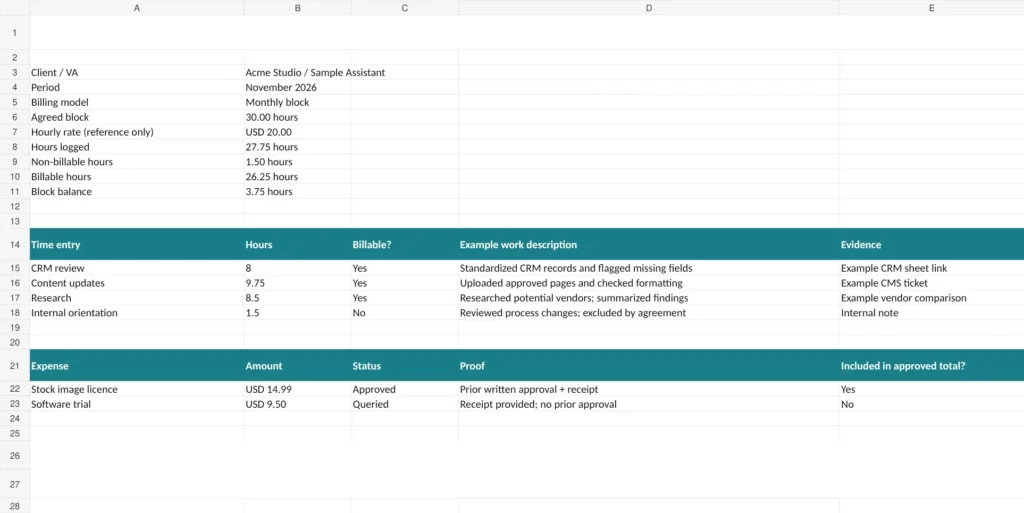
Example: One Fictional Billing Period
Consider Acme Studio, a fictional small business using a contract VA for recurring administrative and content work.
The agreement covers a 30-hour monthly block. The reference hourly rate is $20, but the block has already been arranged separately.
During November, the VA records:
| Workstream | Hours | Billable? |
|---|---|---|
| CRM review and updates | 8.00 | Yes |
| Content and WordPress updates | 9.75 | Yes |
| Vendor research | 8.50 | Yes |
| Internal orientation | 1.50 | No |
| Total | 27.75 |
The resulting calculation is:
Total hours logged: 27.75
Non-billable hours: 1.50
Billable hours: 26.25
Hours remaining in the 30-hour block: 3.75
Hourly reference value: $525.00
The $525 is only the calculated hourly equivalent of the billable time. It isn’t automatically added to the fee for an already purchased monthly block.
Now suppose the VA also records two purchases.
Expense A: A $14.99 stock-image licence with written pre-approval and a receipt. The client approves it.
Expense B: A $9.50 software trial with a receipt but no required pre-approval. The client queries it.
Only the $14.99 approved purchase is included in the approved expense total. The $9.50 item remains visible, but isn’t added while its status is Queried.
The client can now approve the supported amounts without losing track of the disputed purchase.
These are entirely fictional figures. The completed example in the workbook shows how to record the same situation.
Adapting the Template to How You Pay Your VA
Pure hourly arrangement
Set the billing model to Hourly, enter the agreed rate and leave the monthly hour block empty if you don’t use one.
The period review total combines the calculated billable hourly amount with eligible approved expenses in the selected currency.
Monthly hour block or retainer
Enter the agreed block and choose Monthly block.
The Summary tab shows how many billable hours were used against the allowance. It still displays an hourly reference amount, but excludes that amount from the period review total to avoid treating a prepaid block as a second hourly charge.
Any overages, unused hours or rollover arrangements need to be handled according to your agreement.
Project fee with occasional expenses
Choose Project fee and use the Time Log only if tracking hours is genuinely useful for planning or explaining the work.
The Expenses tab can still record approved reimbursable purchases. The project fee itself remains governed by the agreed project terms and is not calculated by this workbook.
What This Sheet Isn’t
This template is deliberately limited to reviewing contract VA hours and expenses.
It isn’t employee payroll software, an overtime calculator, a tax-compliance system or advice on worker classification.
It also isn’t monitoring software. It doesn’t take screenshots, score keyboard activity or track whether someone appears online.
Time records can help explain billing and capacity, but they aren’t a complete measure of productive work. My guide on tracking virtual assistant productivity covers that different question.
Finally, this sheet doesn’t replace your weekly progress report. The two records answer different questions: one explains the work and decisions; the other explains the hours and expenses being reviewed for payment.
Timesheet Questions, Answered
Should a virtual assistant round their time?
Only according to the agreement. You can choose no rounding or an agreed increment such as 0.1 or 0.25 hours. Confirm the rule before applying it to recorded work.
Are decimal hours better than hours and minutes?
For spreadsheet calculations, decimal hours are generally more convenient. One hour and 45 minutes is 1.75 hours. The optional Start and End columns let the workbook calculate the decimal duration when both times are entered.
Should the VA fill in the log daily or weekly?
Ideally, record work close to when it happens so details aren’t forgotten. That could mean after each work session or at the end of the day. The complete record can still be submitted once per agreed billing period.
Can I use the template in Excel and Google Sheets?
Yes. The workbook is available as an Excel file and a copyable Google Sheet. Google also provides instructions for working with Excel files in Sheets.
Check the formulas, date formats and dropdowns after making changes to the structure.
What if my VA already uses a time-tracking tool?
You can use an exported time report as supporting evidence. Copy the relevant hours into the log or include an accessible report link so the period can be reviewed alongside expenses and approval notes.
How long should receipts be kept?
Follow the retention rules that apply to your business, contracts and jurisdiction. Ask your accountant or another qualified adviser when you need a specific retention period.
Keep Each Billing Period Clear
A useful VA timesheet begins with agreed terms: which time is billable, how rounding works, what expenses require approval and when the period will be reviewed.
Keep descriptions specific, link to completed work where practical, and preserve the decision on any questioned entry. You should be able to review the record without piecing together an entire month’s messages.
At Boost VA, I offer ongoing virtual assistant support through hourly and monthly hour-plan arrangements. If you’re looking for reliable help with recurring business operations, you can explore my virtual assistant support options.
Get the reusable workbook: Google Sheets copy or Excel download.