


You scheduled a WordPress post for 9:00. At 9:15, you check the site and it still isn’t live.
The post may still show Scheduled, or WordPress may label it Missed schedule. Either way, the immediate question is the same: what went wrong?
A WordPress scheduled post not publishing doesn’t necessarily mean somebody entered the date incorrectly. Scheduled publishing depends on WP-Cron, the system WordPress uses for time-based tasks. According to WordPress’s developer documentation on WP-Cron, scheduled posts are among the core features that use it, and WP-Cron checks for due tasks when a page load reaches WordPress.
That difference matters because the visible problem and the lasting fix are often two separate jobs.
First, get the post live if it should already be public. Then work out why the scheduled task didn’t run when expected.
What “Missed Schedule” Actually Means in WordPress
Scheduling a post can feel like setting an alarm for an exact time.
WordPress works a little differently.
WP-Cron maintains a list of scheduled tasks. When WordPress receives a page load, it checks whether anything is due and runs those tasks.
It isn’t a continuously running system scheduler.
WordPress gives a simple example in its developer documentation: if something is scheduled for 2:00 PM but no page load reaches WordPress until 5:00 PM, the task may not run until that later visit.
For scheduled posts, that means the publication time is when the task becomes due. WordPress still needs its scheduling system to run the task.
On many websites, that works quietly enough that nobody notices the mechanism.
You notice it when the mechanism doesn’t fire on time.
First, Get the Post Live
If the scheduled time has already passed and the article should be public, solve the visible problem before spending an hour diagnosing the scheduler.
Open the post and confirm that it is the correct approved version.
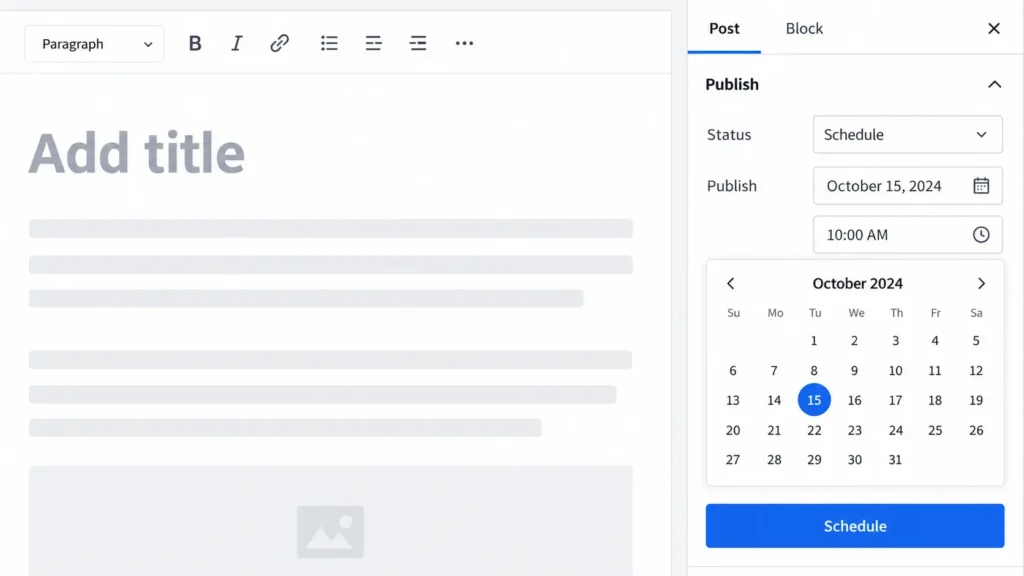
Then check the date and time shown in the Publish setting. WordPress’s Page/Post Settings documentation explains that the Publish control can be set to Immediately or moved to a future date and time.
If the post should already be live and you have authority to publish it, publish it now.
Before moving on, record three things if the problem is likely to need escalation:
the intended publication time;
the time you noticed the problem;
the status WordPress displayed.
That gives whoever investigates the root cause something more useful than “the post didn’t publish.”
Publishing manually fixes today’s missed post.
It does not explain whether tomorrow’s scheduled post will fail too.
The Most Common Causes of a Missed WordPress Schedule
Not enough page loads around the scheduled time
This is the simplest explanation.
WP-Cron is triggered through page loads rather than running continuously in the background like a normal server cron.
Sites with little activity around the scheduled time are therefore more exposed to a delayed task.
That doesn’t mean every low-traffic website will constantly miss posts. It means fewer requests create fewer opportunities for WordPress to notice that a scheduled task is due.
If misses seem to happen mainly overnight, on weekends, or during other quiet periods, traffic timing is worth investigating.
Caching or CDN behaviour can interfere on some setups
Caching doesn’t automatically break scheduled publishing.
However, on some configurations, full-page caching, a CDN, a firewall, or another server layer can prevent requests from reaching WordPress in the way WP-Cron expects.
This is setup-specific, so avoid the assumption that “cache is the problem” just because the site uses caching.
A useful comparison is whether scheduling begins working after a cache or infrastructure change, or whether other WordPress scheduled tasks are also becoming overdue. Liquid Web’s missed-schedule troubleshooting guide lists caching, server restrictions, plugin conflicts, and resource limits among the possible causes worth investigating.
If you don’t control those layers, collect the symptom and escalate it rather than changing server or CDN settings blindly.
The WordPress site timezone doesn’t match the intended schedule
A timezone mismatch is slightly different from a true cron failure.
The post may be behaving according to the site’s configured time while the person scheduling it is thinking in another timezone.
WordPress’s General Settings documentation recommends selecting a city in the correct timezone and shows the site’s local time after the setting is saved.
Before treating a post as technically broken, confirm which timezone WordPress is actually using.
If the schedule says 9:00 but the site and the content calendar are using different timezones, the post may simply be due at a different 9:00 than the person checking it expected.
WP-Cron has been disabled without a working replacement
Some WordPress setups deliberately disable the default page-load version of WP-Cron and replace it with a server scheduler.
That can be a good reliability improvement.
The problem is disabling the first system without successfully configuring the replacement.
WordPress documents the DISABLE_WP_CRON setting as part of its instructions for connecting WordPress to a system task scheduler.
If WP-Cron has been disabled and no server task is reliably calling wp-cron.php, scheduled posts and other timed WordPress jobs can stop running when expected.
This is not normally something an Editor-level publishing VA should fix independently.
A plugin, hosting rule, or server problem is affecting scheduled tasks
If traffic and timezone look normal, the problem may sit deeper in the WordPress installation or hosting environment.
Possible causes can include plugin conflicts, blocked loopback requests, firewall rules, failed background requests, or host-level resource problems.
One useful clue is scope.
If one post missed once, investigate carefully before assuming the whole site has a technical problem.
If scheduled posts repeatedly fail and other cron events are overdue too, the scheduler itself deserves attention.
How to Tell Which Cause You’re Dealing With
Start with checks that don’t require changing the site.
First, reopen the failed post and confirm the scheduled date, time, and current status.
Next, confirm the site’s timezone against the timezone used in your editorial calendar.
Then look for a pattern. Does the problem happen mainly during quiet periods? Did it begin after a cache, plugin, security, or hosting change? Is it one post, or are several scheduled tasks behaving strangely?
You can also run a controlled test.
Schedule a non-critical test post a short time ahead, then leave it alone and check whether it publishes normally. The purpose isn’t to keep creating test posts until one succeeds. It is to learn whether the failure is repeatable.
If you have Administrator access and need to inspect WordPress cron events directly, WP Crontrol can show scheduled events and warn about events that have missed their schedule.
Its current WordPress.org listing supports WordPress 7.1 and notes that managing cron events requires the manage_options capability, which Administrators have by default.
That permission boundary is useful.
The person who notices the publishing failure does not automatically need enough access to modify the system that caused it.
Who Can Fix What on Your Team
WordPress’s default roles already create a useful separation.
An Editor can publish and manage posts, including posts belonging to other users. An Author can publish and manage their own posts. Administrator capabilities go further and include site settings and plugin administration on a normal single-site installation.
The exact permissions can change when a site uses custom roles or plugins, so treat the table below as a default-role guide rather than a substitute for checking your own configuration. The full default capability breakdown is available in the WordPress Roles and Capabilities documentation.
| Task | Editor / Author | Administrator | Host |
|---|---|---|---|
| Publish a missed post | Editor: yes. Author: own posts | Yes | Not normally needed |
| Confirm the post’s scheduled date and status | Yes for posts they can access | Yes | No |
| Schedule a test post | Yes within their publishing permissions | Yes | No |
| Check or change the site’s timezone | Not by default | Yes | No |
| Install or manage a cron diagnostic plugin | Not by default | Yes on a standard single site | No |
| Inspect cron events with WP Crontrol | Not by default | Yes by default | No |
Change wp-config.php | No | Only with appropriate file/server access | Often |
| Configure a real server cron | No | Only with hosting/server access | Usually |
| Investigate server cache, blocked requests, or hosting limits | Usually escalate | May investigate available settings | Usually owns the server-side checks |
For an Editor-level VA or content coordinator, that creates a sensible boundary.
They can notice the miss, verify the post, publish it when authorized, run a basic publishing test, document what happened, and send a useful escalation.
They do not need unrestricted administrator or hosting access merely because they schedule content.
That matches the wider principle of giving an assistant limited access for the work they actually need to perform.
It is also worth recording the escalation owner in your blog publishing workflow. “VA schedules the article” is only half the instruction if nobody knows who owns repeated scheduling failures.
Lasting Fixes, From Lightest to Most Reliable
A missed-post plugin can be a safety net
Plugins exist specifically to look for posts that have missed their scheduled time and publish them afterward.
One example is Missed Scheduled Posts Publisher, which says it checks for missed scheduled posts every fifteen minutes.
Treat that type of plugin as a safety net, not proof that the underlying scheduling system is healthy.
There is another reason to check before installing rather than blindly following an old tutorial: at the time this article was reviewed, that plugin’s WordPress.org listing was tested only through WordPress 6.9.7, while current WordPress releases have moved beyond that version.
Compatibility can change, so check the current plugin listing and your own WordPress version before using it.
For diagnosis, WP Crontrol is a different tool. It helps an Administrator inspect the cron system itself rather than simply rescuing missed posts.
A real server cron is the stronger fix when timing matters
For publishing that needs to happen reliably without depending on page loads, a system scheduler is the more direct solution.
WordPress’s own developer documentation recommends connecting wp-cron.php to the system task scheduler when tasks need to run at dependable intervals.
The important order is:
Configure and test the replacement scheduler.
Confirm it is calling WordPress correctly.
Only then disable the default page-load WP-Cron if that is part of the setup.
Do not start by adding DISABLE_WP_CRON and assume the hosting side will take care of itself.
If server cron, hosting panels, command-line access, or wp-config.php aren’t already part of your normal WordPress responsibilities, send the requirement to the site Administrator or hosting provider.
The lasting fix should reduce manual rescues, not introduce a new reliability problem.
Make Scheduled Publishing Someone’s Job
A missed post becomes much easier to handle when the workflow already answers two questions.
Who checks that the post actually went live?
Who owns the scheduler when it doesn’t?
The person handling publishing can perform a quick live check after an important scheduled release. If the post missed its time, they can publish it when authorized, record what happened, and escalate a repeat problem with useful details.
The Administrator or host can then investigate the mechanism instead of starting from a vague report.
That is a cleaner split than giving every publishing user enough access to change plugins, configuration files, cache rules, and server cron jobs.
One reliable scheduler and one clear escalation owner are more useful than repeatedly rescuing missed posts by hand.
At Boost VA, my WordPress support includes content publishing, troubleshooting, updates, and ongoing website operations. If scheduled publishing keeps failing, I can help with the publishing-side checks and WordPress troubleshooting, then make the technical escalation clear when the underlying fix belongs with an Administrator or hosting provider.