
How to Delegate Tasks Using Trello or Notion to a Virtual Assistant
You tell your virtual assistant about one task in email, another in chat, and a third during a call.
A few days later, both of you are trying to remember what is due, which instruction is current, and whether something is waiting for work or waiting for your approval.
You don’t necessarily need a more complicated project-management system. You need one place where delegated work has a clear owner, status, deadline, instructions, and review point.
If you want to delegate tasks using Trello or organize the same workflow in Notion, this tutorial shows you how to build that system from scratch.
The goal isn’t to compare every feature in Trello and Notion. It is to create a practical task board that you and your VA can start using.
If you haven’t decided which work should leave your plate yet, start with the Boost VA delegation matrix first. Once you know what you want to hand over, the next step is giving those tasks a clear place to live.
Start With the Same VA Workflow in Either Tool
Before opening Trello or Notion, decide what your task stages mean.
A simple three-column board with To Do, In Progress, and Done can work, but delegation often benefits from one extra stage because completion and approval aren’t always the same thing.
For a VA workflow, start with:
| Status | What belongs there |
|---|---|
| Backlog | Work you may delegate later, but that isn’t ready to begin |
| Ready for VA | Tasks with enough information for the VA to start |
| In Progress | Work the VA is currently handling |
| Review | Work completed by the VA that needs your approval or feedback |
| Done | Approved and fully completed work |
This creates an important distinction between “I finished my part” and “the entire task is complete.”
You can simplify the stages later if your work doesn’t need a review step.
The broader principle is the same one covered in my guide to tools for managing a virtual assistant: actionable work and deadlines should have an agreed home instead of being scattered across several conversations.
How to Delegate Tasks Using Trello
Trello is a good fit when you want a straightforward visual board without building a larger workspace around it.
Its basic structure is simple:
Board → Lists → Cards
For VA delegation, the board represents the shared workload, lists represent task status, and each card represents an assignment.
1. Create a Dedicated VA Board
Create a Trello board and give it a name that makes its purpose obvious.
For example:
VA Task Board
If the VA supports only one function, you can be more specific:
Marketing VA Tasks
Content Operations
SEO Support
Weekly Admin Tasks
Avoid mixing unrelated personal projects, client work, and delegated business tasks onto one board just because Trello makes it easy to add another card.
The VA should be able to open the board and immediately understand what work belongs there.
2. Create Your Five Lists
Add these lists from left to right:
Backlog
Ready for VA
In Progress
Review
Done
You don’t need a separate list for every possible situation.
If something is blocked, for example, you can add a label or comment explaining the problem instead of creating several additional columns.
3. Turn Each Assignment Into a Card
Create one card for each meaningful task.
A card title should tell the VA what needs to happen without requiring them to open it just to discover the subject.
Instead of:
Website
use:
Upload approved August blog post to WordPress
Instead of:
Contacts
use:
Verify 30 prospect contacts in the outreach sheet
Inside the card, add the information needed to perform the task.
A useful card might contain:
Expected outcome
Source files or links
Due date
Checklist
Important restrictions
Definition of done
Approval requirement
Instructions for handling missing information or blockers
If you regularly struggle with what to put inside the task itself, the task-brief method for giving clear VA instructions goes deeper into defining the outcome, source material, decision boundaries, deadline, and clarification path.
4. Invite Your VA to the Board
Trello’s current sharing process lets you add people from the board’s Share control. You can search for an existing Trello user or invite someone by email.
Atlassian’s guide to adding people to a Trello board explains the current invitation process and available board permissions.
For normal delegation, a regular Member role will usually be more appropriate than making the VA a board administrator unless the role genuinely requires administrative control.
There is another permission detail worth knowing: normal board members can see and edit the cards on that board. Trello doesn’t treat assignment to a card as a way to hide all the other cards from that person.
If one VA shouldn’t see another project, client, or sensitive workload, use a separate board rather than relying on card assignment for privacy.
5. Assign the VA to the Relevant Cards
Once the VA is a board member, add them to the cards they are responsible for.
Trello supports adding board members to individual cards. This makes ownership more visible and also connects the person to activity and notifications on that card.
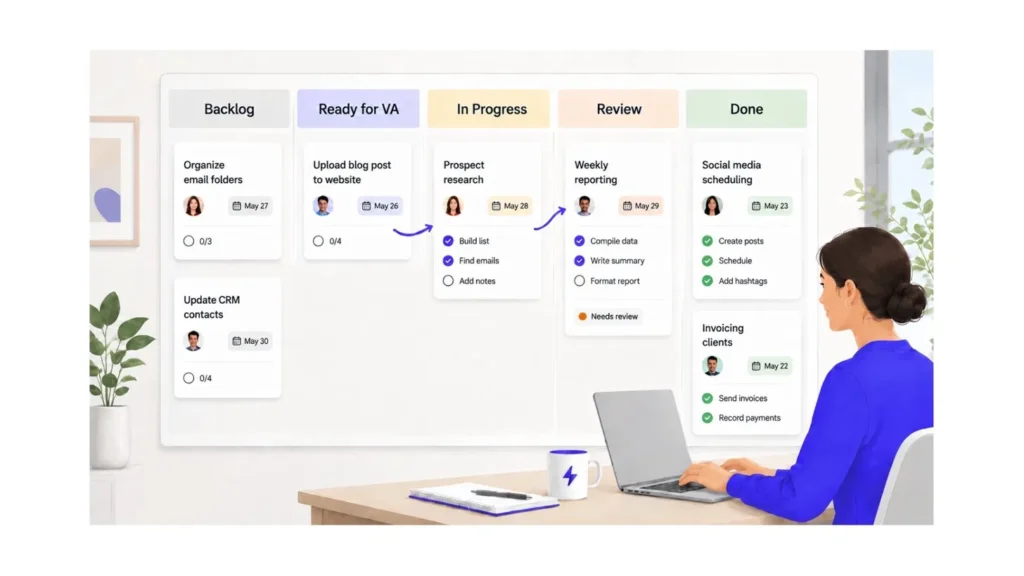
A simple working pattern is:
You: Move a properly briefed task into Ready for VA and assign the VA.
VA: Move it to In Progress when work begins.
VA: Move it to Review when the requested output is ready.
You: Review it, leave specific feedback if necessary, or move it to Done.
6. Use Checklists for Steps, Not for Separate Projects
A card can contain a checklist when one assignment has several repeatable steps.
For example:
Card: Publish approved blog post
Checklist:
Format article in WordPress
Add internal links
Add supplied images
Enter SEO title
Add meta description
Preview desktop
Preview mobile
Save as draft
Send for review
That is still one outcome, so one card makes sense.
If the checklist starts containing several unrelated deliverables with different deadlines or owners, split them into separate cards instead.
How to Set Up the Same Delegation System in Notion
Notion works differently because the task board can sit inside a larger workspace containing documentation, SOPs, meeting notes, and other reference material.
For delegation, you don’t need to build an elaborate workspace.
Start with one task database.
1. Create a VA Tasks Page
Create a page called:
VA Tasks
Inside it, create a database for delegated work.
Notion databases allow each task to exist as its own page while also carrying structured properties such as status, person, and date. You can then display the same database in different views.
Notion’s database setup guidance explains how database items work and how a board view can group those items by status.
2. Add the Properties You Actually Need
Start with:
| Property | Purpose |
|---|---|
| Task | Name of the assignment |
| Status | Backlog, Ready for VA, In Progress, Review, Done |
| Assignee | Person responsible |
| Due date | Expected completion or review date |
| Priority | Optional urgency indicator |
| Work type | Optional category such as SEO, Admin, Content, Research |
| Needs approval | Whether the task requires your review before completion |
Don’t add properties simply because Notion allows them.
If a field isn’t helping you assign, complete, filter, or review work, you may not need it.
3. Add a Board View Grouped by Status
Create a board view of the database and group it by the Status property.
Your columns can now mirror the Trello structure:
Backlog → Ready for VA → In Progress → Review → Done
Notion supports multiple views of the same database, including filtering and grouping. That means you can keep the main workflow board while creating another view for a specific purpose.
For example:
My Review could show only tasks with the status Review.
VA Tasks This Week could show only unfinished assignments due during the current week.
Content Tasks could show only work tagged Content.
The underlying tasks stay in the same database. You are simply viewing them differently.
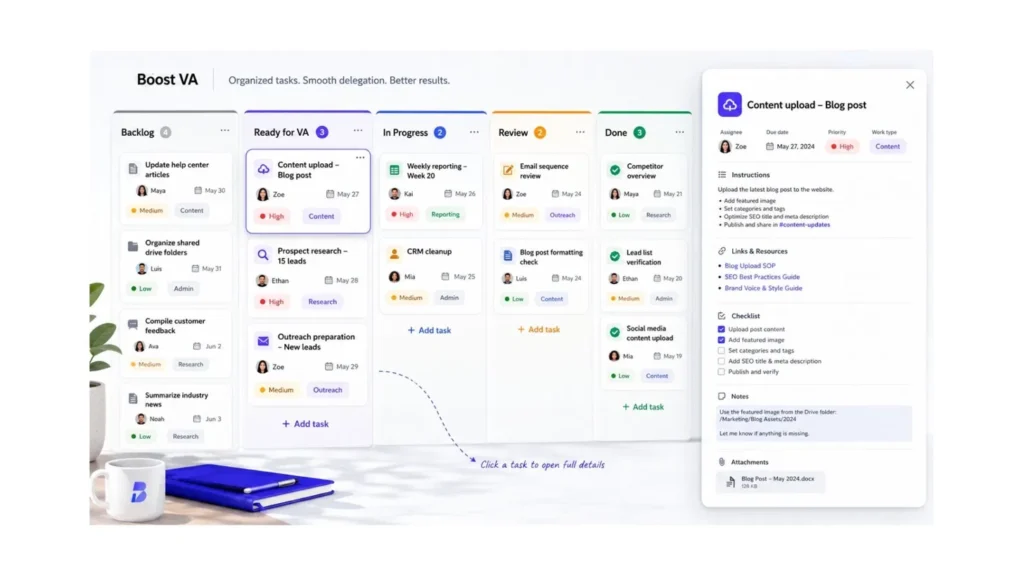
4. Put the Full Brief Inside Each Task
Each Notion database item is also a page.
That gives you room to place the task instructions directly inside the assignment instead of forcing everything into properties.
For a recurring research task, the page might contain:
Outcome: Update the prospect sheet with 25 qualified companies.
Source: Link to the current spreadsheet and qualification criteria.
Process: Follow the attached SOP.
Definition of done: 25 completed records with required fields populated and questionable entries flagged.
Approval: Move to Review when finished.
Blockers: Mention me in a comment if the source data conflicts or a required field cannot be verified.
You can also create a database template for recurring task types so you don’t rebuild this structure every time.
5. Share the Relevant Page With Your VA
Notion allows guests to be invited to individual pages rather than automatically giving them access to an entire workspace.
According to Notion’s current guest and member guidance, you can open Share, enter the person’s email, select an access level, and invite them to the page.
For a VA who needs to update tasks, Can edit access may be appropriate.
That doesn’t mean everyone should receive the broadest possible workspace access. Share the part of the workspace required for the responsibility.
If your VA needs several connected pages, check what those page and subpage permissions expose before inviting them.
This fits naturally with a good virtual assistant onboarding process, where access is prepared around the person’s actual responsibilities rather than opening every system immediately.
Copy This VA Delegation Board Template
Whether you choose Trello or Notion, you can use the same underlying template.
Board structure
Backlog → Ready for VA → In Progress → Review → Done
Every delegated task should answer these questions
| Task field | What to record | Example |
|---|---|---|
| Task | What needs to be completed? | Upload approved article to WordPress |
| Owner | Who is responsible for the next action? | VA |
| Outcome | What should exist when the work is complete? | Fully formatted WordPress draft ready for review |
| Source | Where should the VA get the current information? | Approved Google Doc |
| Due date | When is the output needed? | Thursday, 3:00 PM |
| Definition of done | What must be true before the VA moves it forward? | Formatting, links, images and SEO fields completed |
| Review | Does someone need to approve it? | Yes, client review |
| Blocker rule | What should happen when the VA cannot proceed? | Comment on the task and move it to Review if a decision is needed |
The important part isn’t having every field on every task.
It is removing assumptions that are likely to stop the work.
For a two-minute routine task, the card may be very short. For work involving several sources, judgment, or approval, the brief should contain more detail.
Trello or Notion: Which One Should You Use?
You don’t need both for the same task workflow.
| Choose Trello when… | Choose Notion when… |
|---|---|
| You mainly want a visual task board | You want tasks and documentation closely connected |
| Your workflow is easy to represent with cards and lists | You want several filtered views of the same task database |
| You want very little setup before assigning work | You already use Notion for SOPs, notes, or project documentation |
| Most task detail can live inside a card | Individual task pages need richer supporting information |
Neither choice fixes unclear delegation by itself.
A perfectly organized board can still contain vague assignments.
Pick the tool that is easiest for both sides to maintain, then focus on the quality of the tasks you put inside it.
Five Rules That Keep the Board Useful
Once the system is running, a few operating rules prevent it from becoming another abandoned task list.
1. Assign work through the task system
Chat can be useful for discussion, but if a conversation creates a new assignment, put the final task in Trello or Notion.
Otherwise, your board stops being a reliable view of the workload.
2. Make the current owner obvious
At any moment, you should be able to tell whether the next action belongs to you or the VA.
A task sitting in Review should mean something different from one sitting in In Progress.
3. Keep instructions with the task
Don’t make the VA search old chat messages to find the current brief.
Link the source or move the important instruction into the task.
4. Treat Review as a real status
If your approval is required, the task isn’t finished simply because the VA completed their portion.
A Review stage lets you see where work is waiting on you instead of assuming every delay belongs to the VA.
5. Don’t store passwords in ordinary task cards
Use platform-specific user access or an appropriate credential-sharing system instead of pasting passwords into Trello or Notion tasks.
Your task board should tell the VA what to do and where to work, not become an unnecessary collection of credentials.
Build the System Around the Work, Not the Tool
You can create the first version of this setup with five statuses and one well-written task.
That is enough to test whether the system actually improves delegation.
Add complexity only when a real need appears.
If you later discover that tasks need separate priority views, recurring templates, more detailed approval stages, or project-specific boards, you can add them deliberately.
The useful result is not having an impressive Trello board or Notion workspace.
It is being able to answer four questions quickly:
What needs to happen?
Who owns the next action?
What information should they use?
What happens when the work is finished or blocked?
At Boost VA, I work with founders and agencies across ongoing and project-based execution work. If you already know what needs to be delegated but need reliable support to keep that work moving, you can explore my virtual assistant support for founders and agencies.