

Your guest speaker is ready to present, but they have joined the webinar as an attendee and cannot get into the practice session. Meanwhile, people are registering, someone is asking for the joining link, and you are still checking your slides.
None of those problems requires you to rewrite the presentation. They require someone to manage the details around it.
If you are hosting your own webinar, workshop, or live training session, the webinar tasks to delegate to a virtual assistant are often the ones that pull your attention away from presenting: registration checks, speaker coordination, technical preparation, attendee questions, and the work that follows the recording.
The important distinction is between managing the event and making the decisions that belong to you.
A VA can handle much of the coordination, provided the responsibilities and access are agreed before the session starts. This guide follows a webinar from two weeks before the event to the morning after, using Zoom Webinars as the main platform example. Other webinar platforms have different roles and permission settings.
Decide Your VA’s Webinar Role Before You Delegate Anything
Giving someone a list of webinar responsibilities is only useful if they have the access needed to complete them.
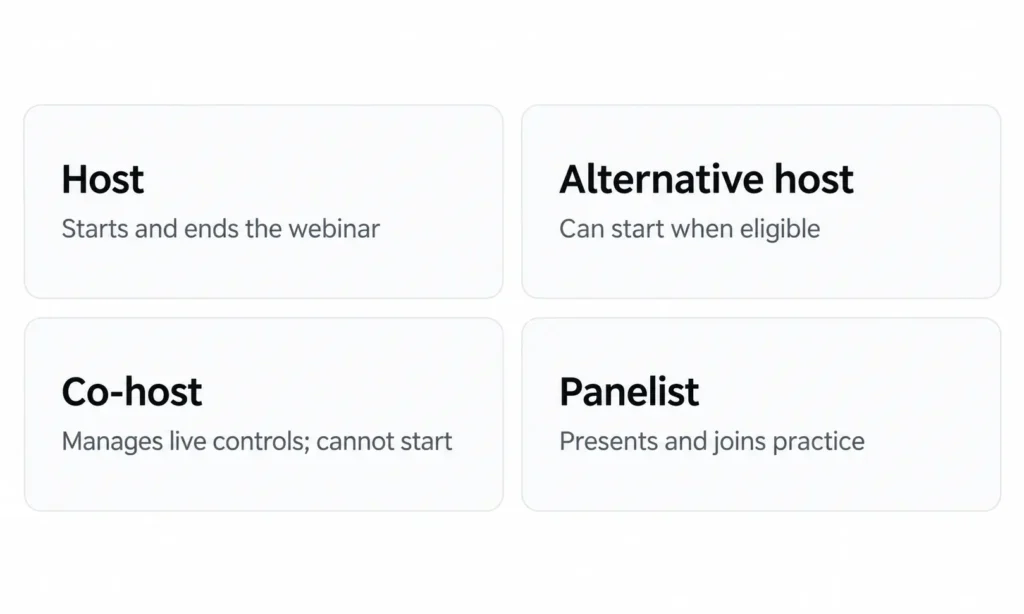
For Zoom Webinars, there are several roles worth distinguishing.
Host: The person who scheduled the webinar and holds the main hosting permissions. A webinar has one host. Certain controls, including creating polls, assigning a captioner, and ending the webinar, remain host-only.
Alternative host: An eligible person assigned ahead of time who can start the webinar if the original host is unavailable. Alternative-host eligibility depends on the account setup and applicable Zoom requirements.
Co-host: Someone the host assigns during the session to help manage participants, recording, polls, and other production controls. A co-host cannot start the webinar independently or be pre-assigned as a co-host.
Panelist: A participant who can speak, share video, and present when permitted. Panelists can join the practice session, making this a useful initial role for an assistant who will later be promoted to co-host.
According to Zoom’s webinar role documentation, the host can invite a person as a panelist and then promote them to co-host during the session.
For many owner-led webinars, that arrangement is enough. You handle the presentation and host-only decisions while your VA manages the approved production tasks.
If you need your assistant to start the webinar without you, investigate alternative-host eligibility in advance. Don’t assume an external contractor’s account will qualify for every role.
Also, avoid sharing your main host credentials simply to make delegation easier. Start with the permissions supported by the platform. My guide to sharing access safely with a virtual assistant explains why this is preferable to handing over unrestricted passwords.
Once the role is settled, the remaining work becomes much easier to assign.
Two Weeks Out: Build and Test the Registration Path
Registration is more than publishing a link.
Someone needs to check the information prospective attendees see, the details they submit, and what happens after they complete the form.
Make Sure Registration Works for an Actual Attendee
A VA with suitable access can help configure the approved registration details and test the experience before you begin directing people to the event.
The handoff might include:
Checking the title, date, time zone, description, and speaker information.
Preparing approved registration questions.
Setting up automatic or manual registration approval according to your instructions.
Checking confirmation messages and available reminder settings.
Registering with a test email address to confirm the attendee journey.
Testing the registration page and joining information on a mobile device.
Zoom supports custom registration questions, approval settings, and email notifications. However, some settings depend on your account configuration, and changing registration questions after people have registered may require them to register again.
That makes early testing especially useful.
The VA should also confirm which approval decisions they can handle. For an open educational webinar, you may be comfortable with automatic registration. For an invitation-only workshop, you may want to approve the guest list yourself.
The assistant can prepare the registration workflow without independently deciding who should attend.
Connect Registration Data to the Right Place
If the webinar supports an existing customer or marketing process, decide where registration records need to go.
Your VA can check whether the required fields are mapping correctly, whether the appropriate CRM tag is applied, and whether test registrations appear in the expected location.
For example, you might use an approved tag to distinguish people who registered for a client workshop from people who requested a general consultation.
The VA can check that the distinction is working and flag duplicates or missing information. They should not silently overwrite existing contact records.
This follows the same principle used when you keep CRM records organized: establish the data rules before someone starts changing records.
Registration confirmation and reminder settings belong in the event setup. Writing a promotional email sequence is a separate assignment. If that work is also being delegated, use the existing guide to email marketing tasks a VA can handle rather than folding an entire campaign into the webinar production brief.
One Week Out: Get Speakers and Panelists Ready
A speaker can have an excellent presentation and still lose valuable preparation time looking for the correct invitation, joining with the wrong account, or discovering a time-zone misunderstanding.
These are the details your VA can help resolve before the event.
Gather the Speaker Materials in One Place
For a webinar with guests or multiple presenters, the assistant can maintain a simple speaker tracker containing:
Confirmed speaker name and contact details.
Session time with the agreed time zone.
Approved biography and headshot.
Final slide deck and any supporting files.
Speaking order and expected segment length.
Rehearsal availability.
Outstanding questions or technical requirements.
You still approve who is speaking, the content they will present, and any commitments made to them.
The VA’s job is to make sure the practical information is complete and that every speaker knows what to expect.
Where participants are in different countries, put the time zone directly into the invitation rather than relying on everyone to interpret the event’s published time correctly. This is particularly important when coordinating work across different time zones.
Check Every Panelist Invitation
This is an important distinction in Zoom Webinars: a speaker’s panelist invitation is not interchangeable with an attendee registration link.
Zoom requires panelists to use their unique joining link, or sign in with the account email matching their panelist assignment, to enter with the correct permissions.
If they join as an ordinary attendee, they may not reach the practice session.
Your VA can help the host check the invitation list, confirm that each speaker received the correct joining instructions, and troubleshoot access before the live event.
Zoom also explains in its guide to adding webinar panelists that panelist names and email addresses cannot simply be edited after they are added. An incorrect entry needs to be removed and added again.
For larger events, the platform supports bulk panelist invitations through CSV import. For recurring webinars, remember that a panelist assignment can remain active across the series unless the person is removed.
One useful preparation step is to have the host export the panelist invitation list and make it available to the authorized person providing event support. Zoom’s export can include the unique joining URLs.
Treat those links as access information, not promotional links to share publicly.
Two to Three Days Out: Rehearse the Session, Not Just the Presentation
A rehearsal should test more than whether your microphone works.
It should confirm that the people responsible for different parts of the event can enter the correct room, use their assigned controls, communicate privately when something goes wrong, and move between presentation segments without confusion.
Coordinate the Practice Session
Zoom provides a webinar practice session that allows the host, eligible alternative hosts, and panelists to prepare before the broadcast begins.
Your VA can coordinate the rehearsal invitation, confirm the panelists are using the correct links, and record any issues that need attention before the actual event.
The rehearsal can cover:
Whether speakers can join with their intended roles.
Microphone, camera, screen-sharing, and presentation checks.
Speaker transitions and handoff cues.
Which person monitors attendee questions.
What happens if a presenter loses their connection.
Who starts the broadcast and who confirms it has ended.
Under Zoom’s practice-session rules, there is only one active practice session per webinar, and it can be used before the event date.
Recording settings also deserve attention. Zoom notes that cloud recording begins when the practice session is exited, while automatic computer recording, if enabled, can begin during practice.
Confirm the recording setup before treating a rehearsal as private, disposable preparation material.
Give the VA a Run-of-Show Document to Maintain
The most useful production document is a run of show.
It isn’t a complete script for what every speaker should say. It identifies what needs to happen at each point, who is responsible for the action, and what to do if that action cannot happen.
Here is a short illustrative example for a 45-minute client education webinar:
| Time | Segment | Responsible person | Platform action | If something goes wrong |
|---|---|---|---|---|
| 15 minutes before | Final preparation | Host and VA | Confirm audio, slides, and roles | Use agreed backup communication |
| 0:00 | Welcome | Host | Begin live broadcast | VA alerts host if attendees cannot join |
| 0:05 | Main presentation | Presenter | Display approved slides | VA identifies missing or incorrect slides |
| 0:25 | Audience poll | VA as co-host | Launch host-created poll | Skip if polling is unavailable |
| 0:35 | Questions | Host and VA | Surface relevant questions | VA flags unanswered questions |
| 0:45 | Close | Host | End webinar | VA confirms recording and follow-up status |
Illustrative example only. Adjust the sequence, responsibilities, and timing for your event.
The assistant can maintain this document, confirm the final version with each participant, and update it when a speaker or timing detail changes.
The host must create or edit Zoom webinar polls in advance. A co-host can launch an available poll during the webinar but cannot create it.
That is precisely the sort of permission detail the run of show should capture. Writing “VA launches poll” without checking that the host has created it leaves an avoidable problem for the live event.
For recurring sessions, the same structure can become a reusable event procedure. It should still be checked against each new webinar’s speakers, platform settings, and agenda.
During the Live Session: Separate Production From Presenting
When the webinar begins, the most valuable delegation is often happening out of view.
You may be explaining a concept, interviewing a guest, or answering an important question. Your assistant can watch the operational side of the session so you don’t have to keep interrupting yourself.
Let the Co-Host Handle Approved Production Controls
With the appropriate Zoom role and settings, a VA acting as co-host can help manage tasks such as:
Monitoring the attendee list and participation.
Launching polls that the host created.
Spotlighting the appropriate speaker.
Managing participant audio and video controls.
Monitoring and organizing Q&A and chat.
Starting or stopping cloud recording when authorized.
Helping move approved participants between attendee and panelist roles.
These responsibilities should be assigned before the event.
For instance, if a speaker finishes early, the VA should know whether to cue the next speaker, prepare the Q&A segment, or wait for a direct instruction.
Likewise, someone monitoring the questions should know whether to answer straightforward access queries directly or send substantive questions to the presenter.
Not every action belongs to the co-host. In Zoom Webinars, the host retains certain controls, including assigning captioning responsibilities and ending the webinar.
Your VA should never have to discover that boundary while the audience is watching.
Give Someone Ownership of Attendee Problems
Now imagine ten minutes into the session, someone reports that they registered but cannot get in.
A second attendee cannot hear the presentation. A panelist has opened the wrong invitation.
These problems can become distracting when they arrive in the same place as your presentation questions.
Your VA can act as a separate attendee help desk through an approved support channel.
For common issues, prepare a few response instructions in advance:
Someone can’t find the attendee link. The VA checks the approved registration and confirmation process and directs the person to the correct joining information.
A speaker joined as an attendee. The VA checks the speaker’s panelist invitation and coordinates with the host if a role correction is needed.
An attendee reports an audio problem. The VA provides the approved basic troubleshooting guidance and checks whether the issue appears isolated or widespread.
Someone asks about a refund, a paid offer, or a commitment made during the session. The VA flags the request for the person authorized to make that decision.
The objective isn’t for the assistant to improvise answers to every question. It is to resolve routine problems within agreed boundaries and bring the right issues to you.
That is the same distinction behind deciding what customer-support questions a VA should handle or escalate.
If only one person is presenting and taking questions, this separate support channel can be particularly useful. It lets you stay engaged with the session without ignoring the people who need help joining it.
The Morning After: Handle the Replay and Follow-Through
The live session ending doesn’t mean the operational work is finished.
There may be a recording to prepare, attendance records to organize, speaker materials to archive, and follow-up responsibilities to hand over.
A VA can help with the practical work once the appropriate recording and account permissions are available.
Start with the recording. Confirm that it has finished processing, identify the correct version, and check whether it contains anything that should not be published.
Depending on the workflow, the assistant can download or organize the approved file, apply the agreed naming convention, and prepare a replay page in WordPress.
The host or relevant content owner should approve what becomes publicly available.
Replay preparation is worth treating as a real deliverable. In ON24’s 2026 webinar benchmarks summary, the company reports substantial on-demand engagement among viewers on its own platform. Those figures aren’t a universal prediction for smaller webinars, but they illustrate why the recorded version matters.
Next comes the attendee data.
Your VA can prepare available registration and attendance reports, compare them using agreed definitions, and flag discrepancies rather than treating registration as proof of attendance.
If the information goes into a CRM, establish which records may be updated and which require review.
Finally, transfer the approved follow-up work to the appropriate process.
That might mean supplying the attendance segment to the person managing the email campaign, preparing a replay link for an approved message, or identifying sections of the recording suitable for later content reuse.
Keep those marketing assignments separate from live-event production. If the recording will become articles, short clips, or social content, the guide to repurposing content with a virtual assistant covers that subsequent workflow.
Before using registration details for marketing follow-up, check that the planned communication respects the permissions and preferences people provided.
A clean handoff is more useful than automatically putting every registrant into another campaign.
Running an In-Person Seminar Instead?
Some of the same preparation tasks can still be delegated remotely.
A VA could organize the registration list, prepare approved name-badge data for printing, coordinate speaker information, track attendee confirmations, or organize survey responses afterward.
However, physical responsibilities need someone at the venue.
On-site check-in, resolving room problems, coordinating equipment with venue staff, and handling last-minute physical arrangements cannot be completed remotely in the same way.
For an in-person event, specify who owns the venue-side work and who owns the remote administrative work. The two roles should have a clear way to communicate when the attendee list or schedule changes.
Agree on These Five Things One Week Before the Event
You don’t need to turn a single webinar into a large project.
You do need to settle the details that would otherwise interrupt the live session.
Before event week, confirm:
The VA’s platform role: Which tasks can they perform, and what role or account access do they need?
Who manages joining information: Who maintains the correct attendee, speaker, and rehearsal links?
Who maintains the run of show: Who updates the agenda, timing, speaker transitions, and backup arrangements?
What gets escalated: Which questions can the VA resolve independently, and which decisions return to you?
Who controls the close: Who starts the session, checks recording status, and uses host-only controls such as ending the webinar?
Your presentation should still be yours. The reason to delegate webinar logistics is to keep the surrounding work organized while you concentrate on the people attending and the information you are there to share.
If you have an upcoming webinar or recurring online workshop and need help with the administrative preparation, registration checks, speaker coordination, or post-event organization, get in touch with me at Boost VA to discuss the specific project support you need.