

You’re about to send your virtual assistant your LinkedIn password.
It seems like a simple solution. Your assistant already helps with research, content, or lead generation. They could probably take care of connection requests, messages, and follow-ups too.
But LinkedIn treats personal accounts differently from many other business tools.
Its User Agreement prohibits account sharing, including sharing login credentials or copying session cookies. That creates an important question: Can a virtual assistant manage your LinkedIn without logging in as you?
Yes, there are useful ways to get support. The important distinction is where that work happens.
Virtual assistant LinkedIn access works differently for personal profiles and Company Pages. A Company Page has built-in administrator roles, while personal-profile support generally needs to happen outside your account.
Here’s how to separate the two and set up a practical working arrangement.
What LinkedIn’s Rules Actually Say About Letting Someone Else In
Before deciding which tasks to delegate, understand three rules that affect how someone can work on LinkedIn.
1. You cannot share your personal account.
Section 2.2 of LinkedIn’s User Agreement says members agree not to share or transfer their accounts.
Section 8.2 also prohibits attempting to use another person’s account, including through shared login credentials or copied cookies.
This applies even when the person accessing your account is an employee, contractor, or trusted virtual assistant.
The distinction matters because your personal LinkedIn profile represents you. LinkedIn expects activity from that account to be performed by its account holder.
2. A password manager doesn’t override LinkedIn’s rules.
Password managers are useful for securely managing credentials on services that permit sharing. They can help businesses control access and avoid sending passwords through ordinary messages.
However, making a password easier to share securely doesn’t change whether the platform allows account sharing.
For other business applications, my guide on sharing passwords safely with a virtual assistant explains how to use individual accounts, managed credentials, and restricted permissions.
LinkedIn personal profiles are an important exception. The better approach is to keep your login private.
3. Automation tools have their own restrictions.
LinkedIn’s prohibited software and extensions policy restricts third-party tools that scrape information, modify the website’s appearance, or automate activities through unauthorized methods.
That includes tools designed to automate connection requests, messages, likes, comments, or other account activity in ways LinkedIn prohibits.
Using such software can lead to account restrictions.
What about browser extensions and session-cookie tools?
Some services advertise LinkedIn account management through browser extensions, saved sessions, or remote inbox access.
Be careful with those claims.
A tool asking for your LinkedIn session cookie appears to fall within the User Agreement’s prohibition on copying cookies to access another person’s account.
Similarly, an extension that automates LinkedIn activity isn’t automatically acceptable because it describes itself as a productivity tool rather than an outreach bot.
Before using any external LinkedIn management service, check what information it requires, how it interacts with your account, and whether LinkedIn expressly permits that method.
Don’t assume that a third-party service is LinkedIn-approved simply because it has a polished dashboard or advertises delegated access.
Your Company Page Is Where a VA Can Work Inside LinkedIn
There is a legitimate way to give someone direct administrative access on LinkedIn: assign them a role on your Company Page.
This is different from sharing your personal profile.
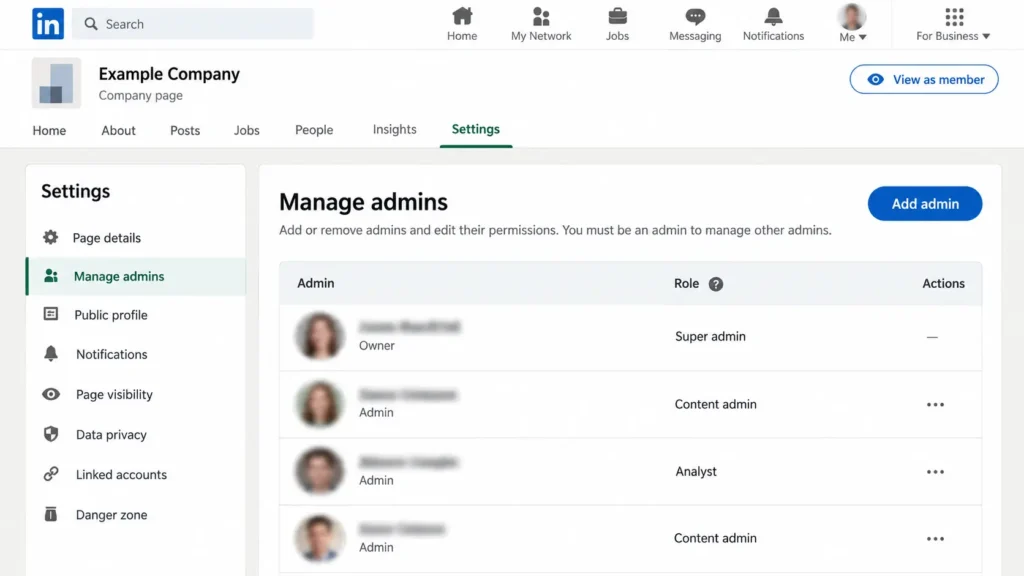
LinkedIn Pages support administrator roles that determine which Page-related activities a member can perform. Your virtual assistant signs into their own LinkedIn account and accesses your Company Page through the permissions you assign.
LinkedIn confirms this in its Page administration guidance.
That makes a Company Page a more practical place to delegate publishing and reporting activities directly.
Which LinkedIn Page role should you give your assistant?
LinkedIn’s Page admin roles documentation identifies three main administrator roles.
Super admin
This role provides broad control over the Page, including managing other administrators, editing information, and deactivating the Page.
It generally isn’t necessary for routine virtual assistant work.
Content admin
This role allows someone to create and manage Page content, including posts and events. It also includes certain additional capabilities, such as boosting Page posts.
For a VA responsible for Company Page publishing, this is usually the most relevant role to examine.
However, you should understand the full permissions before assigning it. Content admin is not a limited draft-writing role.
Analyst
This role allows access to Page analytics without the wider publishing and administration permissions.
If your assistant only needs to review Page performance and prepare reports, Analyst may be sufficient.
The choice should follow the actual responsibility.
Someone preparing monthly Page performance reports doesn’t necessarily need publishing access. Likewise, a VA preparing content drafts outside LinkedIn may not need Page access at all.
How to add a VA to your LinkedIn Company Page
If you’re a Page super admin, LinkedIn provides a built-in process for adding another administrator.
According to its instructions for adding Page admins, the process is:
Open your Company Page’s super admin view.
Select Settings from the left menu.
Open Manage admins.
Choose the Page admins tab and select Add admin.
Search for the assistant’s LinkedIn account.
Select the appropriate role and save the change.
LinkedIn also applies eligibility conditions to adding members, including connection or Page-following requirements. If the assistant doesn’t appear in the selection list, check those conditions before troubleshooting further.
Once access is assigned, your assistant uses their own LinkedIn login to enter the Page admin view.
You haven’t shared your personal password, and you can manage their Page permissions separately.
What if your VA supports LinkedIn advertising?
LinkedIn also has separate paid-media administrator roles, including Sponsored Content poster, Lead Gen Forms manager, and Landing Pages manager.
Those permissions serve different purposes from ordinary Page content management.
For example, managing lead forms or preparing sponsored content may require a specific paid-media role and access through the relevant advertising tools.
Don’t give someone broader Page or advertising permissions merely because they occasionally help prepare ad copy or organize campaign assets.
If you’re using LinkedIn Business Manager, check the permissions in that environment too. Page access and advertising access should reflect the actual work being assigned.
For regular organic posting, a social media content calendar can help keep drafts, approvals, publishing dates, and live-post records organized without giving every contributor administrative access.
Your Personal Profile: The VA Prepares, You Press Send
What if most of your LinkedIn activity happens through your personal profile?
That’s common for founders, consultants, recruiters, and other professionals who build relationships using their own names.
Unlike a Company Page, LinkedIn doesn’t provide an equivalent general-purpose administrator role for managing someone else’s personal profile.
That doesn’t mean you have to complete every part of the work yourself.
It means your assistant can support the preparation while you remain responsible for actions inside your account.
What your VA can prepare without using your login
Consider a consultant who wants to reconnect with relevant industry contacts but doesn’t have time to organize the research and message preparation.
Instead of giving the assistant access to the consultant’s LinkedIn inbox, the assistant can work with an approved research brief and a shared document.
That support might involve checking permitted public or business sources, identifying relevant companies, preparing short context notes, drafting outreach messages, and organizing follow-up reminders.
A VA can also prepare content ideas, edit post drafts, and organize material that the account owner will review before publishing.
The important distinction is that the assistant prepares information and content without operating the client’s personal profile.
This article doesn’t need to repeat every prospecting task. My guide to virtual assistant sales prospecting covers the preparation work in more detail, including contact research, message drafting, and follow-up organization.
For LinkedIn specifically, the operating boundary is what matters.
Research should also respect the platform’s data-use rules. Manually preparing a limited, relevant brief doesn’t give permission to scrape profiles, bulk-export LinkedIn information, or copy restricted data into another system.
Use authorized sources and retain only information you’re entitled to use.
What stays with the personal account owner
The account owner should personally perform actions tied to their LinkedIn identity, including:
Sending connection invitations and personal messages.
Accepting or declining connection requests.
Publishing posts from their personal profile.
Liking or commenting as themselves.
Reviewing and responding to personal inbox conversations.
The assistant can make these actions easier to complete by preparing accurate information beforehand.
For example, instead of telling your VA, “Send a message to these 20 people,” you could ask:
“Research these approved contacts, prepare a short reason for reaching out to each one, and draft a message for my review. I will handle the LinkedIn invitations.”
That creates a usable deliverable without transferring control of the account.
Make the handoff easy enough to use
A preparation system shouldn’t require you to work through another complicated spreadsheet every time you want to send a message.
Keep the handoff simple.
A small shared sheet or project view can contain the person’s name, approved contact reference, reason for outreach, draft message, review status, and next action.
Your assistant prepares the information. You review it, make any necessary changes, and complete the action inside LinkedIn.
Afterward, you update the shared status or tell the assistant which approved records to update.
This creates a clear sequence:
VA prepares → You review → You send → VA updates the approved tracking record.
The same approach works for personal-profile posts.
Your VA can maintain a draft calendar and organize supporting materials. You review the final wording and publish it from your account.
This is particularly useful when your assistant already supports content planning or research but doesn’t need direct access to your LinkedIn identity.
Don’t plan around a fixed invitation allowance
LinkedIn limits invitation activity and applies different conditions to personalized invitation notes depending on account features.
Its guidance on personalized invitations and InMail describes different allowances for Basic and Premium accounts.
However, published guidance and reports about the precise allowance for free accounts have not always been consistent.
Check the allowance displayed in your own account before planning an outreach routine.
Also, don’t treat estimates from outreach software vendors as official weekly invitation limits. LinkedIn doesn’t publish a universal weekly number that every member can safely rely on.
More importantly, an available invitation allowance isn’t permission to send irrelevant promotions.
LinkedIn’s Professional Community Policies prohibit using invitations for spam or promotional messages to people you don’t know.
A smaller number of genuinely relevant invitations is more consistent with professional networking than pushing volume simply because a tool or account limit appears to permit it.
The Grey Areas: Delegated Inboxes, Engagement, and Premium Tools
Some LinkedIn support requests fall between straightforward drafting and direct account management.
These deserve a closer look rather than a blanket assumption that every productivity tool is acceptable.
Can a third-party app give your VA access to your personal inbox?
Some applications offer shared or delegated LinkedIn inbox features.
The key question is how that access works.
If a service requires your login credentials, session cookies, or unauthorized browser automation, it may conflict with LinkedIn’s User Agreement.
An application advertising delegated inbox access is not, by itself, evidence that LinkedIn has approved its method.
Before using one, verify its access mechanism and look for direct confirmation from LinkedIn that the relevant integration or activity is authorized.
Until that is established, the outside-the-account preparation model is the more defensible choice.
Can an assistant like or comment on posts for you?
A virtual assistant can identify relevant discussions, suggest responses, and help draft thoughtful comments.
But posting those comments through your personal account is another matter.
LinkedIn emphasizes authentic participation and prohibits spam, repetitive engagement, and unauthorized automated activity.
The better approach is to have your assistant flag worthwhile discussions and prepare possible responses. You then decide whether the conversation interests you and contribute personally.
That also helps avoid comments that technically sound professional but don’t represent what you think.
Does Sales Navigator or Recruiter change the answer?
LinkedIn offers paid products such as Sales Navigator and Recruiter with features that differ from ordinary personal accounts.
However, buying a paid subscription doesn’t automatically authorize another person to operate your personal account.
If your organization has team subscriptions, check the current product documentation or ask LinkedIn about the specific seat and permission arrangements available under your plan.
Don’t assume that Company Page admin permissions apply to Sales Navigator, Recruiter, or your personal messages.
The same distinction applies to Premium membership. Additional messaging features don’t override the account-sharing provisions of the User Agreement.
Inside or Outside? Check Before Delegating a LinkedIn Task
The easiest way to apply these rules is to classify each responsibility by where it needs to happen.
Use this checker before giving your assistant an assignment.
| LinkedIn task | Where the work happens | Final action | Important note |
|---|---|---|---|
| Research relevant companies and contacts | Outside the client’s personal account | VA prepares; owner reviews | Use permitted sources and avoid scraping |
| Draft personal invitation messages | Outside the account | Owner sends | Check current invitation limits |
| Prepare follow-up messages | Outside the account | Owner sends | Keep personal conversations under owner control |
| Write personal-profile posts | Outside the account | Owner publishes | Owner reviews and approves the final copy |
| Publish Company Page posts | Inside the Page, with an appropriate role | Assigned Content admin | Check the role’s full permissions |
| Review Company Page analytics | Inside the Page, with Analyst access | Assigned Analyst | Publishing permissions may not be necessary |
| Prepare LinkedIn advertising material | Outside the account, or through authorized paid-media access | Authorized account user | Verify the specific advertising permissions |
| Access the owner’s personal profile using a shared password | Not recommended | No handoff | LinkedIn prohibits account sharing |
| Automate invitations using unauthorized bots or extensions | Not recommended | No handoff | Risks breaching LinkedIn’s software rules |
The checker answers the access question, but you still need a practical handoff.
A simple LinkedIn preparation brief
Use this when an assistant is supporting your personal networking or outreach.
Account owner: [Name]
Purpose: [Networking, recruiting, partnership research, or another approved goal]
Approved audience: [Relevant people, companies, roles, or industries]
Permitted research sources: [Sources your business and applicable platform rules allow]
Shared working location: [Document, spreadsheet, or project folder]
Required preparation:
A short reason each suggested contact or discussion is relevant.
The permitted source or reference supporting that reason.
A proposed message or content draft.
A review status and clear next action.
A note when information is uncertain or needs a decision.
Approval rule: The account owner reviews and personally performs all personal-profile actions.
Tracking rule: The assistant updates the shared record using approved information supplied or confirmed by the owner.
Restrictions: No shared LinkedIn credentials, copied session cookies, unauthorized scraping, or prohibited automation.
This gives your assistant a defined responsibility while making the account boundary clear.
It also creates a useful starting point for measuring whether the preparation is genuinely saving you time. If the drafts regularly need complete rewrites or the research isn’t relevant, improve the brief before increasing the workload.
What If Your VA Has Already Been Logging In as You?
If you’ve previously shared access to your personal LinkedIn profile, you can change the arrangement without abandoning the work your assistant has been doing.
Start by securing the account.
Change your LinkedIn password and review the active sessions or signed-in devices available in your account settings. End sessions you don’t recognize or no longer need.
If you used a browser extension or third-party tool to automate LinkedIn activity, review and disable anything that conflicts with LinkedIn’s rules.
LinkedIn’s guidance on automated activity explains that prohibited software can result in restrictions and may need to be disabled before normal access resumes.
Make sure your account recovery information and authentication settings remain under your control.
Then move the assistant’s ongoing work to an appropriate arrangement:
For personal-profile work, use an external preparation document or task system.
For Company Page activities, assign an appropriate Page admin role instead of sharing a login.
When the working relationship ends, remove any Page permissions that are no longer needed. LinkedIn provides instructions for removing Page administrator access through the Page’s admin settings.
For the wider process, my virtual assistant offboarding checklist covers how to identify and remove access across business tools.
You don’t need to keep an unsuitable access arrangement simply because it has become familiar.
LinkedIn Support Works Better When Ownership Is Clear
The question isn’t simply how many LinkedIn tasks your virtual assistant can handle.
It’s where those tasks can legitimately happen.
A Company Page provides administrator roles for approved Page work. Your personal profile doesn’t have that same general delegation route, so research, message preparation, and content drafting should happen outside the account.
That still leaves useful work for a virtual assistant.
At Boost VA, my support includes research and lead generation, content preparation, and organized marketing execution. These are practical ways to support LinkedIn-related work without requiring access to your personal profile.
If you’re considering help with LinkedIn, get in touch with the work you’re trying to delegate. I can help you define the preparation tasks or Company Page responsibilities that fit the arrangement.
You keep your identity, your voice, and your Send button.
This article explains LinkedIn’s published platform rules and practical delegation arrangements. It isn’t legal advice. LinkedIn can change its features, limits, and permissions, so confirm the current requirements before assigning access.