

WordPress 7.1 arrived on August 19, 2026, and the useful changes are not hidden in developer release notes. Several of them affect the work site owners, content managers, and virtual assistants do every week.
The WordPress 7.1 new features include responsive styling inside the editor, better image editing, richer collaboration Notes, native Tabs and Playlist blocks, interactive button states, and some smaller improvements that remove friction from routine publishing.
That does not mean every site needs an immediate redesign. A better approach is to understand what changed, test the features that matter to your workflow, and decide which ones are actually worth using.
This guide focuses on that practical side of the release. For the complete technical picture, WordPress has published its official WordPress 7.1 release overview.
Before You Try the New Features, Update Carefully
WordPress 7.1 is a major feature release, so the first task is not changing your mobile typography or building a Tabs block. It is making sure you can update safely.
WordPress recommends backing up your website before upgrading. The normal update route is through Dashboard > Updates, and a current backup gives you a recovery option if a plugin, theme, or customization behaves differently afterward. The official WordPress updating guide explains the standard update process.
For a business site, a sensible sequence is:
Back up the site files and database.
Check whether important plugins and your active theme are current.
Use a staging or test environment first if one is available.
Update WordPress.
Check important templates and pages on desktop and mobile.
Test forms, navigation, checkout or lead-generation flows, and other business-critical functionality.
Only then start experimenting with the new 7.1 features.
If a virtual assistant handles your routine WordPress maintenance, this is a good task to document as an SOP. The VA can perform the update checks and visual QA, while unusual plugin failures or code-level issues can be escalated rather than guessed at.
Responsive Styles Are the Biggest Everyday Change
One of the most useful additions in WordPress 7.1 is responsive styling inside the editor.
With a compatible block theme, you can give a supported block different styling for desktop, tablet, and mobile instead of relying on one set of values everywhere. That can include typography, spacing, dimensions, backgrounds, borders, colors, and layout settings where the block supports them.
For example, you might keep a large heading on desktop but reduce its font size on mobile. A section with generous desktop padding could use tighter spacing on a smaller screen.
WordPress supports responsive changes both globally and on individual blocks. Global Styles are useful when you want a consistent rule across the site. Individual block settings are better when one specific section needs an exception.
The official responsive styles documentation explains both methods and an important limitation: these controls are available with block themes. If your site still uses a classic theme, do not assume the same interface will appear.
There is another detail worth testing carefully. Tablet and Mobile are separate overrides. If you change a value for Tablet but leave Mobile untouched, Mobile can fall back to the default value rather than inheriting your Tablet setting.
That makes visual QA important.
A practical first test is to choose one existing page and check:
the main heading;
CTA buttons;
section padding;
multi-column sections;
images next to text;
navigation or other elements that already feel crowded on smaller screens.
Change only one or two values, then check the actual page on a real phone as well as the editor preview.
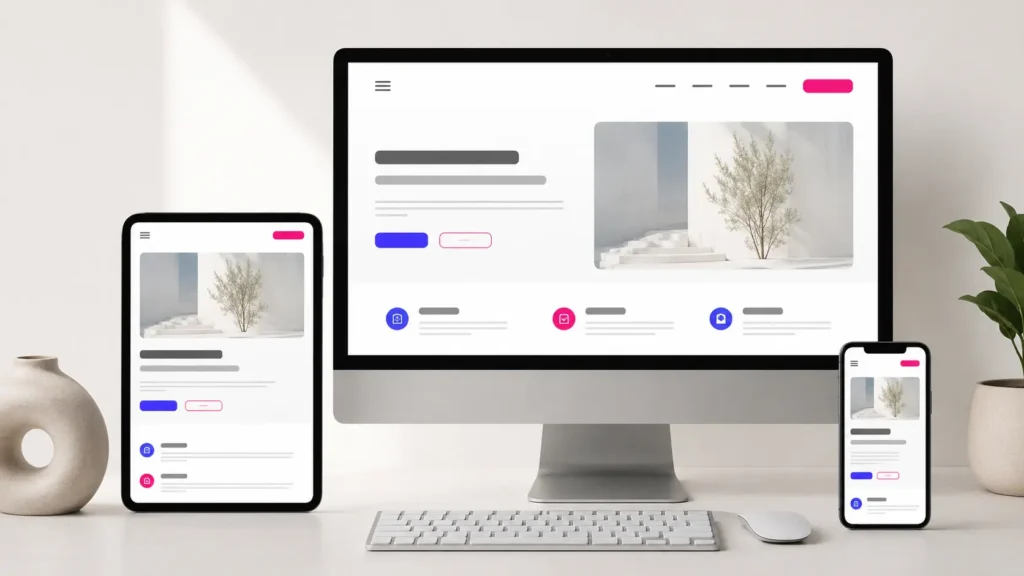
For a VA handling content or website operations, this turns mobile formatting into a more manageable recurring task. Instead of immediately asking for custom CSS whenever spacing looks wrong, the first check can now happen inside WordPress itself.
Buttons Can React to Hover, Focus, and Active States
WordPress 7.1 also brings interactive style states into the editor.
The release specifically highlights Button blocks. You can define how a button looks when somebody hovers over it, focuses it with a keyboard, or actively clicks it, without writing custom CSS for those supported states.
This sounds like a small design feature, but it is useful for sites where editors regularly create landing pages or update calls to action.
A button might use one background color normally, a slightly different treatment on hover, and a clear focus style for keyboard navigation. Those states can make interactions easier to understand and can improve consistency across pages.
The important rule is restraint.
Do not use the new controls as a reason to give every button a dramatic animation or a completely different color scheme. Start with the buttons that already matter to your design system and make their states consistent.
If you maintain multiple pages from a template or established style guide, this is also a task that can be delegated clearly: match approved button states, preview them, and flag anything that does not fit the existing design.
Playlist and Tabs Give Editors Two Useful Native Blocks
WordPress 7.1 adds two core blocks that previously often required a third-party solution: Playlist and Tabs.
Playlist Block
The Playlist block lets you group multiple audio files into a single playlist. WordPress can also display an optional waveform for the tracks.
That makes it useful for things such as:
podcast episode collections;
interviews;
audio lessons;
music samples;
recorded event sessions.
For a simple audio collection, it may remove the need to install a separate plugin purely to present several tracks together.
That does not mean it replaces every dedicated podcast or audio plugin. Specialized tools may still provide feeds, analytics, subscriptions, advanced players, or other functionality. The benefit here is that a straightforward playlist is now part of WordPress itself.
To test it, create a draft page, insert a Playlist block, add two or three audio files, and check both the editor and front-end experience before deciding whether it suits your existing content.
Tabs Block
The new Tabs block solves a different problem: fitting related information into a page without displaying everything at once.
A Tabs block could work for:
service variations;
product specifications;
location information;
different plan details;
related instructions;
short groups of questions and answers.
Because each tab can hold block content, it is more flexible than a simple row of text labels.
There is still a usability judgment to make. Tabs are useful when the information genuinely belongs together and the reader benefits from switching between alternatives. They are less useful when important information becomes unnecessarily hidden behind clicks.
A VA preparing a page can build and populate the tabs from approved content, but the decision about what information deserves prominence should still follow the page’s content strategy.
Image Editing Is More Capable Inside WordPress
The media workflow received one of the more visible updates in WordPress 7.1.
The old inline cropping experience has been replaced by a dedicated media editor modal. From the familiar Crop entry point, you can now access freeform and aspect-ratio cropping, horizontal and vertical flipping, more precise rotation controls, and metadata editing in one workflow.
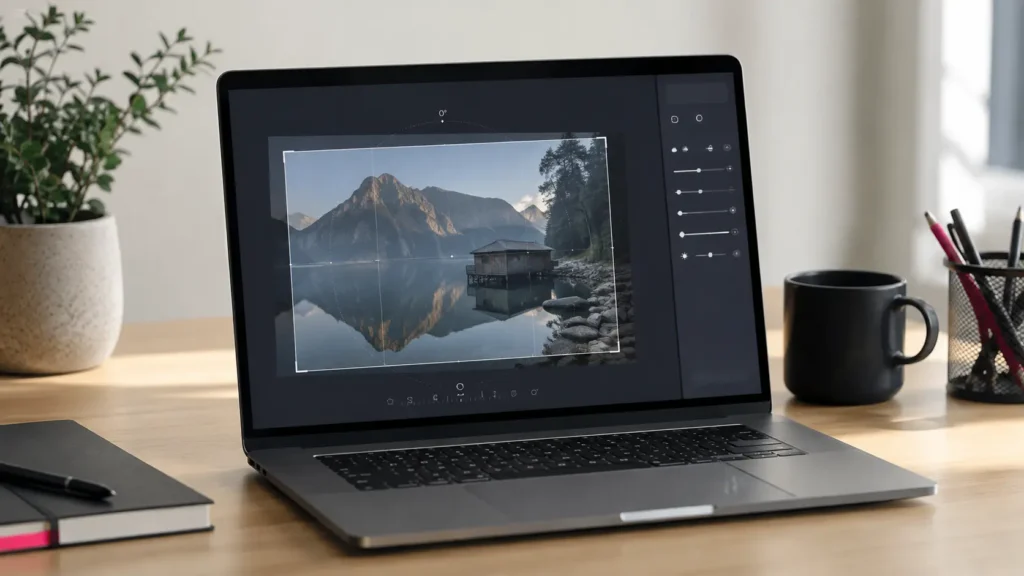
This is particularly useful when an image is basically correct but needs a quick adjustment before publishing.
For example, a VA uploading an approved article image could:
crop it to a more suitable composition;
correct the orientation;
make a small rotation adjustment;
review the image metadata;
save the edited version without leaving WordPress for a basic correction.
It is still not a replacement for proper image-production software when an asset needs extensive retouching, graphic design, color work, or complex resizing. The advantage is fewer unnecessary tool changes for ordinary publishing edits.
WordPress 7.1 also moves image compression, resizing, and thumbnail generation into the browser. WordPress says this reduces server processing and helps avoid memory limits and timeouts with larger uploads. The release also adds built-in handling for AVIF, HEIC, and HDR gain maps.
That should be especially noticeable in workflows where editors regularly receive large images from modern phones or cameras.
Notes Are Much Better for Editorial Feedback
If several people review WordPress content before publication, the improvements to Notes may be more useful than any new block.
Notes can now be attached to selected text rather than only to an entire block. They also support richer formatting and @mentions, and several conversations can exist on the same block.
A reviewer could highlight one sentence and leave a specific change request instead of writing:
“Second paragraph in the pricing section, third sentence, please change this.”
That removes some of the ambiguity from content review.
Mentions are also useful when several people have access to the site. Typing @ lets you bring a collaborator into the relevant conversation, and WordPress can notify them.
This creates a practical review pattern for a founder and VA:
The VA prepares or uploads the draft.
The founder reviews the actual page or post.
Specific corrections are left as Notes beside the relevant content.
The VA works through those Notes.
The page receives a final preview before publication.
That can reduce the need to move small corrections between WordPress, email, chat, and a separate document.
One limitation matters: Notes are not the same thing as Google Docs-style live co-editing. WordPress 7.1 improves asynchronous collaboration, but real-time multi-user editing was not enabled in this release. WordPress’s August 2026 developer update confirms that distinction.
Smaller Workflow Improvements Are Worth Knowing About
Not every useful WordPress 7.1 change needs its own new process.
The admin bar now remains available throughout the editing experience, which makes navigation between editing and administrative areas more consistent.
There are also several media-management refinements.
For example, WPMarmite’s detailed WordPress 7.1 feature breakdown notes that an existing Gallery or Columns block can be converted to a Grid block without discarding its content. The block inserter can also surface images already attached to the current post, and the Media Library grid now loads more items automatically as you scroll.
These are smaller than responsive styles or the new media editor, but they affect repetitive work.
If you publish one page a month, you may barely notice them.
If you manage content every day, saving a few clicks when finding an image, navigating the editor, or restructuring a gallery starts to matter.
Which WordPress 7.1 New Features Should You Test First?
You do not need to test everything in the release on the same day.
A focused WordPress 7.1 check can be done around the workflows you already use.
| Test | What to do | What you are checking |
|---|---|---|
| Responsive styles | Adjust one heading or section for Mobile | Whether your block theme exposes the new controls and whether the result works on a real device |
| Button states | Add a simple Hover or Focus treatment | Whether interactive states fit your existing design |
| Tabs | Build a draft with two or three tabs | Whether tabs make the content easier to use rather than simply shorter |
| Playlist | Add a few audio files to a draft page | Whether the native block covers your audio requirements |
| Media editor | Crop and rotate a test image | Whether basic image corrections can stay inside WordPress |
| Notes | Leave an inline Note and mention a collaborator | Whether your content-review process can happen closer to the actual page |
| Gallery to Grid | Convert a test gallery | Whether the Grid layout gives you better control without rebuilding the content |
| Mobile QA | Preview a real page on desktop, tablet, and phone | Whether the update or your new responsive settings introduced visual problems |
For most business sites, I would start with responsive styles, media editing, and Notes. They have the clearest connection to ordinary content and website maintenance.
Then test Tabs or Playlist only if you have content that actually needs them.
The point is not to use every new WordPress feature. It is to identify which changes remove work from your existing process.
Make the Update Useful, Not Just Installed
WordPress 7.1 is a meaningful release for people who spend time inside the editor.
Responsive controls reduce the number of basic layout adjustments that need custom CSS. The media editor keeps more image work in one place. Notes make feedback more precise. Tabs and Playlist give editors useful native content options. Smaller changes improve navigation and media handling around the edges.
Once the update itself is stable, pick one existing workflow and see whether 7.1 can simplify it.
If WordPress updates, content publishing, responsive page checks, SEO updates, troubleshooting, and routine maintenance are taking time away from other work, I provide those kinds of WordPress support and website operations through Boost VA. The goal is not to change your site simply because a new feature exists. It is to keep the site updated, organized, and working the way your business needs it to.