
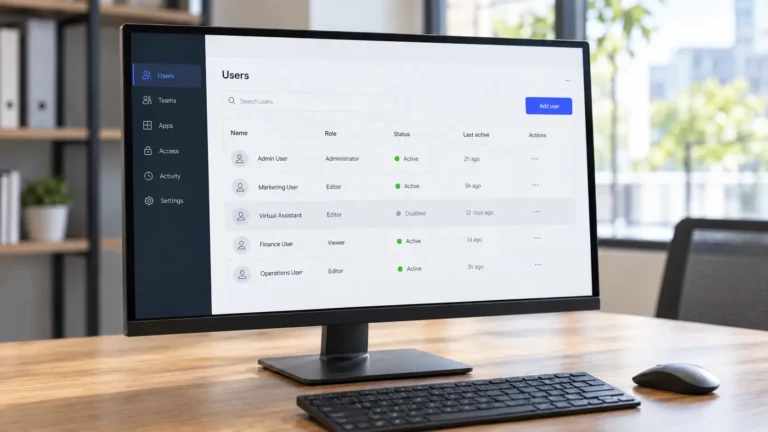
Your virtual assistant finished working with you on Friday. By Monday, you realize they may still have access to your project boards, shared folders, business email, and website.
There’s another problem: some important files might belong to an account you’re about to delete.
If you need to offboard a virtual assistant, the goal is not simply to close their login. You need to remove the right permissions while keeping your business files, account ownership, and unfinished work intact.
The safest order is to identify what the assistant can access, preserve what the business needs, remove or disable access, update exposed credentials, and verify the result.
Here’s how to handle that process whether you’re ending an engagement, changing assistants, or pausing support.
Why Deleting One Account Isn’t Enough
A VA rarely works inside just one system.
You might have invited them into Slack, shared a few Google Drive folders, added them to WordPress, and given them access to a password manager. They may also have created accounts, documents, or calendars on your behalf.
Removing their email account doesn’t automatically reverse those other permissions.
The UK’s National Cyber Security Centre recommends a formal process for managing users who join, change roles, or leave. Its guidance explicitly includes external users.
For a small business, that doesn’t need to become a complicated IT project. It means keeping track of every way an assistant can access your systems and checking that each one has been closed when it is no longer needed.
The Four Types of Access to Check
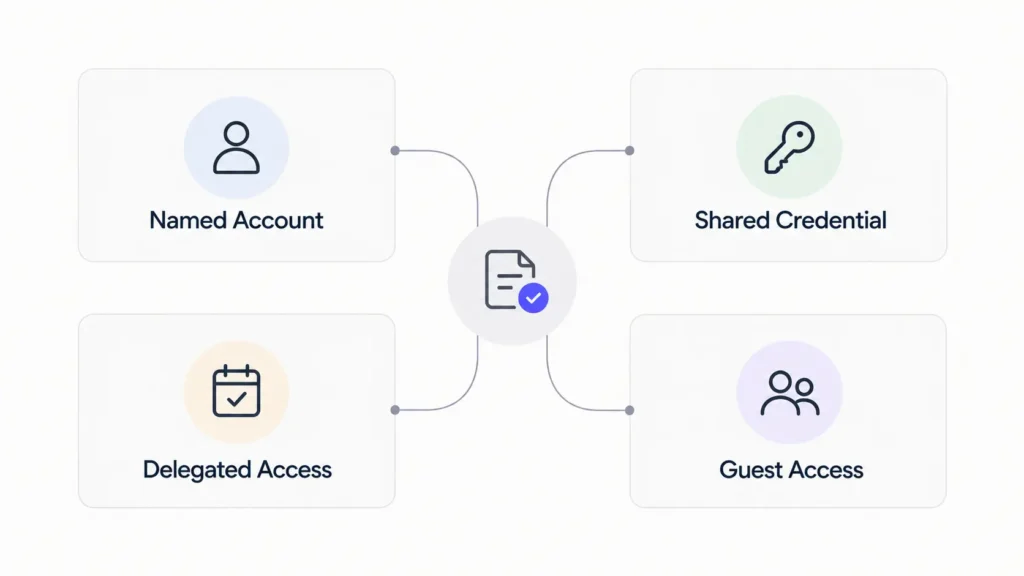
Most VA arrangements can involve several different access methods:
Individual accounts: The VA has their own user account in WordPress, Slack, a CRM, or another business tool.
Shared credentials: The VA can use a login supplied through a password manager or another approved sharing method.
Delegated access: The VA can act through permissions granted on another account, such as managing an inbox or calendar.
Guest or collaborator access: The VA has been invited to a shared folder, project board, client workspace, or external business platform.
There’s also an ownership question that cuts across all four types: Did the VA create or become the owner of anything your business needs to keep?
That might include a project workspace, calendar, subscription, or website account.
If you need help understanding how those permissions are normally granted, the guide to sharing passwords safely with a virtual assistant explains individual accounts, password vaults, MFA, and limited access in more detail.
Offboarding addresses the next question: how do you reverse those permissions without disrupting the business?
Before Removing Access, Transfer What the Business Needs
Imagine your VA created a Google Drive folder containing six months of client reports. You have access to the folder, but the VA’s account owns the files.
You delete that account before checking ownership.
Now the documents you expected to retain may be at risk.
Google’s Workspace guidance on deleting or removing users explains that data which isn’t transferred may be deleted. In domain-verified organizations, some deleted-user data can be restored within 20 days, but that isn’t a substitute for transferring important data beforehand.
Before permanently deleting an account, review what that account owns.
For a VA engagement, check:
Files and folders: Reports, spreadsheets, client documents, creative assets, templates, and other deliverables.
Calendars: Shared calendars, recurring events, bookings, and calendars the assistant created.
Work in progress: Drafts, scheduled content, unfinished tasks, and items awaiting approval.
Business accounts: Services registered using the VA’s email address, recovery details, or payment information.
Knowledge and instructions: SOPs, process notes, contact histories, and important decisions that only exist in the assistant’s workspace.
Move the information into an appropriate business-controlled location and confirm that the new owner can actually access it.
For example, don’t assume a client folder has been transferred successfully because its name appears in someone else’s Drive. Open it using the intended business account and confirm the required documents are present and accessible.
Similarly, transferring an unfinished project isn’t complete until another person has been assigned responsibility for it.
This is the part of offboarding where a little verification can prevent a much bigger problem later.
How to Remove Virtual Assistant Access Tool by Tool
Once the required data and ownership are accounted for, work through the platforms your assistant used.
The exact controls depend on the service, subscription, account type, and administrator permissions. Use the current platform guidance rather than assuming every application handles user removal in the same way.
Google Workspace: Suspend, Transfer, Then Delete When Appropriate
Google Workspace needs particular care because an account can hold email, files, calendars, and other business data.
If the VA has an individual account managed through your Google Workspace organization, start by identifying whether your organization uses domain verification or email verification. Google’s removal behavior differs between these setups.
For a domain-verified organization:
Open the Google Admin console and locate the user under Directory > Users.
Review the account’s access, ownership, and data that the business must retain.
If immediate access restriction is necessary while you investigate, consider suspending the user rather than deleting the account.
Transfer required Drive files and applicable Calendar data to the intended owner.
Once ownership and retention requirements are resolved, use the relevant user-deletion option if permanent deletion is appropriate.
Confirm that the receiving account can access the transferred material.
Google allows super administrators to transfer certain data during the deletion process. Other administrators may need to complete the transfer before deleting the user.
Two details are especially important.
Google Drive ownership matters. Files held in an organization’s shared drives belong to the organization rather than an individual user. Files owned in a user’s My Drive may require a transfer.
Calendar ownership matters too. Google’s documentation warns that deleting the owner of a secondary or group calendar can delete the calendar and its events. Transfer calendars that need to survive before deleting the account.
For email-verified Workspace setups, removing a user can convert their account into a personal Google Account. Depending on sharing settings, the former user may retain access to shared-drive content or files shared directly with them. Simply removing the user from the service may therefore leave additional sharing permissions to clean up.
These distinctions are covered in Google’s official user-removal instructions.
If you’re uncertain about the data you need or the consequences of deletion, retaining the data through an appropriate suspension or archival process can provide a safer path while you complete the review.
Slack: Deactivate Membership Without Losing Conversations
Slack has a useful distinction between deactivating access and deleting the content somebody previously contributed.
According to Slack’s account-deactivation guidance, deactivating a member signs them out, removes them from channels, and prevents them from signing back in. Their existing messages and files aren’t automatically deleted.
On supported standard workspace plans, an authorized owner or administrator can generally:
Open Admin from the Slack desktop sidebar.
Go to Workspace settings > People.
Find the outgoing assistant.
Open the menu next to their account.
Select Deactivate account.
Slack Enterprise organizations have additional organization-level controls. Removing someone from one workspace doesn’t necessarily deactivate them throughout the organization.
Before removal, identify any unfinished conversations, workflow responsibilities, or integrations that depend on the outgoing account.
There is also an important ownership exception.
If your VA originally created the Slack workspace and became its Primary Owner, that ownership must be transferred before the account can be deactivated. Slack doesn’t permit anyone to deactivate the current Primary Owner directly.
Finish by checking the account’s status through an authorized administrator view and ensuring no important workspace responsibility has been left without an owner.
Password Managers: Remove Access and Review Exposed Credentials
A password manager can make offboarding easier, particularly when your VA had access to several shared business accounts.
But removing someone’s membership from a shared vault and changing the passwords they previously knew are two different actions.
Start with the business password manager:
Remove the outgoing VA from the relevant vaults, groups, or collections.
Revoke their membership or access according to the product’s controls.
Review active sessions and connected devices where the service supports that.
Identify passwords, recovery codes, or other secrets the assistant could have viewed, copied, or exported.
Change credentials where continued knowledge of the old password presents a risk.
Review account recovery and MFA methods that may still depend on the outgoing assistant.
Where a person had their own individual platform account, removing that account may be sufficient for the relevant access path. A shared login that the person actually knew is different. Revoking a vault invitation doesn’t make a previously revealed password unknown.
Keep ownership of business credentials under the business’s control rather than relying on a departing assistant’s personal password vault.
That distinction has wider security relevance. In its December 2025 decision involving LastPass, the UK Information Commissioner’s Office described a breach involving linked personal and business vaults. The regulator continued to encourage password managers, describing them as a “safe and effective tool.”
The lesson isn’t to abandon password managers. It’s to combine them with appropriate account ownership, access restrictions, and credential reviews.
Project Management Tools: Preserve the Work, Then Remove the User
For Trello, Notion, Asana, ClickUp, or another project tool, begin with the work the VA was responsible for.
Review assigned tasks, comments, project documents, automations, scheduled actions, and outstanding deadlines.
Reassign anything that another person must continue.
Then check the assistant’s membership across relevant workspaces, teams, projects, and guest invitations.
A person may belong to multiple workspaces or have access to an individual project even when their primary team membership has changed. Review those paths separately according to the platform’s permissions model.
For example, if your VA managed a Trello or Notion delegation board, retain the board, task history, and relevant documentation before removing their access.
The goal is to close the permission without losing the work or leaving tasks assigned to someone who is no longer available.
Website, Social, Analytics, and Other Business Accounts
Some access is easy to forget because it isn’t part of everyday communication.
An assistant might have permissions in WordPress, Google Business Profile, Google Analytics, social media tools, advertising platforms, a CRM, or another client’s workspace.
Review each platform where they were invited.
For WordPress, check their user account and any access through hosting, plugins, shared credentials, or connected services. Choose an appropriate content-retention option when deleting a WordPress user so authored posts aren’t unintentionally removed.
For Google Business Profile, review the users and permissions associated with the relevant profile. For GA4 and similar reporting platforms, check whether access was granted at the account, property, or another applicable level.
These controls are separate from removing the person’s Google Workspace account.
The articles on Google Business Profile support and delegating GA4 reporting provide additional context about VA responsibilities in these systems.
Don’t forget less obvious access routes such as shared inbox delegation, social scheduling tools, website forms, API tokens, third-party connections, and client-provided guest permissions.
Some permissions may require action by the platform owner or an outside client’s administrator. Record those as outstanding until the responsible person confirms removal.
Ownership Problems That Can Delay Offboarding
Access removal becomes more complicated when the assistant controls something that the business should own.
There are several situations worth identifying early.
The VA created the account. If a subscription or business service was registered under their personal email, you may need to transfer ownership, update the account email, or work with the service provider before removing their involvement.
The VA is the only administrator. Assign another properly authorized administrator and verify their access before removing the outgoing account.
The VA controls the recovery method. An account may still depend on their phone, authenticator, recovery email, or another verification method. Update those details through the platform’s legitimate recovery and administrative procedures.
The VA owns important work. Files, calendars, shared resources, or automated processes may need to be moved or reassigned before their account disappears.
Don’t solve these issues by leaving the former assistant’s access active indefinitely.
Instead, identify what cannot yet be transferred, restrict unnecessary access where possible, and record who must resolve the ownership issue.
An item with an unresolved owner should remain open in your offboarding register, even if the assistant’s normal login has already been disabled.
Planned Ending vs. Sudden Ending
The right sequence depends partly on how the relationship is ending.
When the Ending Is Planned
A planned departure gives you time to arrange a handover before the final working day.
Ask the outgoing assistant to document unfinished work, identify accounts created for the business, organize deliverables in their agreed locations, and clarify anything another person will need to continue.
Then transfer ownership, verify access from the receiving account, and deactivate the assistant’s permissions at the agreed time.
If you’re replacing one assistant with another, don’t automatically give the incoming VA every permission held by the outgoing one. Review the new person’s responsibilities and grant only the access they need.
For more on managing that transition, see working with multiple virtual assistants.
When the Ending Is Unexpected
An abrupt ending calls for a different priority.
If immediate restriction is necessary, don’t leave sensitive access active simply because the file inventory isn’t complete.
Suspend or deactivate accounts where appropriate, revoke exposed shared credentials and active access routes, and preserve the data through the available administrative controls.
Once access is secured, work through ownership transfers, data retention, unfinished responsibilities, and any required follow-up with the platform provider.
For example, temporarily suspending an eligible Google Workspace user can restrict access while leaving time to assess what must be preserved.
The administrative response should match the actual risk rather than assume every departure is a security incident.
Contractual matters, final payments, and confidentiality obligations still need attention, but they are separate from the technical access-removal process. The virtual assistant contract template covers those written terms in more detail.
A Virtual Assistant Access-Exit Register You Can Reuse
A useful offboarding record should show not only what needs to be removed, but also whether removal has actually been verified.
Create a spreadsheet with the tool, access method, current account owner, required action, person responsible, verification date, and any unresolved notes.
Here’s a fictional example:
| Tool | Access type | Business owner | Required action | Done by | Verified date | Notes |
|---|---|---|---|---|---|---|
| Google Workspace | Named account | Business admin | Transfer files, then suspend or delete as appropriate | Workspace admin | Pending | Calendar ownership needs checking |
| Slack | Workspace member | Workspace owner | Deactivate membership | Workspace admin | 8 Oct 2026 | Membership removed |
| Password manager | Shared vault | Business admin | Remove membership and review credential rotation | Vault admin | Pending | Two shared logins require review |
| Project board | Guest collaborator | Project owner | Reassign tasks and remove guest | Project owner | 8 Oct 2026 | Open tasks reassigned |
Example only: all rows, actions, and completion dates are fictional.
Use a real verification date only after somebody with the proper access has checked the result.
For each system, the responsible person should be able to answer:
Can the former VA still access this system through any known active route?
Does the business retain the information it needs?
Is the correct person now responsible for the files, tasks, or service?
Were applicable shared credentials, sessions, and recovery methods reviewed?
Has the result been confirmed using an appropriate administrator or ownership view?
Avoid treating a removed name in one project as proof that every account, guest invitation, or connected service has been closed.
If you’re unsure about an item, mark it Pending and assign someone to resolve it. Don’t record a verification date based only on an assumption.
The register is also useful when an assistant changes responsibilities without leaving completely. Instead of closing every account, you can remove the permissions that no longer match their work.
Make the Next Offboarding Easier From Day One
The easiest time to prepare for a VA’s eventual departure is when you first set up their access.
A few decisions can make future transitions much simpler.
Keep ownership of business accounts, billing, recovery methods, and important shared resources under your control. Give assistants individual seats or collaborator permissions where supported, and keep essential work in business-owned locations.
Google specifically advises against sharing one account among multiple users. Named accounts make it easier to identify a user’s permissions and manage their access independently.
Keep an up-to-date record of every permission granted. When responsibilities expand, add the new access to the record. When work changes, remove permissions that are no longer necessary.
And keep business knowledge somewhere your next assistant or team member can find it.
A good virtual assistant onboarding checklist should therefore do more than prepare someone for their first task. It should also establish who owns the accounts and where the work will remain when that person eventually leaves.
Offboarding isn’t an accusation or a sign that the working relationship went badly. It’s a normal part of managing access responsibly.
The job is complete when the business still has its files, the right people control its accounts, and the outgoing assistant no longer has permissions they don’t need.
If you’re planning new virtual assistant support or reviewing how access is organized, explore the ongoing support available through Boost VA. The right setup at the beginning can make future handovers far easier.
Platform procedures referenced here were reviewed on October 8, 2026. Available controls and exact steps may differ by subscription, edition, account configuration, and administrator role.