
WordPress 7.2 Release Candidate 1 arrived on November 17, 2026, and the final release is scheduled for December 8 at 15:00 UTC. For a business website, the immediate question is not which new feature to try. It is whether the update could reach your live site before you have checked the forms, checkout, bookings and publishing tools your business depends on.
Use this WordPress 7.2 checklist to test a copy of your site across three release-candidate rounds, identify changes worth checking, and decide whether automatic major updates should remain enabled. The official RC1 announcement explicitly warns against installing release candidates on production or mission-critical websites.
The practical goal is simple: test before release day, decide who controls the update, and apply WordPress 7.2 to the live site only when your important workflows pass.
Where WordPress 7.2 stands and the dates that matter
WordPress 7.2 is the final planned major release of 2026. The official release schedule gives business-site teams three release-candidate checkpoints before the final version.
| Date | Milestone | What it means for your website |
|---|---|---|
| November 17, 2026 | RC1 released | Begin testing WordPress 7.2 on a staging copy |
| November 24, 2026 | RC2 scheduled | Recheck problems found during the first round |
| December 1, 2026 | RC3 scheduled | Run your final release-candidate tests |
| December 7, 2026 | Release dry run and code freeze | Finalize your update decision and prepare for release day |
| December 8, 2026 | Final release scheduled | Update the live site only after your checks and approvals |
The release is currently scheduled for 15:00 UTC on December 8, according to the WordPress release-party timetable. That is 10:00 a.m. Eastern Standard Time or 4:00 p.m. in Lagos. Release dates can change, so check the official schedule again before planning the live update.
Beta, release candidate and major update: what do they mean?
These terms affect how you should treat the software:
- Beta: An unfinished test version that may still change substantially.
- Release candidate (RC): A later test version intended to identify remaining issues before public release. It is still not suitable for a production website.
- Major release: A WordPress version such as 7.2 that may introduce significant features and technical changes, unlike a smaller maintenance or security release.
- Staging site: A separate copy of your website where changes can be tested without affecting ordinary visitors.
- Field Guide: WordPress’s collection of developer notes explaining important changes in a release.
- Hard string freeze: A release milestone when user-facing text changes are restricted. It does not mean all software testing has finished.
You do not need to understand every developer note to prepare a business site. Focus first on whether customers and staff can still complete their usual tasks.
First decision: will WordPress 7.2 update your site automatically?
Your website may install WordPress 7.2 automatically, depending on when WordPress was installed, its update settings and your hosting provider.
According to the WordPress Upgrading Handbook, installations created with WordPress 5.6 or later normally have automatic updates enabled for both major and minor core releases by default. Older installations generally retain their previous update behavior unless someone changes it.
That does not prove your particular site will update itself. An administrator, plugin, hosting provider or configuration setting may have changed the default.
To check:
- Sign in to your WordPress dashboard with appropriate administrator access.
- Go to Dashboard → Updates.
- Look for the automatic-update setting or message.
- Check whether your hosting provider controls WordPress core updates separately.
- Confirm who is responsible for the decision before December 8.
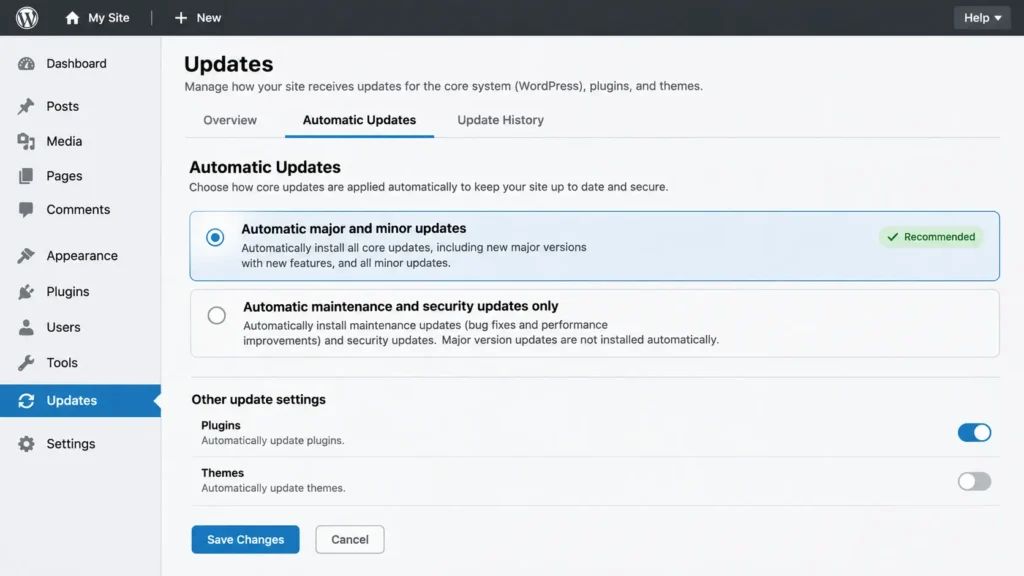
Should you leave automatic major updates enabled?
There is no single setting that fits every business site.
Leaving major updates enabled may be reasonable when your staging tests pass, your theme and important plugins work as expected, and someone is available to check the live website after WordPress updates.
Temporarily limiting core updates to maintenance and security releases may be more suitable when checkout, booking, membership or other important functions have not passed testing. Where the WordPress setting allows it, you can make that change through Dashboard → Updates.
Do not disable security updates simply because you want more control over a major release. If your host manages updates or the setting is enforced through site configuration, ask the host or developer to arrange the appropriate update policy.
Whichever option you choose, record a review date. Delaying WordPress 7.2 indefinitely is not a maintenance strategy.
Where to test WordPress 7.2 without touching the live site
For an established business website, a staging copy provided by your host is generally the most useful testing environment. It lets you check the actual theme, plugins, layouts and business workflows rather than a fresh installation with none of your customizations.
WordPress’s official 7.2 testing guide describes several ways to test a release candidate.
| Test environment | Setup effort | How closely it reflects your site | Best use |
|---|---|---|---|
| Hosting-provider staging | Low to moderate, depending on your host | High when it is a current copy | Business forms, checkout, plugins, content and layout checks |
| WordPress Playground | Very low for a fresh test installation | Low unless your site is deliberately imported | Exploring new WordPress features |
| Local WordPress installation | Moderate to high | High if properly configured with a site copy | Technical testing and development work |
The quickest option is not always the most useful. Testing a contact form in an empty Playground installation does not tell you whether your own site’s form plugin, email integration and CRM connection will work after an update.
Put WordPress 7.2 RC1 on your test installation
If your host provides staging, create or refresh the staging copy first. Confirm that it is separate from production and that your live visitors cannot reach it unintentionally.
WordPress supports release-candidate testing through the WordPress Beta Tester plugin. On a test installation, the documented route is:
Tools → Beta Testing → Bleeding edge → Beta/RC Only
Follow the plugin’s instructions to apply the appropriate release candidate. If you are unfamiliar with staging, ask your host to help establish a test environment instead of experimenting with the live website.
Before running tests, protect the staging site from public access and search indexing. Make sure its integrations cannot accidentally send live customer messages, accept real payments or modify production records.
For assistance from another person, give staging access safely rather than sharing unrestricted account credentials.
What to test first: the paths your business relies on
Start with the activities that would cause a real problem if they stopped working. Your most important tests may have nothing to do with the headline features in WordPress 7.2.
The official WordPress testing checklist covers forms, integrations, scheduled tasks, permissions, layouts, media and website health. For a business site, turn those categories into actual visitor and staff journeys.
Contact forms and lead capture
Submit a test enquiry through your main contact or quote-request form.
Check that the form displays properly, accepts valid information, shows the expected confirmation and sends the details to the right destination. If it normally creates a CRM record, verify that the record appears correctly.
Who checks: A VA or site coordinator can submit the test. The owner or authorized recipient confirms the enquiry arrives.
Checkout and payment processing
For websites that take payments, place a controlled test order using the payment provider’s approved test or sandbox mode.
Check the cart, shipping options, taxes where applicable, checkout fields, order confirmation and order notification.
Never use real customer payment details or accidentally create a live charge during release-candidate testing.
Who checks: A VA can follow an approved test script. The owner verifies the resulting order and payment status. Payment-integration errors go to the relevant specialist.
Login, accounts and member areas
Sign in using approved test accounts with different roles.
Check account access, password-reset behavior, restricted content and any member-only dashboard. Make sure users do not gain permissions they should not have.
Who checks: A VA can perform role-based tests using accounts provided for that purpose. The owner confirms the intended permissions; technical access problems go to the administrator or developer.
Bookings and appointments
For appointment-based businesses, create, modify and cancel a test booking.
Confirm available slots display correctly and that the booking produces the expected notifications and calendar entries.
Who checks: A VA runs the test. The person responsible for appointments confirms that it reaches the correct calendar or booking system.
Analytics and conversion tracking
Submit an approved test conversion and inspect the appropriate analytics or tag-testing tools.
Check the event name, destination and whether it is recorded as expected. Avoid judging success solely because a tracking script appears on the page.
Who checks: A VA with the right permissions can perform the checks. Tracking configuration problems should be reviewed by the person managing analytics.
Scheduled content and automated tasks
Create a test post and schedule it for a controlled time. Check whether it publishes as expected, then verify any relevant backup or scheduled maintenance tasks.
If publishing fails, use the separate guide to WordPress scheduled posts not publishing to distinguish a missed schedule from a content-setting mistake.
Who checks: A VA tests publishing and verifies the backup status. Cron or server-level failures go to the developer or hosting provider.
Important pages, media and mobile layouts
Review the homepage, key service pages, landing pages and any high-value product or booking pages.
Check:
- Navigation, buttons and important internal links.
- Images, galleries and downloadable files.
- Mobile spacing, menus and forms.
- Broken links and unexpected 404 errors.
- Keyboard navigation and basic accessibility.
- Search-visible elements such as sitemap access when relevant.
When a URL fails, investigate the cause instead of automatically creating a redirect. The WordPress 404 troubleshooting guide explains when fixing a link, restoring a page or redirecting is appropriate.
Who checks: A VA handles visual and functional checks. Custom theme issues, persistent scripts or server errors should be escalated.
The point of this first pass is not to test every possible plugin feature. It is to establish whether the website still performs the work that matters to your business.
WordPress 7.2 changes worth checking specifically
Once the normal business paths pass, test the release changes most likely to be noticed by someone maintaining content, plugins or admin workflows.
These are targeted checks, not predictions that WordPress 7.2 will break your website.
1. Admin menu and toolbar icons now use SVG
WordPress 7.2 introduces SVG icons in parts of the administration toolbar and menu, replacing several older Dashicon-based implementations.
This matters most when a site uses custom admin styling, white-label settings or plugins that modify menu icons.
The WordPress SVG icon developer note explains that some older CSS techniques for changing or hiding core icons may no longer behave as intended.
Test: Open the dashboard and important admin menus. Look for missing, duplicated, misaligned or unexpectedly colored icons. Try narrower browser widths and keyboard navigation.
Who checks: A VA identifies visual differences. A developer handles any necessary CSS or plugin changes.
2. Some admin screens load scripts differently
WordPress 7.2 also changes how administration assets are loaded, including moving away from older combined script and style loading methods.
The WordPress Developer Blog’s November roundup discusses these updates and the implications for developers.
Test: Open the settings screens of plugins your business uses regularly. Save a harmless test setting where appropriate, reopen it and confirm the screen works correctly.
Pay particular attention to settings pages that use custom tabs, pop-ups, dropdowns or interactive controls.
Who checks: A VA tests the visible behavior. Script errors or inaccessible settings screens belong with the plugin vendor or developer.
3. The new /random/ URL could affect existing paths
WordPress 7.2 adds a random-content redirect feature. With the default configuration and compatible permalinks, visiting /random/ can send visitors to a randomly selected published post.
The official developer note on random redirects also explains the configurable Random base setting under Settings → Permalinks.
If your site already uses /random/ for an existing page, redirect or custom function, check the behavior before release. WordPress has clarified that an existing page using that slug takes priority in the relevant permalink configuration.
Test: Review whether your website already uses the path. On staging, try the URL and inspect the Random base setting. Check for any unexpected behavior involving existing content.
Who checks: A VA identifies current URL usage and the result of the test. A developer or administrator handles configuration conflicts.
4. Post settings and collaboration Notes have changed
WordPress 7.2 moves the post settings inspector toward a DataForm-based interface. Fields such as status, visibility, author, publication date, featured image, excerpt and template are part of the change.
The release also adds improvements to editorial Notes, including filtering, side-by-side views and reactions, as described in the official WordPress 7.2 testing instructions.
Test: On staging, create or edit a test post in the block editor. Change the author, featured image, excerpt and scheduled date. Save, refresh and verify that the values remain correct.
If your team uses Notes, add and resolve a test note, try the available filters and confirm the editor remains usable.
Sites using other publishing interfaces should focus on their actual editor and plugin integrations rather than assume every new block-editor control will appear.
Who checks: A VA or content manager runs the publishing test. Problems with custom editor integrations go to the developer or plugin vendor.
5. Older scripts may produce new compatibility notices
WordPress 7.2 is scheduled to include jQuery Migrate 3.6.0 as preparation for a later jQuery update. WordPress is not moving to jQuery 4 in version 7.2.
The November 17 developer note explains that the updated Migrate library helps surface deprecated behavior that plugin and theme authors may need to address.
Test: Repeat important interactive tasks, especially forms, navigation menus, sliders and plugin settings. If something fails, capture the browser error or console message rather than guessing at a fix.
Who checks: A VA records visible failures. The developer or plugin vendor evaluates script warnings and compatibility changes.
One final distinction: WordPress 7.2 includes the new Ipsum default theme, but you do not need to switch an existing site’s theme just to perform these checks. Earlier testing materials also mention the Secrets API, but WordPress confirmed on November 17 that it will not ship with version 7.2.
Your WordPress 7.2 test plan: three rounds before release day
The following plan puts the business tests and release-specific checks onto the actual WordPress 7.2 calendar.
Treat the dates as planning checkpoints rather than guarantees. Adjust them if the release schedule changes.
| Round and dates | Main work | Who handles it | Required outcome |
|---|---|---|---|
| Round 1: November 18–23 (RC1) | Confirm the starting WordPress/PHP environment, establish staging, check backups, run all business-critical journeys | VA/site coordinator runs checks; owner verifies business results; host handles setup issues | Know which essential functions pass and which fail |
| Round 2: November 24–30 (RC2) | Apply RC2 on staging, repeat failures, test the 7.2-specific changes, contact plugin vendors where necessary | VA/content manager repeats tests; developer/vendor investigates technical issues | Resolve or identify remaining release blockers |
| Round 3: December 1–8 (RC3 to release) | Apply RC3 on staging, re-run critical journeys, confirm auto-update settings, approve or postpone the live update, prepare recovery | VA completes final checks; owner decides go/hold; host/developer supports release | One clear update decision with a suitable live-update window |
Round 1: Establish your starting point
Before comparing your site with WordPress 7.2, confirm what is currently running.
As of November 18, WordPress 7.1.4 is the latest announced stable core security release. WordPress published it on October 28.
Check the current core version, theme and plugin versions, and PHP version. WordPress has supported PHP 7.4 as its minimum since version 7.0, while its PHP guidance recommends PHP 8.3 or later within supported compatibility limits. Do not treat PHP 8.3 as a requirement for WordPress 7.2.
Have the host or developer address an unsupported or outdated server environment. Also confirm that a current backup exists and can be restored.
Then run the full business-path tests on staging and keep a short record of the outcomes.
Round 2: Investigate differences, not just new features
When RC2 arrives, focus on the problems found in Round 1.
Repeat any failed form submission, broken checkout step, missing admin control or incorrect publishing behavior. Check whether the newer release candidate resolves it.
Then complete the WordPress 7.2-specific checks described above.
For each unresolved issue, record:
- The page or admin screen affected.
- The action that produced the problem.
- The expected and actual result.
- The browser, WordPress version and relevant plugin version.
- Supporting screenshots or error messages.
- The next person responsible for investigating it.
This is a short test record for this release, not another permanent maintenance tracker.
Round 3: Decide whether the live website is ready
When RC3 arrives on December 1, run the final critical-path checks. Reconfirm the host’s update policy and whether your business will have someone available to monitor the site around December 8.
The most useful result is a decision:
GO: Important business workflows pass, critical compatibility issues are resolved, a restorable backup is available and someone can verify the live site afterward.
HOLD: An important function still fails, the responsible specialist has not resolved the issue, recovery is not adequately prepared or nobody can monitor the update.
The owner makes that decision. Testing support helps establish the evidence, but it does not replace the owner’s authorization.
If your team will have reduced availability in December, use a planned update window rather than allowing an unattended release-day change. The holiday operations plan provides a broader approach to deciding which business changes should continue or pause.
What should happen when a test fails?
When something breaks on staging, do not immediately assume WordPress core is responsible.
First, try to reproduce the problem. Compare it with the previous working version, check whether the relevant plugin or theme has a compatibility update, and review the vendor’s support information.
If the same action fails repeatedly after applying the release candidate, document it and give it to the appropriate developer or plugin vendor.
For a suspected WordPress core issue, the WordPress testing team provides reporting guidance. Clear reproduction steps and environment details are more useful than a vague report that the website is broken.
Keep the live major update on hold while an important issue remains unresolved. Do not attempt risky code changes, server fixes or production rollbacks without the necessary expertise and recovery plan.
Release day and the week after
December 8 is the scheduled WordPress 7.2 release date, not a requirement that every business must update immediately.
If your final tests pass and the right people are available, you can apply the stable release during an approved maintenance window. Take a fresh backup of site files and the database immediately beforehand, and confirm the recovery procedure.
After the live update, repeat the essential checks:
- Submit a real-world-safe contact-form test and confirm delivery.
- Verify checkout or bookings using approved test methods.
- Open important pages on desktop and mobile.
- Check login and authorized access.
- Confirm scheduled tasks and admin tools are behaving normally.
- Review Site Health and any relevant host monitoring.
If the tests have not passed, set a specific date to reassess rather than waiting without a plan. Some businesses may prefer to consider an initial maintenance release, but WordPress has not announced a WordPress 7.2.1 release date.
The goal is not to update at the earliest possible minute. It is to update with the right level of preparation and attention for your website.
How to divide the testing work without a developer for every step
Most of the first-line testing is repeatable website maintenance work. Someone can follow approved checks, capture results and report differences without changing custom code.
The responsibilities are straightforward:
- Business owner or authorized manager: Approves access, confirms important business outcomes, selects the update window and makes the final go/hold decision.
- Virtual assistant or content coordinator: Performs authorized staging checks, tests forms and publishing workflows, reviews page behavior and documents issues clearly.
- Developer or hosting provider: Handles server configuration, PHP changes, custom code, script failures, advanced plugin conflicts and recovery issues.
Define what counts as a passed test before assigning the work. For example, “contact form checked” is weaker than “test enquiry submitted, confirmation displayed, notification received and CRM record verified.” The guide to acceptance criteria for delegated tasks explains that distinction.
For more general ongoing maintenance, see WordPress tasks a virtual assistant can handle. The key boundary remains the same: routine checks can be delegated, while technical repair and final release approval require the appropriate person.
Keep the plan for the next major WordPress release
WordPress 7.2 is an opportunity to establish a repeatable habit: test on a copy, run the journeys your business depends on, review what changed and decide deliberately when the live site should update.
Keep the three-round method for the next major release, even when the dates and release-specific checks change.
If you need help handling staging checks, WordPress content tests, issue documentation and routine update preparation, I offer WordPress Support through Boost VA. I can take care of the agreed checks and flag anything needing specialist attention, while you retain control of access and the final live-update decision.