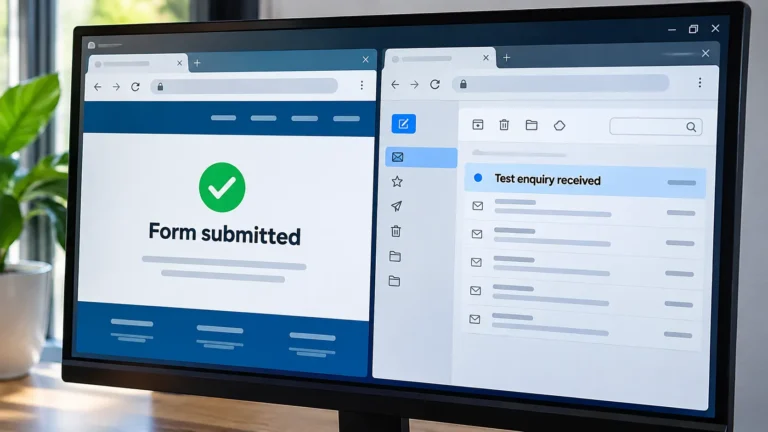
WordPress released version 7.1.5 as a security update on November 18, 2026. If your website allows automatic background updates, it may already have changed. Plugin updates, menu edits and form changes raise the same practical question: do the pages people use to contact you or place an order still work?
Knowing what to test after a WordPress update starts with the paths that matter to your business. Submit your main forms and confirm the enquiries arrive, check navigation and important buttons, test search, verify checkout or booking, review key pages on a phone, and confirm that conversion tracking records the expected action. Keep evidence of each result and stop when an essential function fails.
The November 18 WordPress security release is one reason to make these checks a habit, but this script works after routine changes on any version. It focuses on testing after a change, not on deciding whether to install an upcoming release. For that separate decision, see my WordPress 7.2 pre-release checklist.
What “the site still works” actually means after an update
Seeing your homepage load is reassuring, but it does not confirm that a form delivers its message or a completed order appears in the dashboard.
For a business website, the most useful checks follow the actions visitors and customers actually need to complete.
Those might include:
- Lead capture: Contact forms, quote requests, newsletter sign-ups and CRM submissions.
- Sales and bookings: Product pages, shopping carts, payment steps, appointment forms and confirmations.
- Navigation: Main menus, important internal links and calls to action.
- Customer access: Login, account pages or member-only content, when applicable.
- Mobile usability: Important pages and actions working on a real phone.
- Measurement: Form submissions, purchases or booking events reaching the expected analytics tools.
Not every website needs every test. A service business without online payments can mark checkout as not applicable, while an online store may need to check several payment, shipping and order-confirmation paths.
Start by identifying your business-critical journeys once. You can reuse that list after future changes rather than deciding what matters from scratch each time.
The WordPress testing team’s checklist makes a similar distinction: submitting a form is only part of the check. You also need to establish whether its data reaches the intended destination.
The goal is a practical smoke test of important functions, not a complete technical audit. Passing these checks shows that the tested paths worked at that moment. It does not prove that every page is error-free, secure or performing well.
Before you start: three things to have ready
1. Know what changed
Record the update or edit, when it happened, and which parts of the site it could affect.
Examples include updating a contact-form plugin, changing an Elementor page, modifying the menu, replacing a theme or installing a WordPress core update.
If several changes happened together, record each one. Otherwise, a later problem may be harder to connect to a particular change.
2. Confirm the backup and testing environment
Check with whoever manages the website that an appropriate recent backup exists and that the recovery arrangements are understood.
For higher-risk changes, particularly core, theme, payment or major plugin updates, use a staging environment first when one is available.
Staging is not available on every small-business website. When testing must happen on the live site, restrict the work to safe, authorized actions and agree on how sensitive functions will be tested.
Do not change hosting settings, restore backups or attempt a rollback without permission and an established procedure.
3. Prepare test details and access
Before starting, arrange:
- An approved test email address and clearly identifiable sample form details.
- Access to the notification inbox or a person who can confirm delivery.
- Access to form entries, the CRM or booking records where relevant.
- An approved test account for login checks.
- The store owner’s instructions for any test purchase or payment.
- Permission to view the relevant analytics property and debug tools.
Avoid using real customer information unnecessarily.
If someone else is running the checks, make sure they have only the access required for the job. My guide to sharing access safely with a virtual assistant covers that wider setup.
The post-update test script
Use this WordPress website QA checklist after a routine change. Start with the rows related to the change, then include other critical paths according to the testing depth explained below.
Each row records five things: the test, how to perform it, what a pass looks like, what evidence to keep and when to escalate.
| Test | How to run it | Expected result | Evidence to keep | Stop and escalate if |
|---|---|---|---|---|
| 1. Forms and lead capture | Submit each important form using identifiable test details. Check the recipient inbox and CRM or form-entry record if applicable. | Submission succeeds, confirmation appears, and the information reaches every agreed destination. | Tested URL, submission time, confirmation screenshot and delivery or record confirmation. | Submission errors, notifications fail to arrive within the agreed window, or expected records are missing. |
| 2. Navigation and primary CTAs | Click important menu links and action buttons on the homepage, service pages and main landing pages. | Each opens the intended page or action without an unexpected redirect or error. | URLs tested and screenshots of incorrect destinations. | Critical actions fail, important pages disappear, or several links suddenly return errors. |
| 3. Site search | Search for a known published term and then a deliberately nonexistent term, if the site has search. | Relevant results appear for the known term, and the other search produces a sensible no-results state. | Search terms, result URLs and screenshots of failures. | Search is a critical visitor path and stops functioning, or searches trigger server errors. |
| 4. Checkout or booking | Follow the approved test process from cart or booking selection through confirmation. Use staging and the appropriate payment test mode for transactional testing. | Correct totals and details, confirmation, appropriate notification emails and a recorded order or booking. | Test reference, expected totals, confirmation, order status and notification evidence. | Payment fails, totals are incorrect, confirmation is absent, or an expected order or booking is missing. |
| 5. Key pages on mobile | Open important pages on a real phone. Use the menu, tap CTAs and try relevant forms or booking steps. | Content is readable, controls respond, and no important element blocks the user. | Device/browser details, page URL and screenshots of layout problems. | The user cannot submit, navigate, book or check out because of the layout. |
| 6. Conversion tracking | Trigger an approved test action with GA4 DebugView or Tag Manager preview active. | The agreed event appears in the correct property or debugging interface. | Event name, test time, property identification and debug screenshot. | The expected event remains missing after the correct setup and consent conditions are confirmed. |
| 7. Login or customer account | Use an approved test account to sign in and access its normal pages, if applicable. | The account opens the intended content with appropriate permissions. | Account role, tested URL and result. Do not store passwords in the log. | Access fails, restricted information is exposed, or permissions appear incorrect. |
| 8. Important landing pages | Open recently edited and high-priority pages on desktop. Check visible content, buttons and any embedded tools. | Correct content appears and the page’s primary action works. | Page URL, tested action and screenshot of unexpected changes. | An important page is blank, broken or missing a business-critical function. |
| 9. WordPress admin and update status | With authorized access, inspect update results, required plugins and Site Health for new warnings. | Expected components remain active, relevant screens work and no new critical issue appears. | Update/version record, relevant notices and screenshots. | Critical errors, unexpected deactivation, failed updates or loss of required dashboard access occur. |
Mark each result PASS, FAIL or N/A. A test that cannot be completed because access is missing should be recorded as BLOCKED, not marked as passed.
For a failure, preserve the expected result and the actual result separately. That difference makes the record more useful to the person investigating it.
Forms: confirm delivery, not just the success message
Successful form submission does not necessarily mean the business received the enquiry.
For each important form:
- Enter recognizable test details and submit.
- Check whether the expected success message or redirect appears.
- Confirm that the notification reached the intended recipient.
- Check the form-entry list, CRM or mailing platform when the form normally sends data there.
- Record the result and remove test records later according to the site’s normal procedure.
For example, a quote-request form might display “Thank you” while its email notification never arrives. That is a failed business-path check, even if the visitor-facing page looks fine.
If delivery is missing, first make sure the recipient checked the agreed inbox and relevant spam folder. Record the result and escalate. Do not experiment with SMTP, hosting or plugin configurations without authorization.
Navigation, buttons and search: follow the visitor’s route
Test the links that lead to meaningful actions, not every footer link after every minor edit.
On a lead-generation website, the main route may be:
Homepage → Service page → Request a quote → Confirmation.
On an online store, it may be:
Product page → Cart → Checkout → Order confirmation.
Open those destinations directly and through their visible buttons or menus. The second approach can reveal an incorrect link even when the destination page itself still exists.
For site search, use a term that should return a known page, then a term that should return nothing. Both outcomes should be understandable to a visitor.
When several important URLs suddenly return 404 errors, document the affected paths instead of creating redirects blindly. My guide to triaging WordPress 404 errors explains why missing-page problems need different responses.
Checkout and booking: use a controlled test
Checkout requires additional care because an ordinary test action can create a real order, trigger emails or activate fulfilment integrations.
WooCommerce’s official test-order documentation recommends testing payments on staging using an appropriate payment gateway’s test or sandbox mode. It also warns that test orders may trigger notifications and downstream processes.
The authorized store owner or technical manager should define the transaction test, including what happens to test records afterward.
For WooCommerce stores, the practical checks may include:
- Product selection and cart updates.
- Prices, shipping charges and applicable taxes.
- Available payment options.
- Order confirmation.
- Customer and store notifications.
- The order appearing with the expected status.
WooCommerce also recommends checking the live store after an update using an appropriate, low-risk verification workflow. That does not mean a non-developer should independently switch a live payment gateway into test mode or create an unapproved charge.
For appointment bookings, verify the chosen slot, confirmation page, calendar or booking entry, and any required notification. Avoid reserving genuine customer capacity without permission.
If an order fails, do not repeatedly click the payment button without checking whether an order has already been recorded. Report the attempted action and its outcome.
Mobile pages: check the action on a real phone
Desktop previews are useful, but they are not a substitute for testing important visitor actions on an actual device.
Open the main pages and check whether:
- The navigation menu opens and closes correctly.
- Important buttons are visible and easy to tap.
- Forms accept input without overlapping labels or fields.
- Sticky headers, pop-ups or banners block essential controls.
- Checkout or booking steps remain usable.
Pay particular attention after changes to a theme, Elementor template or responsive layout.
WordPress 7.1 introduced separate tablet and mobile style controls in relevant editing workflows, as discussed in my WordPress 7.1 feature guide. Changes that look right in one view do not necessarily behave the same way on another screen size.
If a critical button cannot be tapped on mobile, treat that as a functional failure, not just a cosmetic issue.
Conversion tracking: check whether the event appears
Tracking can stop recording important actions without causing a visible website error.
For a site using Google Analytics 4, a non-developer with appropriate access can perform a basic event check without editing tracking code.
- Open Google Tag Assistant and connect to the website using the approved debugging process.
- In GA4, open Admin → Data display → DebugView.
- Select the correct debug device if more than one appears.
- Perform the agreed test action, such as sending a test enquiry.
- Look for the event name the business expects that action to generate.
- Record the event name, time and result.
Google’s DebugView documentation explains that events can be inspected in real time when debug mode is enabled. If the site uses Google Tag Manager, its preview and debug mode can also show which tags fired during the test.
The event name should come from the website’s existing tracking plan. Do not assume every form uses the same event name.
Important limitation: An event may not appear because of privacy controls, missing consent, an incorrect property selection or debugging setup. Missing data needs investigation, but it does not automatically prove that the website stopped collecting all conversions.
Seeing an event in DebugView also does not prove that revenue values, attribution or standard reports are correct.
For recurring reporting responsibilities, my guide to delegating GA4 reporting to a virtual assistant covers the separate reporting workflow.
Admin quick look: notice what changed unexpectedly
Where authorized, review the WordPress dashboard after an update.
Check the update-result message, whether essential plugins remain active, whether important admin screens load and whether Tools → Site Health shows a new critical issue.
The goal is to identify unusual changes, not to fix them by trial and error.
For example, discovering that a required plugin is inactive deserves investigation before anyone reactivates, removes or replaces it. The correct action depends on what that plugin controls and why its status changed.
Match the depth of testing to the change
The same testing depth is not necessary after every WordPress edit.
Use the following three levels as practical guidance, not as a formal WordPress testing standard.
| Testing depth | Example changes | Recommended coverage |
|---|---|---|
| Light | Correcting text, replacing an image or editing a noncritical page element. | Review the affected page on desktop and mobile. Test its primary link or action. |
| Standard | Updating one ordinary plugin, editing a form, changing navigation or modifying a landing page. | Run the affected script rows, plus relevant lead, navigation and tracking checks. |
| Full | Major core update, theme change, page-builder change, WooCommerce/payment update, form-system update, caching change or several related updates together. | Run the complete applicable script, preferably on staging first, then verify approved critical paths on live after deployment. |
The type of change is a starting point, not the only consideration.
For instance, changing one button URL on your highest-converting landing page may deserve more attention than editing several paragraphs on a rarely visited page.
Similarly, replacing a payment plugin or changing how a form connects to a CRM should prompt end-to-end testing of the affected workflow.
Choose the level based on what the change could interrupt and the consequences if the interruption goes unnoticed.
WordPress warning signs you should recognize
Some WordPress problems announce themselves through email or dashboard notifications. Others become visible only when you perform the test script.
Plugin and theme auto-update emails
WordPress supports automatic updates for individual plugins and themes, depending on site settings.
Its auto-update documentation explains that the default update process runs twice daily and that email notifications can report successful, failed or mixed update attempts.
Read these emails as operational information:
- Successful update: Record what changed and perform the checks appropriate to the affected function.
- Failed update: Record the affected plugin or theme and notify whoever manages updates. Check whether its important functions still work.
- Mixed result: Identify which items succeeded and which failed. Do not assume the entire group updated correctly.
The exact update behavior can also depend on hosting arrangements, plugins and website configuration.
An update-success email confirms the reported update result. It does not confirm that every form, checkout step or analytics event works afterward.
“Your Site is Experiencing a Technical Issue”
WordPress includes fatal-error protection that can display a technical-difficulty message and send an administrator a recovery-mode email.
The WordPress Core explanation of recovery mode describes an email containing a special recovery link.
If you receive this notification:
- Record when the email arrived.
- Identify the most recent known site change.
- Check and record which page or admin function is affected, without repeatedly triggering an unsafe action.
- Forward the notice securely to the authorized website administrator or developer.
- Wait for instructions before attempting changes.
Do not share the recovery link publicly or treat it as an ordinary login URL.
Recovery mode is not proof that WordPress fixed the underlying problem. Nor should you assume that every fatal error will generate an email, particularly when website email delivery is unavailable.
Smaller warnings that can indicate a larger problem
Pay attention when:
- A required plugin becomes inactive unexpectedly.
- The website displays its usual confirmation page but stops sending notifications.
- Several important pages start returning errors.
- An admin screen needed for routine work stops loading.
- A previously recorded conversion event disappears from the approved test.
Record these observations in the same QA log. They are easier to investigate when the timing and affected action are clear.
Stop signs: when to hand the issue to a developer
Non-developer QA works best when the person running it knows where their responsibility ends.
Stop the affected test and escalate when you encounter:
- A critical-error screen, blank page or recovery-mode email.
- Checkout or payment failure, incorrect order totals or an unexplained missing order.
- A contact or booking form that repeatedly fails or does not deliver as expected.
- Several important URLs breaking after the same change.
- Unexpected account access, permissions or missing essential admin functionality.
- Any issue requiring changes to website files, custom code, databases, server configuration or payment integrations.
Not every problem needs the same specialist. Form notifications may require the website administrator or email provider, while payment failures may need the gateway’s support team. Tracking problems may belong to the analytics specialist.
The important point is to stop guessing and give the responsible person useful evidence.
What to include in the escalation
Send a short record containing:
- What changed and when.
- The exact page or function affected.
- The steps used to reproduce the issue.
- What should have happened.
- What happened instead.
- The browser or device used.
- Screenshots, error messages and relevant update notifications.
- Whether the issue also occurs on staging, if that has already been checked safely.
Avoid emailing passwords, recovery links or sensitive customer information as ordinary attachments.
The person running the script can document the failure and continue independent, safe checks where appropriate. The site owner or responsible technical specialist decides whether to pause further updates, disable a function, restore a backup or roll back a change.
Who runs the script, who signs off, and where the evidence lives
The script can be handled by a business owner, content manager, site coordinator or appropriately trained virtual assistant.
What matters is that the tester has an agreed scope, approved access and a clear route for reporting failures.
A VA can run the observable checks, record outcomes and flag unexpected behavior without taking responsibility for code-level diagnosis.
This is one practical example of the recurring WordPress tasks you can delegate.
The owner or other authorized decision-maker should retain final approval, especially when the change affects payments, customer information or a significant part of the website.
Keep a simple post-change QA log
You can maintain the following record in a shared spreadsheet, task-management tool or maintenance log.
Post-change QA record
- Date and time: When the change and testing happened.
- Website/environment: Live or staging, with the relevant site identified.
- Change: Plugin, theme, core update, page edit or other modification.
- Tester: Person responsible for running the checks.
- Testing depth: Light, Standard or Full.
- Results: Script row number and PASS, FAIL, N/A or BLOCKED.
- Evidence: Links to approved screenshots, test records or notifications.
- Outstanding issue: What failed or could not be verified.
- Escalated to: Responsible person or team, with the handoff date.
- Owner sign-off: Approved, not approved or awaiting review, with the decision date.
For example, “Form submission passed” should be supported by the confirmation and evidence that the enquiry reached the intended destination. A screenshot of the success message alone is not enough when delivery is part of the expected result.
This applies the broader principle of defining what done means before delegated work is accepted. A completed task needs observable conditions, not only a completion message.
Keep evidence in an approved location with access limited to the people who need it. Remove unnecessary test records according to the website’s data-handling process.
If automatic updates are enabled, assign someone to review update notifications and run the appropriate checks on an agreed schedule. The log then becomes a history of what changed, what was verified and which problems were handed off.
Make testing part of every WordPress change
WordPress maintenance is not complete simply because an update finishes or an edited page looks correct.
The more useful finish line is knowing that the important visitor actions still work, having evidence of what was checked, and knowing who owns any unresolved problem.
Keep the test script alongside your maintenance process and adjust its depth to the change being made.
If you want regular updates, practical website checks and clear issue reporting handled as part of an ongoing workflow, explore my WordPress support services.