Imagine a small team announcing reduced Christmas support hours. The website says normal service returns on January 4, the email auto-reply promises January 2, and the help desk still counts part of Christmas Eve as ordinary working time. Meanwhile, the virtual assistant covering December 29 does not know which customer requests can be answered.
This is a hypothetical situation, but it illustrates a practical problem: customers, software and the people handling support may be working from different schedules.
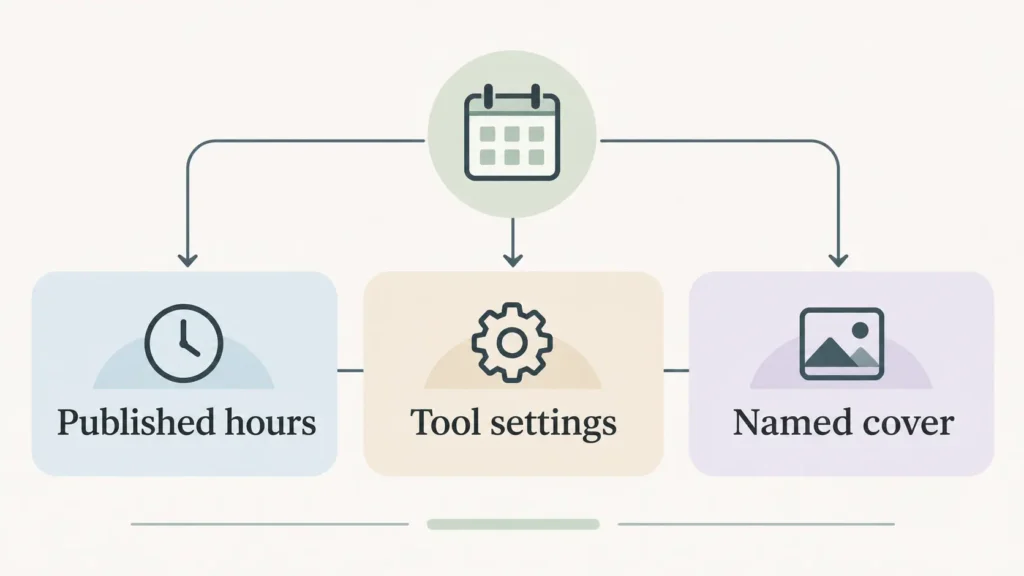
The solution is a holiday support coverage rota, or schedule, built around each date and communication channel. Decide when support will actually be available, assign named cover, and then make your published hours, auto-replies and help-desk settings match. Test the arrangement before the first reduced or closed day.
The example below uses Christmas 2026 through early January 2027, but the same approach works whenever a small business reduces customer-support hours.
What a holiday support coverage rota needs to do
Your rota should answer three questions for every date:
- What have customers been told? Record the hours shown on your website, help centre, email notices and other relevant channels.
- What will your tools actually do? Record whether the help desk counts the day as open or closed, when auto-replies appear and whether chat or phone availability changes.
- Who is covering? Name the person monitoring each channel, who they should contact when necessary and which requests they can resolve without further approval.
Those three answers must agree. Published hours without a real cover person create expectations nobody may be able to meet. Named cover without the correct software settings can leave customers receiving misleading notices or trigger unexpected response-time calculations.
For a business with one VA handling routine inbox tasks, the rota is more useful than a general instruction to “keep an eye on messages”. Where several people share responsibilities, assign a primary owner and backup rather than leaving the next available person to guess who is responsible.
This is about the calendar and the tools. For the wider question of what support work to hand to a VA, use the existing delegation guide.
Build the rota by date and channel
Start with your normal support schedule. Then mark every date when either the hours, available channels or person covering will change.
Record actual dates and time zones
Use complete dates rather than labels such as “Christmas week” or “the holiday weekend”. Write down the time zone customers should use, too.
For example, Friday, December 25, 2026 is Christmas Day. Saturday, December 26 is Boxing Day, but the UK observes its substitute bank holiday on Monday, December 28, according to the official GOV.UK bank holiday calendar.
That distinction matters when a US business works with people based in the UK, or customers and assistants operate in different time zones.
Do not assume that every country your business serves follows the same holidays. Decide which dates affect your actual operations and record the applicable hours in one named time zone.
Give each channel its own status
Email, web chat, phone calls, social messages and marketplace enquiries may follow different arrangements.
Use four practical labels:
- Open: Normal published support hours apply.
- Reduced: The channel is staffed for a shorter, specified period.
- Monitored only: Messages are checked for defined issues, but ordinary replies may wait. Explain this limitation to customers.
- Closed: No routine monitoring or reply coverage is provided during the stated period.
For instance, you might answer email between 10 a.m. and 2 p.m. while keeping live chat closed entirely. Do not leave a chat widget advertising immediate assistance simply because the email inbox is being checked.
Name the person covering and the contact route
For each staffed period, record the person who will monitor incoming messages. This may be the owner, a VA or another authorized team member.
Then identify the contact for matters outside that person’s authority, including how to reach them and when they are expected to be reachable.
When the owner is completely unavailable, write that down. Do not create an imaginary emergency route by listing a phone number nobody has agreed to answer.
The general principle is to maintain a separate urgent escalation route that reflects actual availability.
Keep reply permissions short
The rota should say what the covering person can handle, but it should not reproduce your entire complaint-handling policy.
For example, a VA might answer documented delivery questions and standard account FAQs while holding an unapproved refund or compensation request for the appropriate decision-maker.
The detailed rules about who decides on refunds and complaints belong in a separate escalation reference. The rota only needs to point to those rules and identify which decision-maker is reachable on that date.
Example: Christmas and New Year coverage rota
The following example is fictional. It describes a small online business that normally offers email support from 9 a.m. to 5 p.m. US Eastern Time, with a VA covering approved routine enquiries. Chat and phone support are not offered during this example period.
The owner has agreed to be reachable during staffed windows, but no one is on call when support is marked closed. These are planning assumptions, not Boost VA availability commitments.
In this table, “AR” means auto-reply, “FAQ” means approved routine answers, and “N” means not yet verified. The software-state column describes what the business wants to configure, not a guarantee that every help desk can achieve it automatically.
| Date (ET) | Published hours | Channels | Help desk / AR state | Cover | Contact route and window | May resolve | Must hold | Verified? |
|---|---|---|---|---|---|---|---|---|
| Mon Dec 21 | 9 a.m.–5 p.m. | Email open | Normal / AR off | Mina, VA | Owner, agreed phone / within 2 hours | FAQ | Unapproved exceptions | N |
| Tue Dec 22 | 9 a.m.–5 p.m. | Email open | Normal / AR off | Mina, VA | Owner / within 2 hours | FAQ | Unapproved exceptions | N |
| Wed Dec 23 | 9 a.m.–5 p.m. | Email open | Normal / AR off | Mina, VA | Owner / within 2 hours | FAQ | Unapproved exceptions | N |
| Thu Dec 24 | 9 a.m.–noon | Email reduced | Early close / AR after noon | Mina, VA | Owner / within 1 hour while staffed | FAQ | Refund exceptions | N |
| Fri Dec 25 | Closed | All closed | Holiday / AR on | None | No on-call cover | None | All enquiries | N |
| Sat Dec 26 | Closed | All closed | Holiday / AR on | None | No on-call cover | None | All enquiries | N |
| Sun Dec 27 | Closed | All closed | Holiday / AR on | None | No on-call cover | None | All enquiries | N |
| Mon Dec 28 | Closed | All closed | Holiday / AR on | None | No on-call cover | None | All enquiries | N |
| Tue Dec 29 | 10 a.m.–2 p.m. | Email reduced | Reduced / AR outside hours | Mina, VA | Owner / within 1 hour while staffed | FAQ | Refund exceptions | N |
| Wed Dec 30 | 10 a.m.–2 p.m. | Email reduced | Reduced / AR outside hours | Mina, VA | Owner / within 1 hour while staffed | FAQ | Refund exceptions | N |
| Thu Dec 31 | 10 a.m.–noon | Email reduced | Reduced / AR outside hours | Mina, VA | Owner / within 1 hour while staffed | FAQ | Refund exceptions | N |
| Fri Jan 1 | Closed | All closed | Holiday / AR on | None | No on-call cover | None | All enquiries | N |
| Sat Jan 2 | Closed | All closed | Holiday / AR on | None | No on-call cover | None | All enquiries | N |
| Sun Jan 3 | Closed | All closed | Holiday / AR on | None | No on-call cover | None | All enquiries | N |
| Mon Jan 4 | 9 a.m.–5 p.m. | Email open | Normal / holiday AR off | Mina, VA | Owner / within 2 hours | FAQ | Unapproved exceptions | N |
Keep the customer’s hours and the cover person’s availability separate. The owner being reachable for internal escalation does not mean customers should be promised a one-hour response.
This example also shows why a single message saying “closed until January 4” would be misleading. Email support is available on December 29, 30 and 31, although at reduced hours.
Blank holiday support coverage rota
Copy this structure into a spreadsheet or shared document. Create one row for each date and channel combination that needs a different arrangement.
| Date and time zone | Published hours | Channel status | Help desk and auto-reply state | Cover person | Contact route and response window | May resolve | Must hold | Verified? |
|---|---|---|---|---|---|---|---|---|
| [Date / zone] | [Exact hours] | [Open / reduced / monitored / closed] | [Intended settings] | [Name or none] | [Named contact / agreed window] | [Approved work] | [Decisions on hold] | [Y/N + test date] |
| [Date / zone] | [Exact hours] | [Status] | [Intended settings] | [Name or none] | [Contact / window] | [Approved work] | [Held work] | [Y/N + test date] |
Treat the “Verified?” column as part of the resource, not decoration. Mark a row complete only after someone has checked the published wording, relevant software behaviour and actual cover arrangement.
Make what customers see match the rota
Once the dates are agreed, update every place where customers could reasonably look for support availability.
The public notice should give exact hours, a time zone, the next staffed window and an accurate explanation of what happens to messages received while support is closed.
For the fictional example above, customer-facing wording could say:
Holiday email support hours
December 24: 9 a.m. to noon ET.
December 25–28: Closed.
December 29–30: 10 a.m. to 2 p.m. ET.
December 31: 10 a.m. to noon ET.
January 1–3: Closed.
Normal email support resumes January 4 at 9 a.m. ET.
Messages received outside staffed hours will be reviewed during the next available support window. For routine questions, please use our help centre.
Replace the example dates and help-centre reference with your actual arrangements.
An auto-reply can use a shorter version, but it must not promise a date or response time that contradicts the rota. For instance, saying “we’ll respond tomorrow” is unsuitable when tomorrow is a closed day.
Keep the wording aligned across your website, contact page, help centre, email responder and chat widget. If the business has a public storefront or service area, also check holiday hours on its Google listing. Storefront hours and customer-support hours are different promises, so verify both where applicable.
For genuinely urgent matters, give customers only an established, monitored contact route that your business is authorized and prepared to provide. Otherwise, state the coverage limits plainly rather than implying someone is on call.
Check how your help desk handles holidays
Software does not always interpret a “holiday” the way an owner does. One system may support a full-day closure but not an early finish. Another may limit when automatic replies are sent, or apply holiday hours to response-time calculations only under specific settings.
The following comparison reflects official platform documentation checked on November 23, 2026. Features can vary by product, plan, account configuration and later updates. Verify the settings in your own account before using them for a live schedule.
| Platform | Where to check | Partial-day considerations | SLA / reply-time behaviour | Auto-reply or channel caution |
|---|---|---|---|---|
| Zendesk | Admin Center → Objects and rules → Business rules → Schedules | Holiday exceptions are full-day, not partial-day | Scheduled holidays are outside business hours for applicable business-hours metrics | Support schedules do not control Chat operating hours |
| Freshdesk | Business hours and Holidays; confirm group assignment | Working hours can be configured; verify how the specific holiday and reduced day are represented | Business-hours and calendar-hours SLAs behave differently | Confirm the correct schedule applies to the ticket’s group |
| Help Scout | Company Hours, Inbox Hours and Inbox Auto Reply | Check the effective schedule for the particular inbox and plan | Office Hours can affect response and resolution reporting | Auto-replies are limited by conversation and sender by default |
| Gorgias | Business/holiday hours and auto-reply Rules | Confirm the correct dates and conditions for the rule | Holiday conditions are used by configured Rules | Holiday and outside-hours rules can both fire |
| Intercom | Settings → Workspace → Office hours → Holidays & Closures | Holiday settings can include reduced hours or full closure on supported plans | Holiday hours feed relevant SLA and reply-time calculations | Review Messenger expectations and any holiday notice |
| Gmail | Settings → General → Vacation responder | Date-range responder, not a half-day schedule | No help-desk SLA calculation in the responder itself | Automatic replies are not sent for every message |
The details that most often deserve a separate check are below.
Zendesk: an early closure is not a partial-day holiday
Zendesk’s schedule documentation states that holiday exceptions apply to full days. You cannot create a partial-day holiday in that feature.
If the business closes at noon on December 24, check whether the appropriate schedule or another supported configuration can represent that shorter day. Do not mark the entire date as a holiday and assume the software now understands a noon closure.
Zendesk also says that Support schedules do not apply to Chat operating hours. Email and chat may need separate configuration.
There is an additional timing problem: Zendesk’s SLA troubleshooting guidance explains that adding or removing holidays does not automatically recalculate existing SLA targets. Relevant ticket updates can trigger recalculation.
Set the schedule before the holiday where possible, and inspect existing tickets rather than assuming every displayed timer changed immediately.
Freshdesk: confirm which schedule the ticket uses
Freshdesk’s business-hours guidance distinguishes between business-hours SLAs and calendar-hours SLAs. Its newer account guidance requires business hours to be mapped to the appropriate group.
When you configure holiday hours, check the actual group assignment and the SLA policy. The relevant ticket must be using the expected schedule.
Freshdesk also explains that a genuine 24/7 support promise should use calendar hours for SLA calculations. Business-hours settings should not be used to make an uncovered 24/7 commitment appear fulfilled.
Help Scout and Gmail: auto-replies do not reach every message
According to Help Scout’s auto-reply documentation, an auto-reply normally goes to the first email in a conversation and only once to an individual address within 24 hours by default.
Consequently, a customer continuing an existing conversation may not receive the new holiday notice. Help Scout also allows Company Hours or supported custom Inbox Hours to determine when an outside-hours reply is sent, as its office-hours documentation explains.
Google’s Gmail vacation responder documentation describes a date-based responder that starts at midnight on the start date and ends at 11:59 p.m. on the end date unless stopped earlier. It usually responds the first time someone messages, with specified circumstances for another reply, including when the same person emails again after four days while it remains active.
Neither system guarantees that every customer already in conversation will receive your updated holiday announcement.
Check active threads before the closure. Where necessary, send approved manual updates or use an appropriate saved reply.
Gorgias and Intercom: check overlapping rules and reply expectations
Gorgias’ holiday auto-reply guidance warns that tickets created during a holiday closure also count as outside business hours. Without the appropriate exclusion, both the holiday rule and the ordinary outside-hours rule may respond.
Review the conditions together, not just the new holiday rule.
Intercom’s holiday support documentation explains that supported Holidays & Closures settings can override normal office hours and affect SLA and reply-time calculations. Its documentation currently identifies an applicable plan requirement, so confirm eligibility before relying on the feature.
Also inspect what Messenger displays to visitors. Changing office hours does not mean every visible response expectation or special notice will automatically say what you intend.
Test the setup before the first closed day
Completing the rota is only the planning stage. The last column becomes meaningful when someone tests what customers actually experience.
Use an approved test environment, test inbox or safe controlled method where available. Avoid deliberately disrupting live customer coverage or changing production SLAs just to simulate a holiday.
- Check the published notice. Open the website and contact routes as a visitor. Confirm every relevant date, time zone and next staffed window matches the rota.
- Send a test enquiry. From an external test address, verify the responder behaves as expected during an actual or safely simulated outside-hours period. Check whether it sends one message, several or none.
- Inspect ticket timers. Confirm the correct business-hours or calendar-hours setting applies. Pay special attention to tickets already open when the holiday schedule was changed.
- Test other channels. Inspect chat availability, Messenger notices, phone announcements or social inbox expectations wherever those channels are used.
- Review existing conversations. Check assigned tickets and open threads belonging to people who will be unavailable. Confirm the next person can see and act on them within the agreed limits.
- Verify access and contacts. Confirm the covering VA can open the inbox and approved references, and can reach the named contact during the agreed window. Use proper account permissions rather than shared master passwords.
Record the result beside each date and channel. If something fails, leave that row unverified, identify the exact mismatch and assign someone to correct it before relying on the arrangement.
For example, if the December 24 auto-reply only activates at midnight on December 25, the problem is not that the rota needs better wording. The planned early closure is not being represented correctly by the tool, so the team needs an appropriate supported workaround and another test.
Running the rota day to day
During a staffed window, the person covering should use the current day’s row rather than relying on what they remember about the holiday arrangements.
Keep a short coverage log recording:
- Messages received and answered.
- Conversations held for later review.
- Issues passed to the named contact.
- Any customer response or follow-up date actually promised.
- Outstanding items for the next staffed window.
If a listed contact cannot be reached, do not improvise a decision or promise an unavailable response. Follow the agreed fallback, record what remains unresolved and use an approved holding reply where appropriate.
The VA’s role is to maintain visibility, handle agreed routine work and route matters that need authorization. Broader decisions about which business work pauses or continues over the holidays belong in the separate holiday operations plan.
The first day back
Returning to normal hours also requires checking the public promise against the live settings.
On the first scheduled working day:
- Confirm the normal support schedule is active and the relevant person is available.
- Turn off temporary holiday responders, notices and special routing rules that should no longer apply.
- Review open or held tickets, especially those with promises or deadlines that cannot safely wait.
- Check assignments and make sure conversations return to the correct responsible person.
- Review whether the public hours, actual cover and tool settings matched during the closure.
Do not remove recurring holiday entries or historical schedule records blindly. Where a platform supports future or recurring holidays, confirm whether the entry should remain in place and whether changing it affects existing SLA calculations.
If the person who normally covers the inbox is also taking leave, use a separate virtual assistant backup plan to arrange that handoff.
Reduced support hours do not require an elaborate system. They require one accurate schedule that customers can understand, your tools can follow and the person covering can use without guessing.
Start with the next date on which your support hours change. Fill in the public promise, configure the channels, name the cover person and test the result. That gives you a reusable rota for future holidays, staff leave or other reduced-hours periods.
If you need practical help organising your inbox documentation, approved messages or administrative tracking, you can contact me to discuss your setup.