Consider this fictional situation.
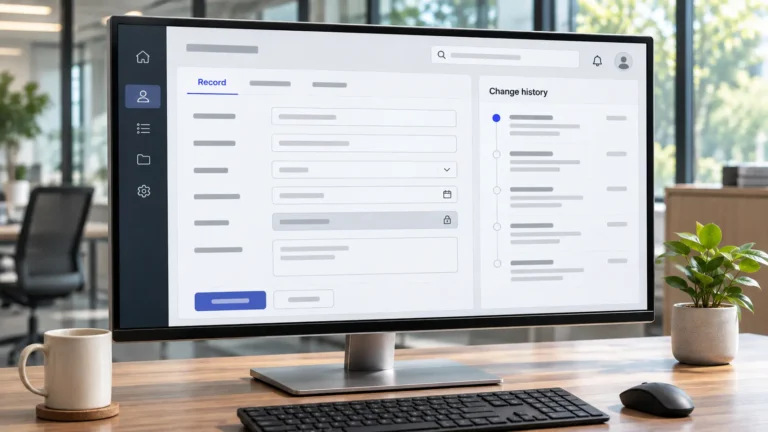
Your sales report looked correct on Friday. By Monday, the pipeline total has changed. Nobody has created a new deal, but several close dates and deal stages have been updated. One change came from a salesperson, another from an import, and a third from an automated workflow.
Each update may have made sense to the person or system responsible. The problem is that nobody agreed on who should be allowed to change those values or how changes would be checked.
CRM field ownership solves that problem by giving important fields a named owner, defining who may edit their values, and recording how changes should be approved or reviewed. Start with the fields your reports and automations depend on. Use native CRM permissions where your subscription supports them, and written rules with change-history checks where it does not.
If you have already completed a database cleanup, this is the next step after establishing rules for CRM cleanup and duplicate merges. Cleaning records addresses existing problems. Field ownership helps control what happens to important values afterward.
Which CRM Fields Actually Need Rules?
Not every field in your CRM deserves the same restrictions.
An incorrect phone number may affect one person’s follow-up. An incorrect deal amount could change a sales forecast. Updating the definition of a pipeline stage could affect how an entire team interprets sales progress.
Start by identifying fields that influence important decisions, calculations, automations or customer communications.
Common candidates include:
- Deal stage: Determines where an opportunity appears in the pipeline.
- Deal amount: Contributes to revenue forecasts and pipeline totals.
- Close date: Affects forecasts and time-based reporting.
- Lead source: Influences attribution and marketing analysis.
- Record owner: Determines responsibility and may affect assignment or routing.
- Lifecycle stage: Helps classify where a contact or company sits in the customer journey.
- Consent or communication status: May affect whether certain communications are permitted.
- Custom qualification fields: Can influence lead scoring, reporting or automated actions.
These are candidates for review, not a universal list of fields that must be locked. Their importance depends on how your CRM is configured and which processes use them.
Separate fields into Locked, Controlled and Open tiers
Use three policy tiers to decide how much protection each field needs.
Locked: Only a designated owner or explicitly approved system should change the value. Other users must request a correction. An original lead-source field maintained by an approved integration might belong here.
Controlled: Authorized editors can update the value, but they must follow an agreed rule. Deal amounts and close dates may fall into this tier when salespeople need to update them as opportunities progress.
Open: Routine updates can happen without individual approval, provided users follow normal data-quality procedures. General contact information may fit here.
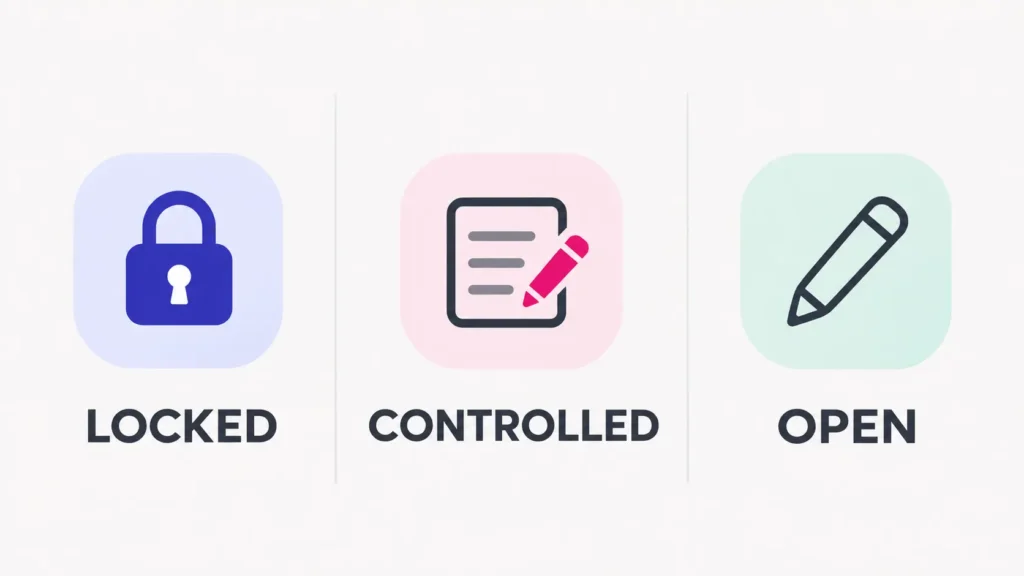
These are business-policy labels, not guarantees that your CRM can technically prevent every unauthorized change.
The word “Locked” describes your intended rule. Whether your software can enforce that rule depends on its subscription, permissions and available editing routes.
Owning a Field Is Not the Same as Editing It
The person responsible for a field’s meaning does not have to be the only person allowed to update its value.
For example, a sales lead may own the definition of “Qualified Opportunity” and decide which conditions a deal must meet before entering that stage.
Sales representatives might still be allowed to move deals into that stage once those conditions are satisfied.
Three responsibilities need to be distinguished:
- Definition owner: Decides what the field means, which values are valid and when its rules may change.
- Authorized editor: Updates field values within those rules.
- History reviewer: Checks significant changes and investigates unexpected updates.
One person can perform more than one responsibility. Small businesses do not need separate departments for each.
This distinction reflects the broader separation of data accountability and day-to-day management described in Western University’s data governance definitions. For a small CRM, the practical version is simply to give the definition and the editing rules clear owners.
Imports, integrations and workflows are editors too
Someone may have the correct permissions and still find that a CRM value changes unexpectedly.
An integration could replace a lead source. An import might populate a field from an older spreadsheet. An automation could change a lifecycle stage when its conditions are met.
Treat those automated sources as editors in your register.
For each important field, identify which imports, integrations and workflows can write to it, who manages those connections, and what should happen if their output conflicts with an approved value.
This matters because restricting human users does not necessarily restrict every automated editing route.
What Can Your CRM Actually Enforce?
Some CRMs provide field-level permissions that prevent certain users from editing specific values. Others make similar restrictions available only on particular subscription plans.
Even when restrictions exist, they may not cover every way a value can be created or changed.
The following comparison reflects vendor documentation reviewed in November 2026.
| CRM | Available field controls | Important limitation |
|---|---|---|
| HubSpot | Property view and edit restrictions on eligible Enterprise subscriptions | Restrictions are not complete security controls; API edits and manual record creation can bypass them. |
| Pipedrive | Read-only custom fields based on permission sets, available on Professional and higher plans | Restrictions depend on field configuration and permission sets; formula fields are calculated rather than manually restricted this way. |
| Zoho CRM | Field permissions per profile, including Read & Write, Read Only and Don’t Show | Zoho documents this capability for Professional edition and above. |
| Salesforce | Field-level security through permission sets and profiles | Effective access depends on assigned permissions, including permissions that can override read-only settings. |
These differences are documented in HubSpot’s property-access guidance, Pipedrive’s read-only fields documentation, Zoho CRM’s field-permission guidance, and Salesforce’s field-permission documentation.
Before relying on a setting, confirm that it exists in your subscription and test how it behaves for the actual user roles involved.
HubSpot provides a particularly useful warning. Its documentation explicitly says property restrictions should not be treated as a complete security measure. Users may still set or change restricted properties through the API or during manual record creation.
The practical conclusion is that a field restriction can reduce unwanted changes without necessarily preventing every change.
When your subscription cannot lock a field
Your process can still define who is authorized to change important values, even if the software does not enforce that decision.
For a field without a suitable native restriction:
- Name the person responsible for its definition.
- Document which editors are permitted to update it.
- Specify the evidence or conditions required for a change.
- Create a simple correction route for anyone outside that group.
- Decide how the owner will inspect significant changes.
For example, a virtual assistant maintaining contact records might be allowed to correct phone numbers but required to flag a questionable lead-source value instead of overwriting it.
This arrangement relies on written instructions, cooperation and review. It should not be described as equivalent to technical access restrictions, especially for sensitive data.
Build a CRM Field Protection Register
The field protection register is a single reference showing what each important field controls, who is responsible for it and how changes should be handled.
Begin with approximately five to fifteen fields that materially affect your operations. This is a suggested starting scope, not a formal standard.
Use the following columns:
- Field
- What depends on it
- Tier
- Definition owner
- Who may edit
- Change route
- Enforcement in our CRM
- History check
- Last reviewed
Here is a fictional example for a small sales business. The roles, enforcement levels and checking schedules are illustrative. Replace them with rules tested against your own CRM.
| Field | What depends on it | Tier | Definition owner | Who may edit | Change route | Enforcement in our CRM | History check | Last reviewed |
|---|---|---|---|---|---|---|---|---|
| Original lead source | Marketing attribution | Locked | Marketing lead | Approved integration; marketing admin for corrections | Submit source evidence for review | Partial; verify import and integration routes | Marketing lead checks unexpected changes weekly | Set date |
| Deal amount | Pipeline value and forecasts | Controlled | Sales lead | Assigned sales rep | Update from approved quote or revised deal terms | Rule only until permissions are confirmed | Sales lead samples changed values weekly | Set date |
| Deal stage | Pipeline reporting and stage-based automation | Controlled | Sales lead | Assigned sales rep; approved workflow | Move only when agreed stage conditions are met | Partial; confirm workflow behaviour | Review unexpected moves and stage reversals | Set date |
| Contact phone | Customer follow-up | Open | Operations lead | Sales rep; authorized VA | Update from a reliable source | Routine editing permissions | Periodic data-quality sampling | Set date |
The sample deliberately includes different levels of protection.
Original lead source is treated as a relatively stable attribution field. Deal amount and deal stage are expected to change, but only under defined conditions. Contact phone is easier to update because routine corrections are part of ordinary record maintenance.
Copy these column headings into a spreadsheet or shared operating document. The wider register is often easier to maintain there than inside a CRM note.
For each real field, complete the entry using your organization’s actual responsibilities and configuration.
Two columns deserve particular attention.
Enforcement in our CRM should describe what you have verified, not what you hope the software prevents. Use labels such as Native restriction, Partial restriction or Rule only, followed by a short explanation.
History check should identify the available history location, the person reviewing it and the review trigger or frequency. If a field has no reliable history, record that limitation and consider what alternative evidence can be retained.
The completed register should answer practical questions without requiring someone to interpret an entire CRM policy: Can I change this field? What evidence do I need? Who decides exceptions? How will an unexpected edit be found?
Handling Exceptions Without Breaking the Rule
Field ownership should allow legitimate corrections. The purpose is to prevent uncontrolled changes, not to preserve values that everyone knows are wrong.
Consider three common situations.
When a sales rep needs to correct a close date
The expected closing date changes after a customer delays a purchase.
If close date is Controlled, the rep can update it under the agreed rule and record the reason when required.
If the field is restricted, the rep provides the revised date and supporting context to the authorized editor.
The definition owner should not need to approve every ordinary correction unless the business has deliberately chosen that level of control.
When a VA finds an incorrect lead source
During routine CRM maintenance, an assistant notices that a lead recorded as “Organic Search” appears to have arrived through a paid campaign.
Changing the value immediately could alter marketing attribution.
The assistant should flag the record, link the evidence and route the correction to the person who owns lead-source definitions. That person determines whether the source was genuinely incorrect and which value should replace it.
This is different from correcting a spelling mistake in a contact’s name.
If a general delegated-work decision becomes unclear, a documented virtual assistant approval process can support the escalation. The field register still supplies the specific CRM rule.
When an integration overwrites a manual value
Suppose a CRM integration repeatedly changes a field that the sales team considers correct.
Restoring the value manually may solve the immediate symptom, but the integration could overwrite it again.
The responsible person should investigate the write source, field mapping and automation conditions before deciding whether the manual value or the automated value should take precedence.
The register should then be updated to reflect the approved source and any change to the integration’s editing responsibilities.
Check the Change History, Not Just the Permissions
Permissions tell you what certain users are supposed to be able to do. History helps you understand what actually changed.
Reviewing important changes is particularly useful when a CRM has limited native restrictions, multiple integrations or several people maintaining records.
What HubSpot property history can show
HubSpot’s property-history documentation describes a record-level history showing the value changed to, the date and the change source.
The feature is documented for all HubSpot products and plans.
For an individual record, you can inspect property history to investigate an unexpected stage, amount or other value change. The source information can help distinguish a manual edit from an import, workflow or another supported change source.
HubSpot also documents restoration for certain change sources, but this does not mean every historical value can always be restored automatically.
What Salesforce requires
Salesforce offers Field History Tracking, but it must be enabled for the applicable object and supported fields.
Standard field history is subject to retention limits. Salesforce documents up to 18 months of retention, with up to 24 months accessible through the API when Field Audit Trail is not in use.
Do not assume that turning on permissions automatically activates field history or that historical changes remain available indefinitely.
Establish a review routine that fits the risk
Start by choosing the fields and records where an unexpected change would matter most.
For each history review:
- Compare the new value with the field’s approved definition.
- Identify when the change happened and which user or system made it, where that information is available.
- Check whether the change followed the documented route.
- Investigate unexplained edits, repeated reversals or unexpected automated updates.
- Correct the underlying rule, permissions or integration when necessary.
A weekly sample may be reasonable for some active sales fields, while other fields may need event-triggered review. The right frequency depends on the consequences of a mistake, the volume of changes and the history your CRM makes available.
You also need to distinguish incorrect inputs from differences in reporting calculations. The separate guide to making client reporting numbers reproducible explains how to document metric definitions, source systems and reporting conditions. Field ownership addresses a related but earlier question: who can change the underlying CRM values?
Finally, revisit your register whenever you add a field, integration, workflow or new editor. The protection rules should reflect how the CRM actually operates today.
Once the rules are agreed, whoever maintains your CRM has a clearer brief. At Boost VA, my Data Management support can include routine CRM updates, validation and database maintenance within the boundaries you define. If you need help keeping that work organized, get in touch to discuss your CRM maintenance needs.