
Saving your holiday hours in Google Business Profile is not the same as confirming that customers can see them. You might enter the correct schedule, click Save and assume the job is finished, only to find that the edit is pending or that Google is displaying different information.
The Google Business Profile holiday hours checklist below uses three checkpoints: before you save, after you save, and until the holiday passes. Confirm the intended dates and hours, review the edit status, inspect what customers can see on Google Search and Maps, and watch for changes that could affect the listing.
Timing matters. According to Google’s guidance on Business Profile edits, reviews usually take up to 10 minutes, but some can take up to 30 days. Preparing early leaves more room to identify a problem before customers depend on the information.
Why “Saved” Isn’t the Same as “Seen” on Google
Your Google Business Profile contains information that customers may use to decide whether to visit, call or make a booking. Holiday hours are especially important because the normal weekly schedule may not apply.
Saving an edit does not establish that the updated information is already visible to customers.
Google reviews certain profile edits before they appear publicly. The company may also update business information using reports and other sources. Customers can suggest changes, and some suggestions may be published if the business does not respond.
This creates three separate things worth checking:
- The intended schedule: Have you entered the correct dates, opening times and closures?
- The saved result: Has Google accepted the change, or is it still pending?
- The public information: Does the listing show the intended hours, and have any subsequent updates changed them?
These checks are different from the broader responsibilities involved in delegating Google Business Profile tasks to a virtual assistant. That guide covers access, approvals and recurring upkeep. Here, the focus is whether one specific field contains the right information for each holiday date.
Checkpoint 1: Confirm the Hours Before Saving
Start with the actual schedule your business intends to follow.
For every relevant holiday, identify whether the location will operate normally, open for reduced hours, open for additional hours or close completely.
Google calls temporary holiday changes Special hours. Its special hours instructions recommend confirming official holiday hours even when they are identical to your regular schedule.
Choose the correct hours setting
Google provides different settings depending on the type of schedule change.
| Situation | Setting to use | What to check |
|---|---|---|
| Normal weekly opening pattern | Regular business hours | Confirm the usual days and times are correct |
| Holiday schedule change or closure of up to six consecutive days | Special hours | Enter the affected dates and approved hours or closures |
| Different operating times for delivery, takeout or certain services | More hours | Confirm the correct service-specific hours |
| Closure for seven or more consecutive days, or an unknown period | Temporarily closed | Use the business-status setting rather than treating it as a short holiday closure |
These settings are not interchangeable. For example, changing your regular weekly hours to accommodate one holiday could affect dates beyond the holiday itself.
Build the holiday date list
Do not rely only on the next holiday appearing in Google’s suggestions.
Google’s holiday list identifies recognized dates by country. The company says a warning may appear on listed holidays to tell customers that business hours might differ.
For the US holiday season in 2026, dates worth reviewing include Thanksgiving on November 26, Christmas Day on December 25 and New Year’s Day on January 1, 2027. Businesses may also need different hours for Black Friday, Christmas Eve or New Year’s Eve.
UK businesses should check their applicable national calendar. For example, GOV.UK lists Monday, December 28, 2026 as the Boxing Day substitute bank holiday in England and Wales.
Your final date list should reflect your actual business operations and local holidays, not every holiday recognized elsewhere.
For each applicable date, record the intended opening time, closing time or full-day closure, together with who confirmed it.
Enter the dates and check the prerequisites
For a business using Special hours:
- Open the Business Profile and select Edit profile, followed by Hours.
- Find Special hours in the Business hours section and select Edit.
- Choose Review for a suggested holiday date, or Add a date for another relevant date.
- Enter the approved opening and closing times, or select Closed for a full-day closure.
- Inspect all dates and times before selecting Save.
Google says Special hours only appear when the profile’s regular hours setting is Open with main hours. Check that prerequisite before assuming a missing holiday schedule is a publication problem.
Overnight operations also need attention. One set of special hours cannot exceed 24 hours. When a schedule runs beyond midnight in a way that requires separate periods, use the date-specific method described in Google’s instructions.
Be particularly careful when the next day’s Special hours replace that day’s normal hours. Other opening periods on that second date may need to be entered again.
If you use Generate hours, check its output
Google introduced documentation for a feature called Generate hours, which interprets a written description of operating hours and turns it into structured fields.
The feature was included in Google’s November 5, 2026 Small Business Bulletin, as reported by Search Engine Journal.
According to Google’s hours-editing guidance, it is available only in select regions and languages, so not every profile will have it.
If you use it, inspect every generated day, opening time and break before saving. Also verify your separate Special hours entries. Do not assume the generated regular schedule has correctly accounted for every holiday.
Checkpoint 2: After Saving, Check the Status and Public Listing
Once the hours are saved, confirm what happened to the edit.
Google identifies three possible edit statuses:
| Status | What it means | Next step |
|---|---|---|
| Accepted | The updated information displays on the Business Profile | Check the intended dates in the public listing |
| Pending | Google is still reviewing the edit | Record the status and arrange a follow-up check |
| Not approved | Google did not approve the change | Check the information and use the available appeal or correction process where appropriate |
These status definitions come from Google Business Profile Help.
Do not treat an edit that remains Pending as confirmed simply because the data was entered correctly. Record when it was saved and when you plan to check again.
Repeatedly submitting the same unverified edit is not a substitute for finding out what happened to the original change. Review its status and the available guidance before deciding whether another action is necessary.
Compare Google Search and Maps with the approved schedule
Search for the business by its correct name and location, then inspect its public Business Profile on Google Search and Google Maps.
For each relevant holiday date:
- Check whether the intended opening hours or closure can be seen.
- Compare the displayed information against the approved schedule.
- Confirm that you are viewing the correct business location.
- Record the date and result of the check.
Future holiday hours may not be presented in every public view as early as you would like. If the date-specific schedule is not yet visible, record that visibility is unconfirmed rather than assuming the saved edit failed.
Check again closer to the holiday when the public display makes the relevant date available.
This distinction is useful: an accepted edit and a verified customer-facing display are related checks, but they are not the same observation.
Checkpoint 3: Watch for Changes Until the Holiday Passes
Even after confirming the hours, keep an eye on changes that could alter what customers see.
Google can update Business Profile information based on sources beyond the business itself. Customers may also suggest changes.
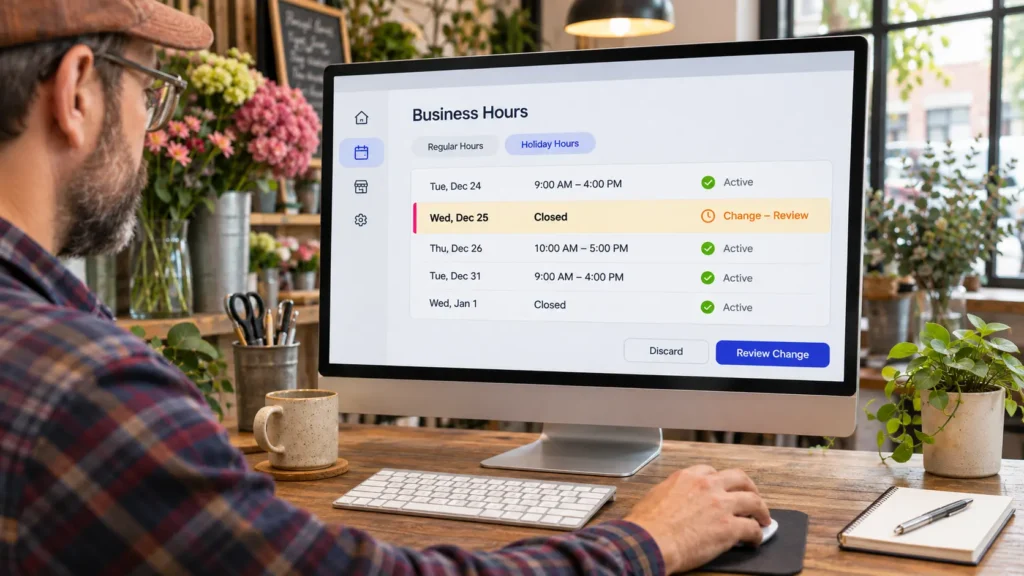
Blue text can indicate a Google update
According to Google’s explanation of Business Profile updates, information changed by Google appears in blue text within the profile editor. Google may also show a notification near the top of the page.
If the affected information concerns opening hours, compare it with your approved schedule.
Do not accept a different time simply because it appears in the editor. Identify whether the proposed or applied information is correct before taking further action.
Respond to suggested edits within the applicable window
Google’s current guidance describes an important timing rule.
When a suggested edit requires review, the business may receive an email or in-product notification. Once notified, the owner has four days to accept or reject the suggestion.
If there is no response within that period, Google may publish the change when other publicly available information, such as the business website, supports it.
This four-day window does not apply to every Business Profile edit. Google also says some suggested edits may be applied without prior review when necessary to meet policy guidelines.
During an active holiday period, checking notifications more often than a weekly routine would help avoid missing a time-sensitive suggestion.
Make sure the website supports the same schedule
Your website should not contradict the holiday schedule you want Google to display.
For example, imagine that your Google Business Profile is set to close at 2 PM on Christmas Eve, but your website still advertises the usual 6 PM closing time without any holiday clarification.
Someone checking those two sources could reasonably receive conflicting information.
Because Google may use publicly available website information when assessing suggested edits, keeping the website current is part of the holiday-hours check.
Confirm that any published holiday-hours notice, location page or relevant contact page reflects the same approved schedule.
This check does not guarantee that Google will accept an edit or prevent every incorrect change. It simply removes an avoidable inconsistency between sources.
Managing Several Locations? Check These Bulk-Update Traps
Businesses and agencies maintaining several locations may use spreadsheets or integrations to manage hours.
The same date-by-date verification still applies, but bulk updates introduce additional risks.
First, blank spreadsheet columns can remove existing information. Google’s Special hours instructions explain that when an existing business is updated using a bulk spreadsheet, including empty columns with headings but no values can erase information in those columns.
If the update only concerns Special hours, Google’s guidance allows an existing-location upload containing the store code and Special hours columns.
Second, blank fields can interact with Google updates. Google’s bulk-update guidance says an automatic update may apply when a field is left blank.
For API-based workflows, the Google Business Profile Business Information API also specifies that Special hours cannot be set without regular hours and that individual special-hour periods must be shorter than 24 hours.
For the broader coordination of location records, approvals and publishing, see my multi-location SEO workflow. For this particular task, keep one check-log entry per location and holiday date.
After the Holiday: What to Check and What to Leave Alone
Google displays Special hours only for their designated dates. That means properly entered Special hours should not need to be manually removed after the holiday.
Avoid deleting valid historical entries simply because the holiday has passed.
Instead, verify three things:
- Regular business hours were not accidentally changed to accommodate the holiday.
- Any temporary website announcement or banner no longer communicates outdated information.
- The business is showing its intended current operating status.
If you marked a business Temporarily closed rather than using Special hours, reopening requires a separate status change. Google’s reopening instructions explain how to return a location to Open with main hours.
For a wider January restart plan involving staffing, payments, customer support and other operations, use my holiday operations planning guide. The checks here remain limited to the accuracy of Google’s hours information.
Google Business Profile Holiday Hours Troubleshooting
When something looks wrong, start with the symptom rather than changing multiple settings at once.
| What you notice | What to investigate | Practical next step |
|---|---|---|
| Special hours are not showing | The profile may not be set to Open with main hours | Check that prerequisite and review the saved Special hours |
| The edit is Pending | Google’s review has not finished | Record the status and check again; remember that some reviews can take up to 30 days |
| Hours changed unexpectedly | Google may have updated the information or applied a suggestion | Inspect notifications, blue-text updates and the current approved schedule |
| Overnight hours look incorrect | The entered periods may cross midnight incorrectly | Review the 24-hour rule and split the hours where needed |
| Delivery or takeout hours are wrong | Service-specific hours may have been entered in the wrong setting | Review More hours |
| The edit is Not approved | Google has rejected the change | Review the details and use an appeal option if one is available |
| The website and Google disagree | One source may still contain the usual schedule or an outdated notice | Correct the source that is inconsistent with the approved hours |
| The profile remains Temporarily closed | Reopening may not have been completed | Follow Google’s reopening process |
Do not assume every mismatch has the same cause. The useful next step is to identify which part of the record is wrong, then correct that part.
Copy This Holiday Hours Check Log
Use one row for each location and holiday date. The purpose is to preserve the difference between what was approved, what was saved, what was confirmed publicly and what still needs attention.
Copy the table below into your spreadsheet or working document. Replace the bracketed placeholders with actual values.
| Date | Holiday name | Approved hours/Closed + approver | Setting used | Date saved | Edit status + re-check date | Search checked | Maps checked | Website matches | Updates/suggested edits seen (+ action taken) | Post-holiday check done |
|---|---|---|---|---|---|---|---|---|---|---|
| 2026-11-26 | Thanksgiving | [Hours/Closed; approver] | [Special hours] | [Date] | [Status; next check] | [Date; result] | [Date; result] | [Yes/No; details] | [None or change and action] | [Yes/No; date] |
| [Date] | [Holiday] | [Hours/Closed; approver] | [Setting] | [Date] | [Status; next check] | [Date; result] | [Date; result] | [Yes/No; details] | [None or change and action] | [Yes/No; date] |
When using the log, distinguish between Confirmed, Pending and Not yet visible rather than marking every incomplete check as a failure.
For example, an edit could be Accepted while the relevant future date is not yet visible in the public listing. That entry still needs a later public check, but it should not be described as a rejected change.
Likewise, an incorrect Google update should have an action recorded beside it, not just a note that something changed.
For recurring checks, the person maintaining the profile can collect the evidence, record exceptions and flag inconsistencies against the confirmed schedule. This is the kind of repeatable local listing and data-checking work that can be organized within an established support process.
Use the Same Check for Every Holiday
Holiday hours are temporary, but the need to verify them returns with every important date.
The useful habit is not repeatedly entering the same information. It is confirming that each date has the right setting, that Google’s review has been accounted for, and that customers can see the intended schedule when it matters.
If you need ongoing help maintaining Google Business Profile information, local listing records and related content checks, you can review my virtual assistant services. Consistent records and clear follow-up make seasonal updates easier to manage.