
Imagine this hypothetical launch: your homepage banner shows the new offer, but a welcome-email automation still sends the early-bird code. Meanwhile, a social post scheduled last week says the sale “ends Sunday,” even though the date has changed. Every individual file may have been approved at some point. The trouble is that older copies were never taken out of use.
Marketing asset version control gives small teams a way to prevent that mismatch without buying complex software. Keep one record of where each promotion is running, number every asset version, distinguish Approved from Current and Expired, and set an end date in each platform that supports one. When a version expires, remove or disable every remaining placement rather than merely changing the file in your shared folder.
Why the wrong promo version survives
Updating the main graphic doesn’t update all the places where the old offer has been copied. The banner on your website, the text inside an email automation, an ad creative and the actual discount configured in your store may each be managed separately.
That is why approval alone isn’t enough. Someone may have signed off on the replacement graphic, while the previous offer remains active in a system nobody checked. The problem becomes one of retirement, not simply producing the next version.
Filecamp’s guide to the digital asset lifecycle identifies two separate risks: older versions can continue circulating when assets are distributed, and outdated assets can remain in use when they should be retired. For a small team, the practical response is to keep track of actual placements rather than assuming one updated folder means the campaign is correct everywhere.
This is related to keeping an obvious source of truth for current marketing assets. The additional question here is more specific: where is each version still live?
Where stale copies tend to hide
When an offer changes or ends, check the systems that could still display or distribute the old version:
- Website hero banners, announcement bars, landing pages and reusable page sections.
- Discount codes and automatic discounts configured in the online store.
- Saved email templates, welcome sequences, abandoned-cart automations and scheduled sends.
- Scheduled social posts and ad creatives that were uploaded separately from the original file.
- Offers on your Google Business Profile, where applicable.
- Downloadable PDFs, sales decks, old campaign links and other materials customers may still encounter.
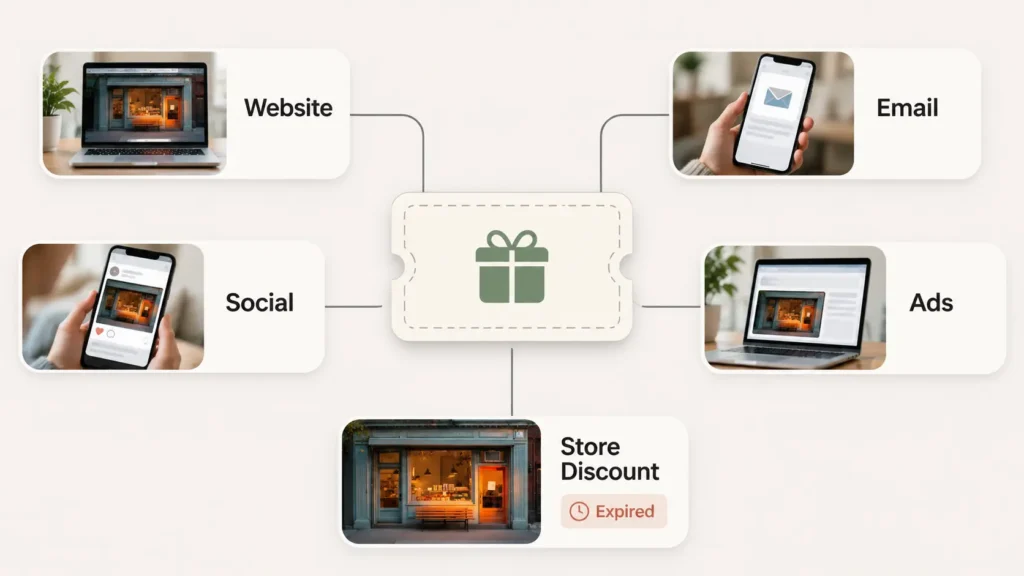
The list should match the channels your business actually uses. You don’t need to monitor an advertising platform you have never used. You do need to account for every active place where customers can still see or act on an offer.
Rule 1: Give assets three states, and let Expired win
Use three clearly defined states in your register. The labels refer to whether a particular asset version is permitted to run at a specific placement, not just whether somebody liked the design.
- Approved: The responsible person has signed off on the asset. It may be waiting for its scheduled start. Approval does not mean it should be live right now.
- Current: This is the version intended to be live at the recorded placement during the active offer window.
- Expired: This version is no longer valid for that placement or promotion. It must not remain live, even if it was approved earlier.
Expired overrides Approved. If a promotion has ended, a previously approved version cannot become valid again just because its approval record still exists. Changing it back to Current should require a new, explicit business decision and any necessary review of the offer terms.
This principle is not a claim that every platform manages asset states in the same way. It is a deliberately simple convention for a small team, informed by Adobe Experience Manager Assets documentation, where the Expired indicator takes precedence over an asset’s previous Approved or Rejected indicator.
If one file appears in several places, give each placement its own register row. That way the website version can be Current while an email placement is still Approved and awaiting its start. Once the entire promotion expires, all affected placements should be marked Expired and checked for removal.
Rule 2: Use a version number, not “final”
Give each campaign asset a predictable name so someone working under time pressure can recognize the intended use and version without opening several nearly identical files.
One workable naming pattern is:
campaign_asset_channel-size_offer_v02_end-YYYYMMDD
For example:
bfcm26_homebanner_desktop_30off_v03_end-20261130.webp
Compare that with banner FINAL new (2).png. The second name says little about which promotion it belongs to, where it runs or when it stops being useful.
The pattern is an example, not an industry standard. Adapt the fields to your business. Keep the version number (v01, v02, v03), use a consistent date format, and explain abbreviations to anyone who handles campaign files. Harvard Medical School’s file-naming guidance recommends systematic names and dated or numbered versions. UW–Madison Libraries similarly recommends version numbers over ambiguous labels such as “draft” and “final.”
Don’t put Approved, Current or Expired into the filename. Those states can change without the file contents changing. Keep them in the register, where they can be updated without creating another file called final-final.
The date in the filename is a helpful warning, not a shutdown mechanism. An image called end-20261130 will still display on December 1 if a website or scheduler has not been told to stop showing it.
Rule 3: Set the end date where the asset actually runs
The register tells the team what should happen; the platform setting is what may actually stop a live offer. Treat those as two separate jobs.
For example, Shopify’s amount-off discount instructions explain that a discount without an end date doesn’t expire. The same documentation says discount timing follows the time zone configured in the Shopify admin. Writing “ends Monday” in a marketing file does not set the discount’s Active dates.
For every promotion, check whether the relevant platform offers a native end date or automatic deactivation option. Set it when the promotion launches, where available. Record the configured date and time zone in your register, and confirm that the offer’s wording matches the actual setting.
Where there is no suitable automatic end date, assign a named person to remove or replace the placement manually. This might mean changing an announcement bar, pausing a scheduled post, updating an email automation or checking an old landing page. A calendar reminder can help, but it should point to a specific placement and a specific person, not simply say “campaign ends.”
Remember that stopping a discount code doesn’t necessarily remove the banner advertising it. Likewise, removing the banner doesn’t necessarily turn off the code. Each location needs its own check.
Keep one live-placement register
The useful record is not a folder inventory of every design file. It is a list of which version runs where and when it must stop. One row should represent one asset version at one placement.
Copy these column headings into Google Sheets or Excel. The rows below are hypothetical examples, not records of a real campaign.
| Asset ID / filename | Version | State | Placement | Platform end date set? | Start | End, with time zone | Owner | Retired on / checked by |
|---|---|---|---|---|---|---|---|---|
bfcm26_homebanner_desktop_30off_v03_end-20261130.webp | v03 | Current | Homepage hero banner | No, manual removal | Nov 27, 09:00 ET | Nov 30, 23:59 ET | Content assistant | Pending |
bfcm26_welcome_email_earlybird_v02_end-20261126.html | v02 | Expired | Welcome-email automation | No, manual removal | Nov 20, 09:00 ET | Nov 26, 23:59 ET | Content assistant | Nov 27, checked by content assistant |
bfcm26_store_discount_30off_v01_end-20261130 | v01 | Current | Store discount setting | Yes | Nov 27, 09:00 ET | Nov 30, 23:59 ET | Store owner | Pending |
The first row needs a manual website change after the offer closes. The second records an older automated email that has already been removed. The third records a discount with its own platform-level end date. Even though the homepage and discount advertise the same promotion, they must be checked separately.
Keep the register small enough to maintain. If a platform has several placements, create separate rows only where they can go live, expire or be removed independently. Include a direct link to the live placement or relevant admin location when it makes checking easier, but keep private administrative links inside your team’s internal sheet.
The owner column is important. Someone should reconcile the register at launch, when an offer changes, and after the stated end time. Maintaining that sheet and checking approved placements is a sensible recurring task for a virtual assistant; decisions about pricing, eligibility, exceptions and final sign-off should remain with the authorized business owner or specialist.
Your social media content calendar may already tell you what posts are scheduled. This register answers the different question of which versions across all channels are still allowed to run.
Before marking a row “retired,” open the actual customer-facing placement to confirm the old version is gone. For an email automation, inspect the active workflow rather than only the saved design file. For a discount, confirm the active promotion settings rather than trusting the filename.
Why an old price or deadline matters more than an old logo
Stale branding can make a campaign look inconsistent. An incorrect price, discount code or “ends tonight” claim can affect a customer’s purchase decision. That is why commercial offer details deserve extra care in the retirement check.
The legal significance depends on the claim, the market and the circumstances. In the UK, Reed Smith’s analysis of the Competition and Markets Authority’s price-transparency guidance notes that price presentation can matter across digital touchpoints, including app banners. The CMA’s October 2026 Wayfair enforcement update also documents action concerning misleading time-limited offers. That case should not be mistaken for proof that a stray outdated marketing file caused the problem.
The practical lesson is to keep public claims, sale terms and configured end dates aligned. If a promotion involves regulated products, complex discount conditions or uncertainty about consumer-protection obligations, seek advice appropriate to the jurisdiction. This is operational guidance, not legal advice.
When the basic system is enough, and when it isn’t
For one small offer on a single channel, consistent filenames and a scheduled end-date check may be all you need. Don’t create a large spreadsheet merely to control one banner.
The register becomes more valuable when several people can publish, or when the same offer appears on a website, in email and in ads. Teams managing many brands, licensed imagery or promotions with additional legal controls may need dedicated digital asset management software, rights-expiry controls and professional review. The spreadsheet convention is not a substitute for those requirements.
Before the next launch, decide who will update the register and who will check every placement after the campaign ends. For the 2026 Black Friday and Cyber Monday period, that means planning a retirement sweep after November 30, with the timing matched to your actual offer terms and platform time zones. The same habit applies to January sales, launches and later price changes.
If keeping banners, scheduled content, website updates and the retirement register in sync is taking time away from other work, explore my marketing and publishing support to see which recurring checks could be handled for you.