Year-end is a natural time to close project folders. That does not mean every folder labelled “2025 – Old” should disappear into an unsearchable corner of your shared drive, and it certainly does not mean emptying Trash is a filing method.
Records managers use a cutoff to mark where one period of records ends and another begins, often at the close of a calendar or financial year, as described in the US National Archives and Records Administration (NARA) records glossary. Small teams can borrow that timing without borrowing a government retention rule.
To archive old files in a shared drive safely, first settle who owns them. Then decide whether each folder belongs in Active, Reference, Archive or Hold, assign someone responsible for it, and document how authorized people can get the files back. The aim is to clear day-to-day clutter without losing business history.
Archive, delete, Trash, backup and retention mean different things
Archiving removes files from the everyday working area while keeping them under an agreed owner and retrieval route. Deletion removes material; Trash is generally a temporary stopping point before permanent deletion. Backup provides a separate recovery copy. Retention determines how long a record must remain available for business, contractual or legal reasons.
| Term | What it means for a small team | What it does not mean |
|---|---|---|
| Archive | Keep inactive but useful files in a managed, findable location. | Permission to delete them later without review. |
| Trash | A temporary holding area for items marked for deletion. | A safe long-term archive. |
| Delete | Remove a file according to approved disposal rules. | Proof that no retention duty applies. |
| Backup | Maintain a separate recoverable copy under an appropriate backup process. | A substitute for deciding which working copy is current. |
| Retention | Keep records for the applicable required period or purpose. | One universal number of years for every file. |
The distinction has immediate consequences in Google Workspace. According to Google’s shared drives guide, every shared drive has its own Trash, and files placed there are permanently deleted after 30 days. Managers can permanently delete them sooner. Treat Trash as a deletion route, not your “Archive 2025” folder.
This is similar in principle to archiving CRM records instead of automatically deleting them, but shared-drive files introduce a different problem: who owns the documents, who can move them and who can later retrieve them.
Settle file ownership before moving old projects
Some folders look shared even when their underlying files belong to one employee’s My Drive. Giving colleagues access to personal files is not the same as placing organizational records under team ownership.
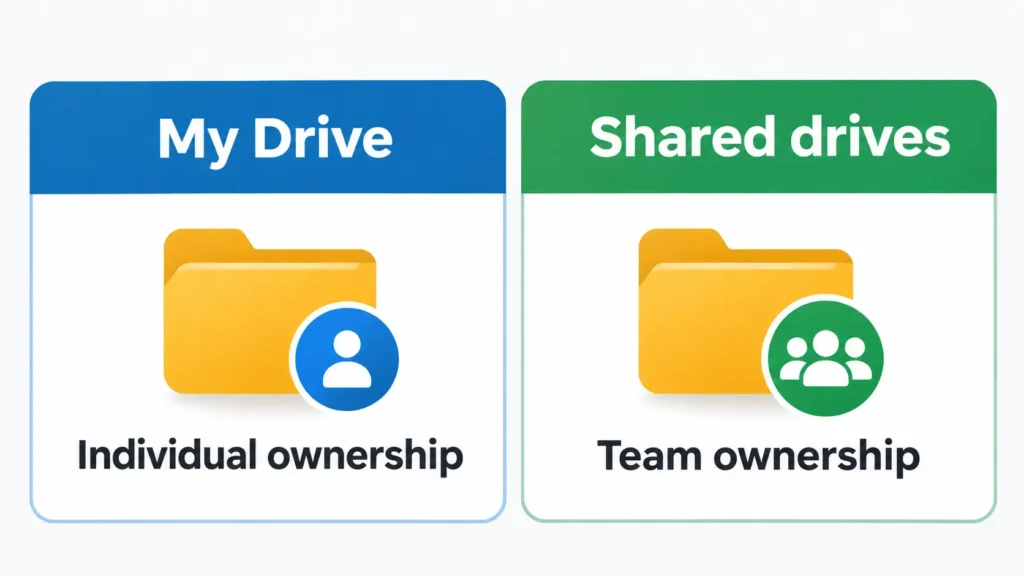
Google’s comparison of My Drive and shared drives makes that difference explicit: in My Drive, files are owned by individuals; in shared drives, they belong to the team. Files created in an organization’s shared drive remain there even if their creator leaves and the account is deleted.
Before reorganizing past projects, check where the actual source files live. A shortcut to a document in someone’s My Drive is not the same as moving the underlying business file into a shared drive. Confirm the correct owner, necessary access, and any organizational restrictions before moving it; then verify that the receiving team can still open it.
The related guide to offboarding a virtual assistant covers account transfers and access removal when a working relationship ends. For an archive project, the narrower question is where business documents should live before anyone leaves.
Four states for business files
The following four states are a practical adaptation of the active-record, inactive-record and disposition concepts explained by NARA and the New York State Archives’ records life-cycle guidance. They are not a formal records-management standard or a substitute for your organization’s retention policy.
Active: needed for work happening now
Active files support open client projects, ongoing campaigns, current reporting and decisions still in progress. Keep them in the working area, with access for the people who need to edit them.
An incomplete November client deliverable belongs here even if other folders from the same client have already been closed. The age of a file does not determine its state on its own.
Reference: finished, but consulted regularly
Reference material is no longer being developed every day but remains useful often enough to keep close. Examples include an approved brand guide, a signed agreement still in force, current templates and an established policy.
Keep reference folders easy to locate and limit editing where appropriate. The important distinction is frequency of use: a reference document is finished but still part of ordinary work, while an archived document is usually consulted only occasionally.
Archive: finished and rarely needed, but worth keeping
Closed client projects, prior campaign records and older working files may move here once the team has confirmed that they are no longer active and that their purpose for retention is understood.
An archived folder should still have a meaningful name, a named owner, a reason for keeping it, controlled access and a way to retrieve it. “Old stuff” with no retrieval plan is a hiding place, not a useful archive.
Hold: no routine move or deletion without approval
Hold marks files needing special review because of an unresolved dispute, an investigation, a tax or financial-record obligation, a contractual requirement or another retention concern. It is an internal pause and escalate label, not a claim that placing a folder in Hold creates a formal legal hold.
The Hold flag can apply to an otherwise Active, Reference or Archive folder. Do not relocate, overwrite or delete the underlying records as part of a routine cleanup until the authorized owner or relevant adviser confirms what is permitted, including any preservation requirements.
These four categories are decision states, not a required four-folder structure. The next step is to give each folder a clear rule that a colleague can use later.
Give each folder an owner and a retrieval rule
Folder names are only the visible part of an archive. For files to remain usable, the team also needs to know who can open them, why they are retained, how to request access, when they should be reviewed and who may approve disposal.
This fictional example shows a compact folder-state rules table. Replace the example roles and review dates with your own approved decisions.
| Folder / state | Owner | Why kept | Who can open | How to retrieve | Review date | Deletion approver |
|---|---|---|---|---|---|---|
| Current client delivery / Active | Account lead | Finish open work | Delivery team | Working client folder | At project close | Business owner |
| Approved brand guide / Reference | Marketing lead | Reuse current standards | Team, view access | Reference > Brand | Each January | Brand owner |
| Closed client projects 2025 / Archive | Operations lead | Project history | Named managers | Archive > 2025 > Client | Each January | Business owner |
| Tax-year support / Hold | Finance lead | Retention review pending | Finance and adviser | Original location; request via finance lead | On adviser sign-off | Authorized finance owner |
This table is a folder-level rule, not a demand to list every file in a separate spreadsheet. The Hold row also demonstrates why a state need not mean moving documents immediately: the files stay in their approved location until the responsible person clears the restriction.
If your business already maintains procedures in an SOP library, keep the explanation of how these folder-state rules are applied there. The SOP library remains the home for instructions; this table governs the business files those instructions affect.
How to set up a shared-drive archive in Google Drive
Google’s shared-drive documentation describes file moves, permissions, Trash and restoration, but not a separate archive status. For most small teams, an “archive” in Google Drive is simply a folder or separate shared drive whose access and review rules you manage.
One possible layout is:
- Active: Current clients and projects, grouped by account or workstream.
- Reference: Approved templates, brand assets, active agreements and policies.
- Archive: Completed projects, then year, then project or client.
- Hold: A restricted review location or visible status list, only when the authorized owner approves any change in location. Files subject to preservation requirements may need to stay exactly where they are.
An archive folder inside the existing shared drive is simpler when the same team needs occasional access. A separate archive shared drive can make sense when fewer people should manage historical files and you can maintain a clear retrieval process. Neither setup eliminates the need for backup, retention decisions or access reviews.
Permissions affect which design will work. Under Google Workspace’s documented shared-drive roles, Content managers or higher can move files within a shared drive, but moving files between shared drives requires Manager access. Managers can also permanently delete items from Trash before the usual 30 days. Limited-access folders can restrict who opens sensitive contents; their setup depends on the applicable role and sharing settings.
Before moving a large folder, confirm with the administrator that the action is permitted, any external sharing is appropriate and the intended people retain access. Test a small, non-sensitive folder first. For sensitive or held records, the owner should decide whether moving is acceptable at all.
If your team uses SharePoint or OneDrive
Microsoft’s archive terminology is different from a folder named Archive. Microsoft 365 Archive is a separate storage feature for inactive SharePoint content. Microsoft’s current documentation says file-level archiving is available for SharePoint sites when the tenant and site are enabled; it is not a general archive button for all OneDrive files.
Archived files are not directly openable until reactivated. Microsoft describes two stages in its archive-state documentation: during the first seven days, reactivation is immediate; afterward it can take up to 24 hours. Its end-user guidance adds that bulk folder reactivation can take up to 48 hours to schedule and finish in large cases.
If your team needs yesterday’s project files at short notice, verify that the particular Microsoft archive feature and reactivation delay suit that need. Eligibility, configuration and permissions matter, and archival storage is not the same decision as folder organization.
When old records must not be archived, moved or deleted
Do not use “older than twelve months” or another age threshold as automatic permission to dispose of business documents. Obligations may depend on the country, the record and an ongoing event.
For example, the US Internal Revenue Service says record-keeping periods depend on the transaction or event documented and advises checking whether insurers or creditors require longer retention. UK government guidance for limited companies gives a six-year baseline from the end of the relevant financial year for company records, with specified cases requiring longer retention. These are jurisdiction-specific illustrations, not a general rule for every business.
Open disputes, regulated information, contracts still carrying obligations and records under an applicable preservation hold need a decision from the appropriate business owner, administrator, accountant or legal adviser. Where personal information is involved, privacy and deletion obligations can also affect what may be kept.
Moving a document to Archive does not shorten its retention obligation, and moving it to Hold does not itself satisfy any formal preservation process. Confirm the governing requirement before approving disposal or changing access.
Questions to settle before the first folder moves
Before assigning the cleanup, get clear answers to these questions:
- Who is responsible for each top-level folder, including folders whose creators have left?
- Which business files still live in a person’s My Drive rather than under team ownership?
- Which records have unresolved contractual, privacy, financial or legal restrictions?
- Who can move files, change access and permanently delete from Trash in the actual platform setup?
- Where is the recovery copy or backup, who can restore it, and has that process been checked?
- How will someone find a closed project later without asking the person who archived it?
Incomplete answers are a reason to flag specific folders for review, not to empty the drive in one pass.
Which parts of the routine can be handed off
Once the owner has approved the states and boundaries, routine document work can be delegated: checking folder names, applying agreed labels, moving eligible files, updating the folder-state table and flagging records with uncertain ownership. Sensitive access decisions, holds, retention periods and permanent deletion approval should remain with the appropriate authorized person.
My Admin & Operations support at Boost VA includes document handling and access administration within agreed instructions. The useful handoff is a clearly defined set of eligible folders and an escalation route, rather than unrestricted authority to reorganize the entire drive.
Keep business memory findable
Shared-drive cleanup works when older files become easier to locate without losing their ownership or context. Active work remains accessible, reference material stays convenient, archive folders have a reliable retrieval path and Hold prevents premature action on records needing special review.
Start this week by assigning a named owner to every top-level folder. That one decision gives the rest of the archive rules someone accountable for keeping them useful.